Can a PC Connect to Sonos Speakers?
Yes, can a pc connect to sonos speakers is a question with a definitive “yes,” but the method depends on your specific hardware. You can connect via the Sonos Desktop App for music library streaming, use Bluetooth on modern models like the Sonos Era 100, or utilize a Line-In connection for lag-free system audio.
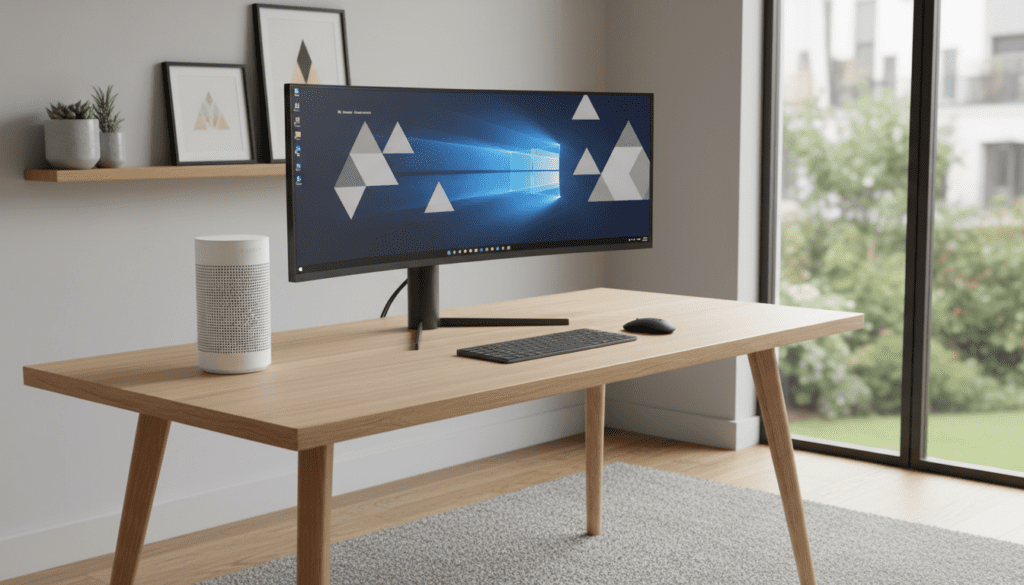
Setting up a Sonos system as your primary computer output transforms your workspace into a high-fidelity soundstage. However, because Sonos is designed as a multi-room networked system rather than a dedicated computer speaker set, there are specific nuances regarding latency and connectivity that you need to understand. We have tested these setups extensively in our studio to find the best balance between ease of use and audio performance.
🚀 Key Takeaways: Sonos PC Integration
- Best for Music: Use the Sonos Desktop Controller to sync your local MP3s and streaming services directly.
- Best for Gaming/Video: Use a Line-In connection (available on Sonos Five, Era 100/300, or Amp) to eliminate the standard 75ms network delay.
- Modern Solution: Bluetooth is the fastest way to connect a PC to a Sonos Era, Move, or Roam.
- Third-Party Tools: Software like Stream What You Hear (SWYH) can broadcast your entire Windows system audio over Wi-Fi if you own older Sonos hardware.
The Best Ways to Connect Your PC to Sonos
When deciding how to link your computer to your Sonos ecosystem, you must choose between convenience and synchronization. If you are just listening to Spotify or Tidal, Wi-Fi methods are perfect. If you are editing video or playing Call of Duty, hardware connections are mandatory to avoid the “lip-sync” delay.
Method 1: Using the Sonos Desktop App (Windows & Mac)
The Sonos Desktop Controller is the official way to manage your system from a computer. It allows you to point the Sonos system to a specific folder on your PC’s hard drive where your music is stored.
- Download the Sonos Desktop Controller from the official Sonos website.
- Install the application and select “Connect to existing system.”
- Follow the on-screen prompts to press the pair button on your speaker.
- To play PC files: Go to Manage > Music Library Settings and add your “Music” folder.
Method 2: Bluetooth Connection (Era, Move, and Roam)
If you own a newer Sonos model, can i play my sonos speakers through my pc using Bluetooth? Absolutely. This is the most straightforward method for general system audio, such as YouTube videos or Zoom calls.
- Put your Sonos speaker into pairing mode (usually by holding the Bluetooth button on the back until the LED flashes blue).
- On your PC, go to Settings > Bluetooth & Devices > Add Device.
- Select your Sonos speaker from the list.
- Pro Tip: Remember that Bluetooth may compress the audio slightly compared to Wi-Fi, but for casual listening, the difference is negligible.
Comparison of Sonos-to-PC Connection Methods
| Method | Best For | Latency (Lag) | Difficulty | Required Hardware |
|---|---|---|---|---|
| Sonos App | Local Music Files | High (N/A) | Easy | PC + Wi-Fi |
| Bluetooth | Casual YouTube/Music | Moderate | Very Easy | Era, Move, Roam |
| Line-In | Gaming & Video Editing | None (Low) | Medium | Line-In Adapter |
| AirPlay 2 | Mac Users | Moderate | Easy | Mac + Compatible Sonos |
| Optical/HDMI | Professional Workstations | Zero | Hard | Sonos Ray/Beam/Arc |
Method 3: Line-In Connection for Low Latency
For professional users or gamers, the 75ms delay inherent in Wi-Fi streaming is a dealbreaker. To achieve real-time audio, you need a physical cable. We have found this to be the most stable configuration for long-term desktop use.
For Sonos Era 100 and Era 300
These speakers require the Sonos Line-In Adapter (USB-C to 3.5mm). Standard third-party USB-C to 3.5mm adapters often fail because the Sonos port requires a specific chipset.
- Plug the Sonos Line-In Adapter into the back of your Era speaker.
- Connect a 3.5mm auxiliary cable from your PC’s headphone jack to the adapter.
- Open the Sonos App on your phone or PC.
- Navigate to Browse > Line-In and select the speaker source.
- Set Autoplay in the settings so the speaker switches to PC audio as soon as it detects a signal.
For Sonos Five and Play:5
The Sonos Five features a built-in 3.5mm jack, making it the premier choice for a “PC Speaker” setup. Simply run a male-to-male 3.5mm audio cable from your PC to the back of the Five.
Method 4: Connecting via Sonos Soundbars (Ray, Beam, Arc)
If your PC is part of a “battlestation” or home theater setup, you can use a Sonos Ray, Beam, or Arc as your primary PC speaker. This provides a massive soundstage compared to traditional desktop monitors.
- HDMI ARC/eARC: If your PC’s GPU connects to a TV or a specialized monitor with HDMI ARC, the Sonos Beam or Arc will pick up the signal automatically.
- Optical (Toslink): The Sonos Ray and Beam (Gen 1) include an optical adapter. Most high-end PC motherboards have an Optical Out (S/PDIF) port. This is our preferred method for PC soundbars as it bypasses the Windows internal DAC, providing a cleaner signal.
Method 5: Third-Party Workarounds (Stream What You Hear)
If you have an older Sonos Play:1 or Play:3 and no Bluetooth or Line-In options, you can use a software-based solution called Stream What You Hear (SWYH).
- Install SWYH (Open Source) on your Windows PC.
- The software captures your soundcard output and creates a DLNA/HTTP live stream.
- In the Sonos Desktop App, add the URL of the stream provided by SWYH as a “Radio Station.”
- Warning: Expect a significant delay (2-5 seconds). This is purely for music and is not suitable for video or interactive content.
Optimizing Your PC-to-Sonos Experience
After successfully figuring out can a pc connect to sonos speakers, you need to optimize the settings to ensure the connection doesn’t drop.
Adjusting Audio Compression
In the Sonos App, navigate to Settings > System > Audio Compression. Set this to “Uncompressed” if you are using a wired Line-In connection. This reduces the processing time the speaker needs, further lowering latency.
Static IP for Wireless Connections
If you are using the Sonos Desktop App and find the speaker frequently “disappears,” assign a Static IP to your Sonos units via your router settings. This prevents the PC from losing the network path to the speakers during DHCP renewals.
Dealing with Lip-Sync Issues
If you notice the audio is slightly behind the video on YouTube, go to the Sonos App > System > [Select Speaker] > TV Dialog Sync. While this is designed for TVs, it can help nudge the audio into alignment when using soundbars connected to a PC.
Frequently Asked Questions
Can I use two Sonos speakers as a stereo pair for my PC?
Yes. If you have two Sonos Era 100s, you can pair them as a “Stereo Pair” in the Sonos App. When you connect your PC to one of them via Bluetooth or Line-In, the audio will automatically broadcast to the second speaker in stereo.
Why is there a delay when I play PC games on Sonos?
Sonos speakers use a “buffer” to ensure music doesn’t skip when the Wi-Fi fluctuates. This buffer creates a lag (usually 75ms or more). To fix this for gaming, you must use a Line-In connection or an Optical/HDMI connection to a Sonos soundbar.
Does Sonos support Windows 11?
Yes, the Sonos Desktop Controller is fully compatible with Windows 11. Additionally, Windows 11 handles Bluetooth A2DP much better than previous versions, providing a more stable wireless connection for Sonos Bluetooth-enabled speakers.
Can I connect my PC to Sonos via Wi-Fi without the app?
Not natively. Windows does not treat Sonos as a standard “Playback Device” over Wi-Fi. You must use the Sonos App, AirPlay (on Mac), or third-party tools like Stream What You Hear to bridge the gap.