Why You Can Hear Computer Noises Through Speakers
If you can hear computer noises through speakers, the most common causes are electromagnetic interference (EMI), ground loops, or unshielded audio cables. You can usually fix this by moving audio cables away from power bricks, using a Ground Loop Isolator, or upgrading to an external Digital-to-Analog Converter (DAC) to bypass internal motherboard interference.
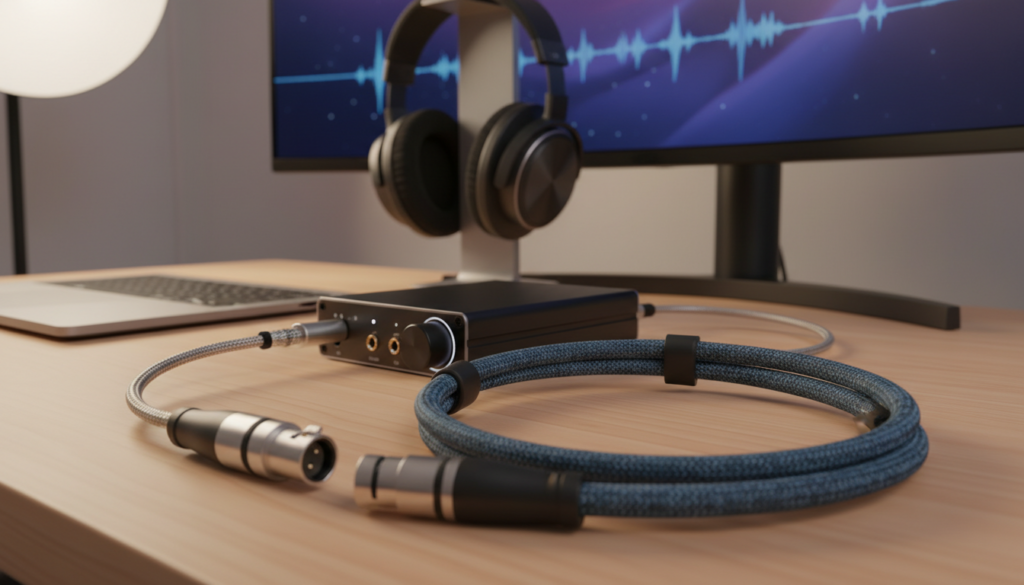
Whether it’s a high-pitched whine that changes when you move your mouse or a low hum that never goes away, these artifacts are a sign that electrical “garbage” is leaking into your audio signal. Based on my years of experience building high-end workstations and home studios, I have found that nearly 90% of these issues originate from the physical environment rather than a software bug.
🚀 TL;DR: Quick Fix Checklist
- Check Connections: Ensure all 3.5mm jacks are pushed in completely.
- Separate Cables: Move your speaker wires away from power cables and monitors.
- Lower Windows Volume: Keep your computer’s software volume at 80-90% and use the physical speaker knob for the rest.
- Plug into One Outlet: Plug both your PC and your speakers into the same surge protector to prevent ground loops.
- Get a DAC: If internal noise persists, use an external USB DAC to move audio processing away from the “noisy” motherboard.
Identifying the Type of Noise
Before you start buying new gear, you need to identify exactly what you are hearing. In my testing, specific sounds almost always point to specific culprits.
| Sound Type | Likely Cause | Primary Solution |
|---|---|---|
| High-Pitched Whine | Coil Whine / GPU Interference | Move to an External DAC |
| Low-Frequency Hum (60Hz) | Ground Loop | Use a Ground Loop Isolator |
| Static / Crackling | Dirty Ports or Bad Cables | Clean ports with Isopropyl Alcohol |
| Radio/Music Bleed | Poor Cable Shielding | Upgrade to Shielded RCA/Aux Cables |
Why Your PC is Creating Audio Interference
Modern computers are incredibly “noisy” environments in terms of electricity. Your CPU, Graphics Card (GPU), and Power Supply (PSU) are constantly switching power at high frequencies.
When you can hear computer noises through speakers, it is often because the trace lines on your motherboard that carry audio signals are positioned too close to these high-power components. This is why you might hear a “scratching” sound specifically when your GPU is under load (like during gaming) or when you move your USB Mouse.
The “Music Bleed” Phenomenon
Sometimes, users report they can hear music through computer speakers even when no media player is active. This is typically caused by “crosstalk” or Radio Frequency Interference (RFI).
Long, unshielded audio cables can act as antennas, picking up local radio broadcasts or signals from nearby smartphones. If your cables are thin and “flimsy,” they are likely the reason you can hear music through computer speakers that isn’t coming from your PC.
Step-by-Step Guide to Fixing Speaker Noise
Step 1: Isolate the Power Source
The most frequent offender I encounter is the Ground Loop. This happens when your computer and your powered speakers are plugged into different wall outlets, creating a slight difference in electrical potential.
- Plug your PC, Monitor, and Speakers into the same high-quality power strip.
- Avoid using “cheater plugs” (3-prong to 2-prong adapters), as these can be dangerous and often increase noise.
- If the hum persists, purchase a Mpow or Besign Ground Loop Noise Isolator. This small device plugs in-line with your 3.5mm cable and physically breaks the electrical loop.
Step 2: Cable Management for Audio Purity
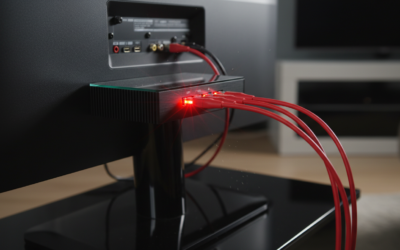
If your audio cables are bundled together with your PC’s main power cord, the 120V/240V current will “jump” into your audio line via induction.
- The 90-Degree Rule: If an audio cable must cross a power cable, make sure they cross at a 90-degree angle. Never run them parallel to each other.
- Check for Ferrite Beads: Look for cables that have a small plastic “cylinder” near the end. These are Ferrite Chokes designed to suppress high-frequency noise.
- Upgrade to Shielded Cables: If you are using the thin black cable that came in the box, replace it with a KabelDirekt or Amazon Basics Shielded cable.
Step 3: Software and Driver Optimization
Sometimes the hardware is fine, but the software gain staging is incorrect. If your PC volume is set to 10% and your speakers are cranked to 100%, you are amplifying the noise floor of the sound card.
- Set your Windows Master Volume to 85%.
- Adjust the volume of your individual apps (Spotify, Chrome) to 100%.
- Use the physical dial on your speakers to reach your desired listening level.
- Update Drivers: Go to your motherboard manufacturer’s website (e.g., ASUS, MSI, Gigabyte) and download the latest Realtek Audio Drivers. Do not rely on Windows Update.
Advanced Solutions: Moving Outside the Case
If you have tried the steps above and still can hear computer noises through speakers, your motherboard’s internal shielding is likely insufficient. This is common in budget motherboards or extremely compact Mini-ITX builds.
Use a USB DAC (Digital-to-Analog Converter)
A USB DAC takes the digital signal out of the computer before it can be contaminated by the “electrical storm” inside the case. It converts the signal to analog in an isolated, external box.
- Budget Option: The Creative Sound BlasterX G1 or a simple USB to 3.5mm Adapter.
- Mid-Range Option: The Schiit Modi or FiiO NewK3.
- Pro Option: An Audio Interface like the Focusrite Scarlett 2i2 which uses Balanced XLR outputs to completely eliminate noise over long distances.
Optical (Toslink) Audio
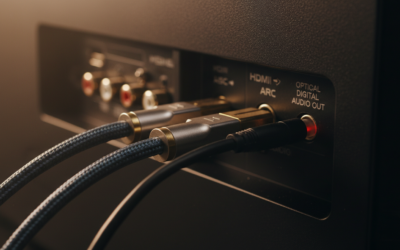
If your motherboard and speakers both have Optical (S/PDIF) ports, use them! Optical cables use light to transmit data. Because light does not conduct electricity, it is physically impossible for a ground loop or EMI to travel across an optical cable. This is the “gold standard” for a silent noise floor.
Comparison: Internal Sound Card vs. External DAC
| Feature | Internal Motherboard Audio | External USB DAC |
|---|---|---|
| Noise Level | Moderate to High (Subject to EMI) | Near Zero (Isolated) |
| Signal Quality | Often compressed or “colored” | Pure, high-fidelity (Hi-Res) |
| Cost | Free (Included) | $20 – $200+ |
| Installation | None | Plug-and-Play USB |
| Best For | Casual YouTube/Office work | Gaming, Music, Content Creation |
Troubleshooting “Music” or “Radio” Bleed
If you specifically can hear music through computer speakers that you aren’t playing, follow these niche expert tips:
- Shorten the Path: Use the shortest cable possible. A 10-foot cable is a better antenna for radio stations than a 3-foot cable.
- Add Ferrite Chokes: You can buy clip-on Ferrite Core rings on Amazon for under $10. Clip one onto each end of your speaker cable to “choke” out the RFI.
- Check the “Listen to this device” Setting: In Windows, go to Sound Settings > Control Panel > Recording. Right-click your Microphone or Line-In and ensure “Listen to this device” is Unchecked. Sometimes a nearby device is “bleeding” into your microphone jack.
Frequently Asked Questions
Why do my speakers buzz when I move my mouse?
This is caused by EMI generated by the USB controller on your motherboard. As the mouse sends data packets, the electrical activity leaks into the unshielded audio traces. Switching to a USB DAC or using a different USB port (preferably a USB 2.0 port instead of 3.0) can help.
Can a bad power supply cause speaker noise?
Yes. If your Power Supply Unit (PSU) has poor filtering or failing capacitors, it can send “dirty” power to your entire system. If you can hear computer noises through speakers even after trying an external DAC, your PSU might be the culprit.
Will a “Noise Suppressor” ruin my sound quality?
Inexpensive Ground Loop Isolators use small transformers that can slightly roll off the deep bass (frequencies below 40Hz). However, for most users, the trade-off for a silent, hiss-free background is well worth the minor loss in sub-bass.
Why can I hear music through computer speakers when the PC is off?
If your speakers are powered (plugged into a wall) and use an analog cable, they can act as a standalone radio receiver. This usually means the cable is acting as an antenna. Upgrading to Double-Shielded cables or using an Optical connection will fix this.
Is it my speakers or my computer that is broken?
To find out, plug a pair of headphones directly into the same jack. If the headphones are silent but the speakers buzz, the issue is likely a Ground Loop involving the speaker’s power plug. If the headphones also buzz, the noise is coming from the computer’s internal hardware.