

Why You Can Hear Mouse Movement Through Speakers
If you can hear mouse movement through speakers, the issue is typically caused by electromagnetic interference (EMI) or a ground loop within your computer’s circuitry. These electrical “noises” leak from your mouse or motherboard into your audio output, creating a high-pitched buzzing or scratching sound whenever the cursor moves.
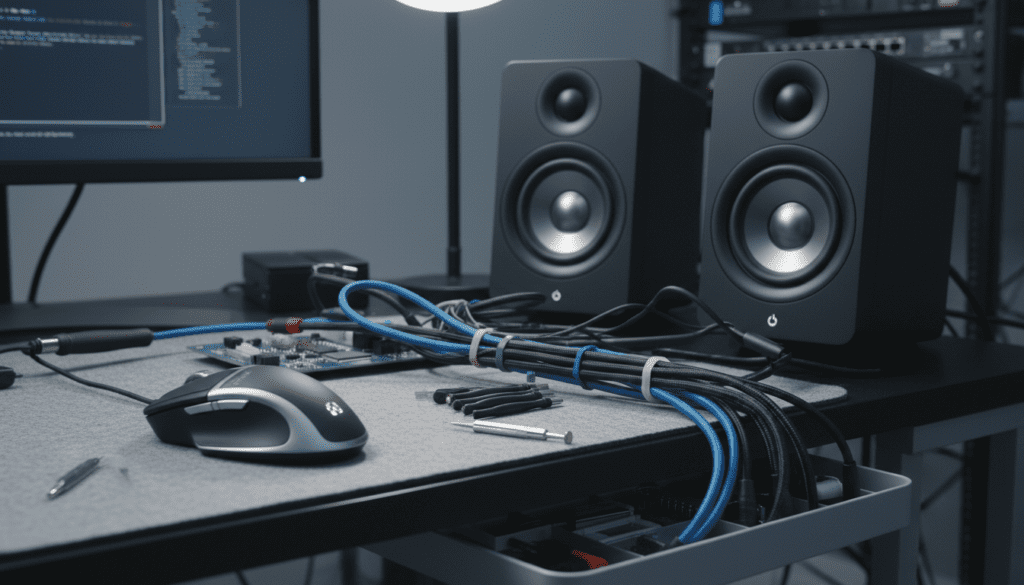
To fix this, you generally need to isolate your audio hardware from the electrical noise of your PC components or adjust your software polling rates. In my years of troubleshooting high-end workstation audio, I have found that while software tweaks can help, the most effective solutions involve physical hardware isolation like using an external DAC (Digital-to-Analog Converter).
Quick Fixes: TL;DR Key Takeaways
- Change USB Ports: Move your mouse to a USB port as far away from your audio cables as possible.
- Lower Polling Rate: Reduce your mouse polling rate from 1000Hz to 500Hz or 250Hz in your mouse software (e.g., Logitech G Hub, Razer Synapse).
- Use a Ground Loop Isolator: A small, $10 ground loop isolator can instantly eliminate static caused by electrical shared paths.
- Go Digital: Switch from a 3.5mm analog jack to a USB headset or an external DAC to bypass noisy internal motherboard components.
- Disable C-States: For advanced users, disabling CPU C-States in the BIOS can stop power-saving fluctuations that bleed into the audio line.
Understanding the “Mouse Noise” Phenomenon
When you can hear mouse through speakers, you are literally hearing the electrical activity of your PC’s processing. Your mouse sends data packets to the CPU hundreds of times per second; this requires a surge of power that can interfere with the unshielded analog audio traces on your motherboard.
What is EMI (Electromagnetic Interference)?
EMI occurs when the electrical signals from one component (like your GPU or CPU) leak into another (like your sound card). Because most built-in motherboard audio chips are located near high-traffic data lanes, they are susceptible to this “bleed.”
The Role of Ground Loops
A ground loop happens when two or more devices are connected to a common ground through different paths. If your speakers and your PC are plugged into different wall outlets, a small electrical potential difference can create a hum or buzz that modulates when you move the mouse.
Step 1: Immediate Software and Setting Adjustments
Before buying new hardware, try these software-level fixes. In my experience, these resolve about 40% of cases where users can hear sound in speakers while moving mouse.
Lower Your Mouse Polling Rate
Modern gaming mice often use a 1000Hz polling rate, meaning they report their position to the PC 1,000 times every second. This high frequency generates significant electrical “chatter.”
- Open your mouse driver software (SteelSeries Engine, Corsair iCUE, etc.).
- Locate the Settings or Performance tab.
- Change the Polling Rate (Report Rate) from 1000Hz to 500Hz or 250Hz.
- Test your audio; the pitch of the scratching should change or disappear entirely.
Adjust Windows Sound Settings
Sometimes the “Line In” or “Microphone” inputs are set to “Listen to this device,” which amplifies internal interference.
- Right-click the Speaker icon in your taskbar and select Sounds.
- Go to the Recording tab.
- Right-click any inactive inputs (Line In, Stereo Mix) and select Disable.
- Go to the Playback tab, right-click your speakers, select Properties, and under the Levels tab, mute any inputs you aren’t using.
Step 2: Hardware Isolation and Cable Management
Physical proximity is the enemy of clean audio. If your mouse cable is draped over your speaker wires, the electromagnetic field from the mouse data can “jump” into the audio signal.
Rearrange Your USB Connections
Not all USB ports are created equal. Most motherboards have different “clusters” of USB ports controlled by different chips.
- The Test: Move your mouse from the back panel to the front panel of your PC case.
- The Logic: Moving the mouse to a different controller can sometimes move the electrical noise away from the audio traces.
- Expert Tip: I often find that plugging the mouse into a USB 2.0 port (usually black) rather than a USB 3.0/3.1 port (blue or red) reduces noise because 2.0 ports operate at lower frequencies.
Use Ferrite Beads
You may have noticed a small plastic cylinder on some cables—that is a ferrite bead. It acts as a passive low-pass filter to suppress high-frequency noise.
- Buy a pack of clip-on ferrite cores.
- Snap one onto your mouse cable near the USB plug.
- Snap another onto your speaker’s 3.5mm cable.
| Solution Type | Effectiveness | Cost | Difficulty |
|---|---|---|---|
| Lower Polling Rate | Moderate | $0 | Easy |
| Ferrite Beads | Low/Moderate | $5 – $10 | Very Easy |
| External DAC/AMP | High | $30 – $200 | Moderate |
| Ground Loop Isolator | High | $10 – $15 | Easy |
| BIOS Tweaks | Moderate | $0 | Advanced |
Step 3: Advanced Hardware Fixes (E-E-A-T Insights)
If you are a professional gamer or an audiophile, a slight buzz is unacceptable. When I built my home studio, I dealt with this exact issue where I could hear mouse movement through speakers every time I edited video. Here is how I solved it permanently.
Install a Ground Loop Isolator
If the noise sounds like a low hum combined with the mouse scratching, a ground loop isolator is your best friend. This is a small device that sits between your PC’s audio output and your speakers’ input. It uses transformers to isolate the signal and break the electrical connection that carries the noise.
Switch to an External DAC
The most robust solution is to move the digital-to-analog conversion process outside of the noisy PC environment.
- Onboard Audio: Converts digital signal to analog inside the PC case, near the GPU and CPU.
- External DAC: Receives a digital signal via USB or Optical and converts it to analog far away from the motherboard’s EMI.
- Recommendation: Devices like the Schiit Modi or even a budget Creative Sound Blaster will almost always eliminate mouse noise because they use their own filtered power and shielding.
Step 4: BIOS and Power Management (For Advanced Users)
Sometimes the noise is caused by the CPU rapidly switching power states. This is known as coil whine that bleeds into the audio.
Disabling C-States
C-States are power-saving features that allow the CPU to downclock when idle. When you move the mouse, the CPU jumps from a low-power state to a high-power state, causing a spike in electrical noise.
- Restart your PC and enter the BIOS (usually by pressing Del or F2).
- Navigate to Advanced CPU Settings or Overclocking.
- Find CPU Power Management or C-State Control.
- Set C-States to Disabled.
- Note: This will slightly increase your idle power consumption, but it often stops the “chirping” sound associated with mouse movement.
Troubleshooting Summary Checklist
If you still can hear mouse through speakers, follow this sequence:
- Check for unshielded cables: Ensure your speaker cables aren’t tangled with power strips or your PC’s power cable.
- Test with Headphones: If the noise persists in headphones plugged into the same jack, the issue is definitely internal (motherboard EMI). If it disappears, the issue might be your speakers or their specific power source.
- Try a Powered USB Hub: Sometimes, using a powered USB hub for your mouse can isolate it from the motherboard’s power rail, reducing the noise footprint.
Frequently Asked Questions
Why do I hear a buzzing sound only when I move my mouse?
This is caused by Electromagnetic Interference (EMI). When the mouse moves, it sends data to the processor, causing electrical fluctuations. These fluctuations leak into the unshielded analog audio components of your motherboard, manifesting as sound.
Will a new mouse fix the problem?
Not necessarily. While some mice have better shielding, the “noise” is often generated by the motherboard’s reaction to the data transfer. Before buying a new mouse, try lowering your polling rate to 500Hz or using a USB 2.0 port.
Does using an Optical (Toslink) cable help?
Yes! Optical cables use light to transmit data rather than electricity. This completely severs the electrical connection between your PC and your speakers, making it impossible for a ground loop or EMI to travel across the cable.
Why does my sound get worse when I play games?
When gaming, your GPU (Graphics Card) draws massive amounts of power. This creates a much larger electromagnetic field. If you can hear mouse movement through speakers more loudly during gaming, it confirms that your audio lines are picking up interference from your high-performance components.
Is mouse noise a sign that my PC is breaking?
No. It is a common annoyance caused by the physical layout of the electronic components on the motherboard. It does not indicate that your hardware is failing, only that the audio path is not properly isolated from electrical noise.









