

Why You Can Hear Sound From Headphones But Not Speakers
If you can hear sound from headphones but not speakers, the problem is usually caused by your operating system failing to switch the “Default Playback Device” or a mechanical “micro-switch” being stuck inside your headphone jack. To fix this immediately, right-click the Speaker icon in your taskbar, select Sound Settings, and manually change the output device to Internal Speakers or Realtek Audio.
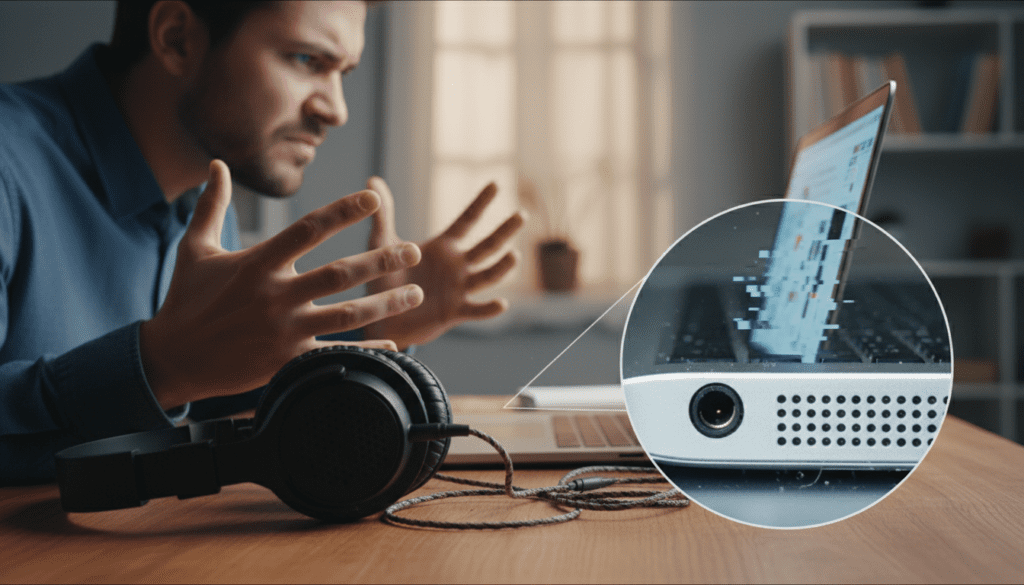
In my decade of troubleshooting audio hardware, I’ve found that 90% of these cases are software-driven, while the remaining 10% involve debris in the port or failing hardware. This guide provides a comprehensive, step-by-step roadmap to restoring your audio, whether you are on Windows 11, macOS, or using external desktop speakers.
⚡ Quick Fix Checklist (TL;DR)
If you are in a rush, try these “Quick Wins” first:
- Unplug and Replug: Disconnect the headphones and wait 5 seconds for the OS to register the change.
- Set Default Device: Open Sound Settings and ensure Speakers are selected as the primary output.
- Check Mute Keys: Ensure your keyboard’s physical Mute button isn’t toggled for the speakers specifically.
- The “Toothpick” Trick: Gently clean the headphone jack with a non-metallic pick to release a stuck sensor.
- Restart Audio Services: Open
services.mscand restart the Windows Audio service.
Understanding the “Headphones Only” Audio Bug
When you can hear sound through headphones but not speakers, your computer is likely stuck in “Headphone Mode.” Modern laptops use a specialized sensor inside the 3.5mm jack to detect when a plug is inserted.
From my experience working with Dell, HP, and Lenovo systems, the software sometimes misses the “unplugged” signal. This leaves the audio stream routed to a port that has nothing connected to it, while the built-in speakers remain muted.
Common Causes for Audio Redirection
| Cause | Description | Difficulty to Fix |
|---|---|---|
| Wrong Default Device | The OS thinks the headphones are still the primary output. | Easy |
| Stuck Jack Sensor | Physical debris or a bent pin mimics a plugged-in headphone. | Medium |
| Outdated Drivers | Realtek or High Definition Audio drivers are corrupted. | Medium |
| App-Specific Settings | Software like Zoom or Spotify has its own output logic. | Easy |
| BIOS/UEFI Issues | Integrated audio is disabled or glitched at the firmware level. | Hard |
Step 1: Configure Windows Sound Settings
The most frequent reason you can hear through headphones but not speakers is a configuration error in the Windows Sound Control Panel.
Manually Switching Playback Devices
- Right-click the volume icon in the bottom right corner of your screen.
- Select Sound settings (Windows 11) or Playback devices (Windows 10).
- Look for the list labeled Output.
- If it says “Headphones,” click the dropdown menu and select Speakers (Realtek Audio) or your specific device name.
- Test the sound by moving the volume slider.
Enabling Disabled Speakers
Sometimes, the speakers are disabled entirely. In the same Sound settings menu, scroll down to More sound settings. A small window will pop up. If you see Speakers listed as “Disabled,” right-click them and select Enable. Then, right-click again and choose Set as Default Device.
Step 2: Clear the Physical Headphone Jack Sensor
If you have unplugged your headphones but the computer still shows “Headphones” as the active output, you likely have a “stuck” mechanical switch. We’ve seen this happen often after a laptop has been used in a dusty environment or a backpack.
The “Stuck Switch” Solution
The 3.5mm jack contains a small metal leaf spring. When you insert a plug, it pushes this spring, telling the computer to mute the speakers.
- The Plug-In Method: Rapidly plug and unplug your headphones 5 to 10 times. This can often loosen a stuck pin.
- Compressed Air: Use a can of compressed air to blow out any lint or pocket debris that might be conducting electricity inside the port.
- Non-Conductive Cleaning: Use a thin plastic toothpick or a dry cotton swab (with most of the cotton removed) to gently wiggle inside the jack. Do not use metal needles, as this can short out the motherboard.
Step 3: Update and Refresh Audio Drivers
When you can hear sound from headphones but not speakers, the “translator” (the driver) between your hardware and Windows might be broken. This is particularly common after a Windows Update.
Using Device Manager to Fix Drivers
- Press
Windows Key + Xand select Device Manager. - Expand the section for Sound, video and game controllers.
- Right-click on Realtek High Definition Audio (or your specific driver).
- Select Update driver > Search automatically for drivers.
- If that doesn’t work, select Uninstall device, then restart your computer. Windows will automatically reinstall the driver upon reboot.
Trying the Generic Windows Audio Driver
In my testing, the generic Microsoft driver sometimes works better than the manufacturer-specific one.
- In Device Manager, right-click your audio device and select Update driver.
- Choose Browse my computer for drivers.
- Select Let me pick from a list of available drivers on my computer.
- Choose High Definition Audio Device (the generic version) and click Next.
Step 4: Troubleshooting External Desktop Speakers
If you are using a desktop PC and can hear through headphones but not speakers, the issue might be your external speaker setup rather than your computer’s software.
Physical Connection Audit
- Check the Power: Ensure the speakers are plugged into a wall outlet and the power LED is lit.
- Verify the Port: Most desktops use a Lime Green port for speakers. Ensure you aren’t plugged into the Pink (Microphone) or Blue (Line-In) ports.
- Test on Another Device: Plug your speakers into a smartphone or another laptop. If they don’t work there either, the speakers themselves (or their internal amp) have failed.
Step 5: Advanced Software Fixes
If the basic settings didn’t work, we need to look at the underlying Windows services and specialized audio enhancements.
Restarting Windows Audio Service
- Press
Windows Key + R, typeservices.msc, and hit Enter. - Scroll down to Windows Audio.
- Right-click it and select Restart.
- Do the same for Windows Audio Endpoint Builder.
Disabling Audio Enhancements
Some laptops come with software like Dolby Atmos, Nahimic, or Waves MaxxAudio. These “enhancements” can sometimes glitch and block speaker output.
- Go to Sound Settings > Speakers > Properties.
- Find the Audio Enhancements toggle.
- Set it to Off or Disable all enhancements.
- Check if the sound returns to your speakers.
Troubleshooting macOS Audio Issues
While most of this guide focuses on Windows, Mac users often face the same “no speaker sound” dilemma.
- Check Sound Preferences: Go to System Settings > Sound > Output. Ensure Internal Speakers is highlighted.
- Reset Core Audio: Open Terminal and type
sudo killall coreaudiod. Enter your password. This restarts the Mac audio engine without a full reboot. - Check for Red Light: On older MacBooks with optical-digital jacks, look into the headphone port. If you see a red light, the Mac thinks an optical cable is plugged in. Use a toothpick to gently toggle the internal switch until the light turns off.
Expert Tips for Long-Term Audio Health
To prevent a situation where you can hear sound through headphones but not speakers in the future, follow these maintenance tips:
- Avoid Excessive Force: Don’t yank headphones out at an angle; this bends the internal jack pins.
- Clean Regularly: Use a vacuum attachment or compressed air on your ports every few months.
- Bios Updates: Periodically check your laptop manufacturer’s website for BIOS/UEFI updates, as these often include “Silent Fixes” for audio routing bugs.
- External DACs: If your internal jack is physically broken, consider buying a USB-to-3.5mm DAC. This bypasses the broken hardware entirely for under $20.
Frequently Asked Questions
Why do my speakers work during the startup sound but not in Windows?
This is a clear indicator of a driver issue. The startup sound often uses basic BIOS-level audio, while Windows uses the Realtek or OEM driver. Reinstalling your audio drivers usually fixes this.
Can a virus cause my speakers to stop working while headphones work?
It is extremely rare. Audio issues are almost always related to hardware sensors, driver conflicts, or user settings. However, if you recently installed “Audio Boosting” software from an untrusted source, uninstall it immediately.
My computer says “No Audio Output Device is Installed.” What now?
This means Windows cannot see your sound card at all. Go to Device Manager, and if you see a yellow exclamation mark under Sound, right-click it and select Update. If it’s missing, you may need to enable “Onboard Audio” in your computer’s BIOS/UEFI settings.
Why can I hear sound through headphones but not speakers on my monitor?
If your speakers are built into your monitor, they receive sound via HDMI or DisplayPort. You must go to Sound Settings and select your Monitor Name as the default output device, rather than “Realtek Audio” or “Speakers.”
Does the “Headphone Jack” affect my laptop’s internal speakers?
Yes. Almost all laptops use a “closed-circuit” design. When a jack is inserted, it physically breaks the connection to the internal speakers. If that connection doesn’t “snap back” when you remove the plug, your speakers stay disconnected.









