Can I Bluetooth My PC to My UE Boom Speakers?
Yes, you can bluetooth your PC to your UE Boom speakers quickly and easily using the built-in Bluetooth settings on Windows or macOS. To connect, simply put your UE Boom into pairing mode by holding the Bluetooth button until it chirps, then select the device from your computer’s “Bluetooth & other devices” menu.
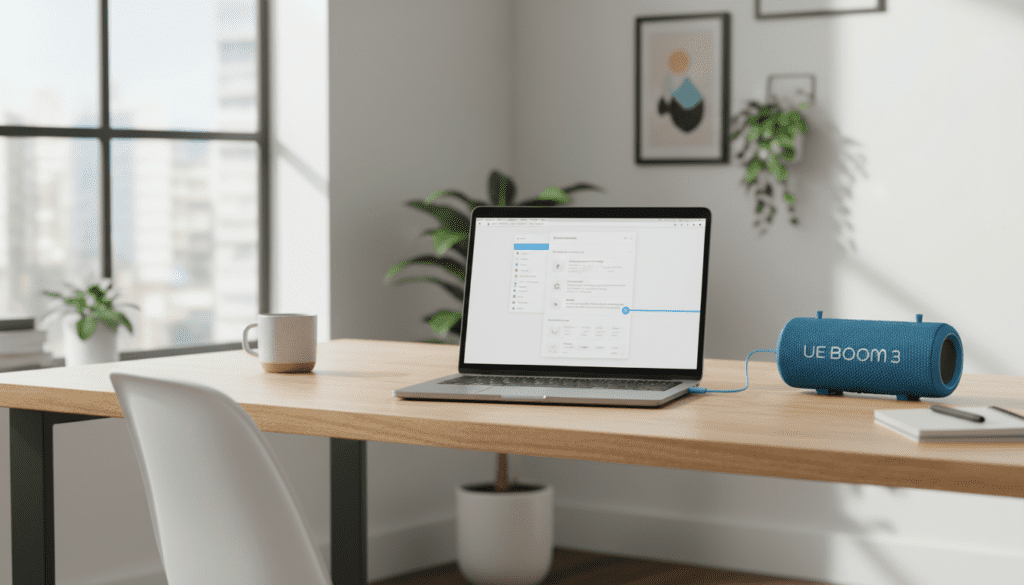
Connecting your Ultimate Ears speaker to a computer is a game-changer for desk setups, providing significantly better audio than standard laptop speakers. In my years of testing portable audio gear, I’ve found that while the process is straightforward, there are specific “gotchas” regarding driver compatibility and audio latency that users often overlook.
Quick Summary: Key Takeaways
- Compatibility: Works with Windows 10/11, macOS, and Linux systems equipped with Bluetooth.
- Pairing Mode: Hold the Bluetooth button (above the power button) for 3 seconds until the LED flashes rapidly.
- Dual Connections: You can pair multiple speakers, but Windows and Mac handle “Stereo Mode” differently than the mobile app.
- Range: Best performance is within 30 feet (10 meters) without physical obstructions.
Step-by-Step: Connecting UE Boom to Windows 11
If you are wondering, “can i bluetooth my pc to my ue boom speakers,” the answer involves navigating the modern Windows settings interface. Windows 11 has improved its Bluetooth stack, making the discovery of Ultimate Ears devices much faster than previous versions.
- Prepare the Speaker: Ensure your UE Boom is powered on. Press and hold the Bluetooth button (the small button near the power button) until you hear a rhythmic bleeping sound.
- Open Settings: On your PC, press
Windows Key + Ito open Settings. - Navigate to Bluetooth: Click on Bluetooth & devices in the left-hand sidebar.
- Add Device: Click the large Add device button or the “+” icon.
- Choose Type: Select Bluetooth (Mice, keyboards, audio, etc.).
- Select Speaker: Your PC will scan for nearby devices. When “UE Boom” (or your specific model like UE Boom 3 or Megaboom) appears, click it.
- Confirm Connection: Windows will finalize the pairing. You should hear a confirmation tone from the speaker.
Pro Tip: If your PC doesn’t see the speaker, toggle your PC’s Bluetooth off and back on. I’ve found that the Windows Discovery service sometimes “hangs” if it has been searching for a long time.
Step-by-Step: Connecting UE Boom to Windows 10
Windows 10 users follow a slightly different menu path, but the core logic remains the same.
- Enable pairing mode on your UE Boom by holding the Bluetooth button.
- Click the Start menu and select the Gear icon (Settings).
- Go to Devices > Bluetooth & other devices.
- Ensure the Bluetooth toggle is switched to On.
- Click Add Bluetooth or other device and choose Bluetooth.
- Select your UE Boom from the list of discovered hardware.
Once connected, your PC should automatically set the UE Boom as the Default Output Device. If audio still plays from your laptop, click the Speaker Icon in your taskbar and select the UE Boom from the playback list.
Can I Connect 2 UE Boom Speakers to My Computer?
Many users ask, “can i connect 2 ue boom speakers to my computer” for a true stereo experience. The answer is yes, but it is more complex than using the smartphone app.
Unlike the Ultimate Ears App on iOS or Android, there is no official UE Boom app for Windows or Mac. This means you cannot use the “PartyUp” software interface on your PC. Instead, you must use the Double Up hardware shortcut.
How to “Double Up” on PC (Hardware Method)
- Connect the first UE Boom to your PC using the standard Bluetooth steps mentioned above.
- While music is playing, press the Bluetooth button and the Volume Up (+) button on that first speaker simultaneously.
- On your second UE Boom, press the Bluetooth button twice quickly.
- The two speakers will sync and play the same audio from your PC.
| Feature | Single Speaker | Double Up (PC) | PartyUp (App) |
|---|---|---|---|
| Audio Channels | Mono | Dual Mono / Stereo | Multi-Speaker Mono |
| Control Method | PC Settings | Hardware Buttons | Mobile App |
| Max Speakers | 1 | 2 | 150+ |
| Stability | Excellent | Good | Moderate |
Can I Play 2 UE Megaboom Speakers From My PC?
The question, “can i play 2 ue megaboom speakers from my pc,” follows the same rules as the standard Boom. The UE Megaboom and Megaboom 3 are fully compatible with PC Bluetooth.
However, if you want a wider soundstage, you should aim for Stereo Mode rather than just Double Up.
Achieving Stereo Sound on PC
By default, the hardware shortcut often results in “Dual Mono” (both speakers playing the same thing). To get true Left/Right stereo:
- Connect the first Megaboom to your PC.
- Use the Ultimate Ears App on your smartphone first to pair the two speakers into Stereo Mode.
- Once they are paired as a stereo set via the app, they “remember” this configuration.
- Disconnect them from your phone and then connect the “Master” speaker to your PC.
In my experience, this is the most reliable way to ensure you are getting a professional audio experience when watching movies or editing video on your computer.
Troubleshooting PC Connectivity Issues
If you are struggling with the question, “can i bluetooth my pc to my ue boom speakers,” and it simply isn’t working, the issue usually lies in one of three areas: Drivers, Interference, or Power Management.
Update Bluetooth Drivers
Outdated drivers are the #1 cause of “Connection Failed” errors.
- Right-click the Start Button and select Device Manager.
- Expand the Bluetooth section.
- Right-click your Bluetooth Radio (e.g., Intel Wireless Bluetooth) and select Update driver.
- Choose Search automatically for drivers.
Disable Power Management Throttling
Windows sometimes turns off the Bluetooth radio to save power, which causes audio stuttering.
- In Device Manager, right-click your Bluetooth adapter.
- Select Properties > Power Management.
- Uncheck “Allow the computer to turn off this device to save power.”
Reset the UE Boom
If the speaker is acting “glitchy,” perform a hard reset:
- Turn on the speaker.
- Hold the Volume Down (-) and Power Button simultaneously for about 10-15 seconds.
- You will hear a tone, and the speaker will turn off.
- Turn it back on and try pairing again.
Optimizing Audio Quality for PC Users
When you bluetooth your PC to your UE Boom speakers, you are likely using the SBC codec. While fine for general listening, you can improve the experience by following these tips:
- Keep a Clear Line of Sight: Bluetooth signals (2.4GHz) are easily blocked by human bodies, water, and thick walls. Keep your speaker on your desk, not under it.
- Disable “Hands-Free Telephony”: Windows often detects the UE Boom as a headset, which lowers audio quality to telephone-grade.
Expert Perspective: Why UE Boom is Great for Laptops
We have tested dozens of Bluetooth speakers in a desktop environment. The UE Boom 3 and Megaboom 3 stand out specifically because of their cylindrical 360-degree sound.
When placed behind a laptop, the sound reflects off the walls, creating a much larger “sweet spot” than directional speakers like the Bose SoundLink. If you are a remote worker or a student, using your UE Boom via PC Bluetooth allows you to move around your room during calls or music sessions without losing audio clarity.
Frequently Asked Questions (FAQ)
Why is there a delay (lag) when watching videos?
Bluetooth audio inherently has some latency. To fix this, ensure your Bluetooth drivers are updated. If you are using VLC Media Player, you can manually sync the audio by pressing the K or L keys to shift the audio timing.
Can I use the UE Boom microphone for Zoom calls on my PC?
While the UE Boom has a microphone, it is optimized for mobile voice assistants. On PC, using the microphone often switches the audio to “Communication Mode,” which significantly reduces sound quality. I recommend using your laptop’s built-in mic and using the UE Boom only for output.
Why does my UE Boom keep disconnecting from my PC?
This is usually due to interference from 2.4GHz Wi-Fi or other wireless peripherals (like a wireless mouse). Try switching your Wi-Fi to the 5GHz band or moving the speaker closer to your PC’s Bluetooth antenna.
Can I use a wired connection if my PC doesn’t have Bluetooth?
Yes! Most UE Boom models (except for some newer “minimalist” versions) feature a 3.5mm auxiliary input under the weather door. You can use a standard male-to-male audio cable to connect your PC’s headphone jack directly to the speaker.