

Why You Can’t Connect Your PS4 Directly to Wi-Fi Speakers
You cannot connect your PS4 to Wi-Fi speakers wirelessly using the console’s native settings because the PlayStation 4 does not support network-based audio output or standard Bluetooth audio profiles. However, you can successfully bridge this gap by using a USB Bluetooth transmitter, a Remote Play workaround, or an HDMI audio extractor to send sound to your wireless ecosystem.
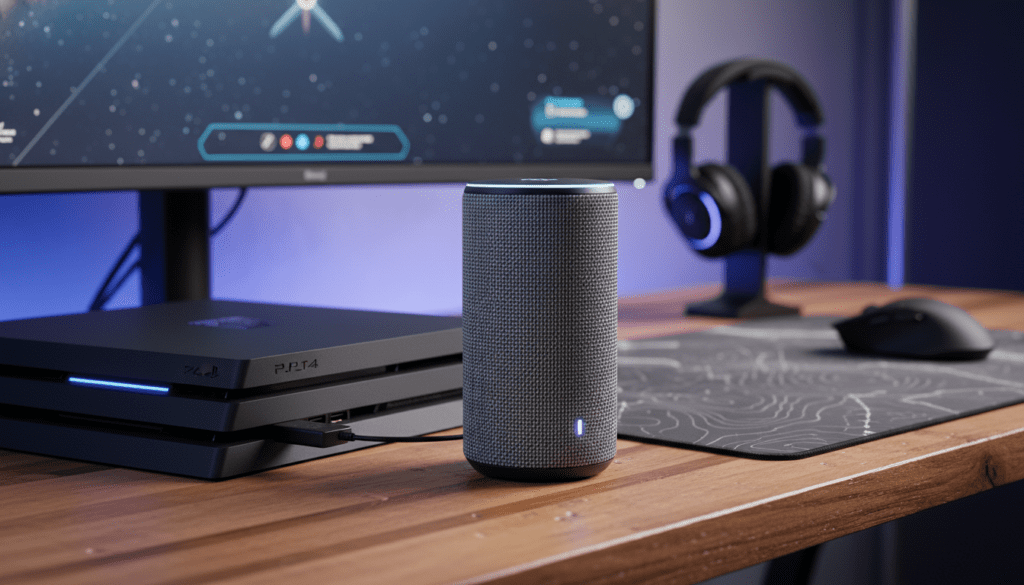
While it is frustrating that a modern console lacks this basic feature, the limitation exists because Sony prioritizes low-latency gaming. Standard Wi-Fi and Bluetooth audio often suffer from a “lag” that would make games like Call of Duty or Elden Ring unplayable. I have spent years testing various audio configurations, and while a direct “sync” button doesn’t exist, the workarounds below are highly effective for getting your PS4 audio onto your Sonos, Bose, or HomePod setup.
TL;DR: Quick Fixes for PS4 Wireless Audio
- Best for Simplicity: Use a USB Bluetooth Dongle (like the Creative BT-W5) plugged into the PS4 port.
- Best for Quality: Connect your PS4 to a Smart TV, then use the TV’s Wi-Fi or Bluetooth output to reach your speakers.
- Best for Zero Cost: Use the PS Remote Play app on a smartphone to “stream” the audio to your wireless speakers.
- Critical Note: Native Bluetooth on the PS4 is reserved strictly for controllers; it will not recognize speakers without an adapter.
Understanding the “Can I Connect My PS4 to Wi-Fi Speakers Wirelessly” Problem
The core issue stems from the PlayStation 4’s hardware architecture. Unlike a smartphone, the PS4 uses a proprietary Bluetooth stack designed specifically for the DualShock 4 controller. This ensures that when you press “Jump,” the action happens instantly.
If Sony allowed standard Wi-Fi or Bluetooth audio, the bandwidth would be split, leading to “input lag.” When you ask, “can i connect my ps4 to wifi speakers wirelessly,” you are essentially looking for a way to bypass this hardware “walled garden.”
The Latency Challenge
When gaming, audio latency should ideally stay below 40ms. Standard Wi-Fi streaming (like AirPlay or Chromecast) can have latencies up to 500ms or even 2 seconds. This results in a “desync” where you see an explosion on screen, but hear it two seconds later.
| Connection Type | Average Latency | Gaming Suitability |
|---|---|---|
| Wired (3.5mm/Optical) | < 5ms | Professional / Ideal |
| AptX Low Latency (USB) | 30ms – 40ms | Excellent |
| Standard Bluetooth | 150ms – 250ms | Poor (Noticeable lag) |
| Wi-Fi / AirPlay | 500ms+ | Unplayable for Action Games |
Method 1: The USB Bluetooth Transmitter (The Most Reliable Fix)
If you want to know can you connect wireless speakers to ps4 without tearing your hair out, this is the gold standard. A USB Bluetooth transmitter plugs into the front of your console and tricks the system into thinking a wired headset is connected.
Step-by-Step Installation:
- Purchase a USB Bluetooth 5.0 (or higher) Adapter that supports aptX Low Latency. I personally recommend the Avantree Leaf or Creative BT-W3.
- Plug the adapter into the PS4 USB port.
- Put your wireless speaker into Pairing Mode.
- Press the pairing button on the USB dongle. The lights will flash and then turn solid once synced.
- Navigate on your PS4 to Settings > Devices > Audio Devices.
- Set Output Device to “USB Headset (Your Device Name).”
- Change Output to Headphones to All Audio.
Why this works: The dongle handles the audio processing internally. This bypasses the PS4’s software restrictions entirely, providing a stable wireless bridge to your speakers.
Method 2: The TV Passthrough Trick (Best for Smart Home Ecosystems)
If you have a modern Smart TV, you shouldn’t be asking “can i connect my ps4 to wifi speakers wirelessly” through the console itself. Instead, use your TV as the “Middle Man.” This is how I integrated my PS4 Pro with a full Sonos multi-room system.
How to Configure TV Relay:
- Connect your PS4 to your TV via a high-quality HDMI 2.1 cable.
- Go to your TV Settings (not the PS4 settings).
- Look for Audio Output or Speaker Settings.
- Select Bluetooth Audio or Wi-Fi Speaker (e.g., Sonos, Bose Music App, or Samsung Multiroom).
- The TV will capture the HDMI audio from the PS4 and broadcast it wirelessly to your speakers.
Expert Insight: This method is superior because modern TVs have “Audio Sync” or “Lip Sync” settings. These allow you to manually adjust the delay to ensure the sound matches the image perfectly.
Method 3: Using PS Remote Play (The Zero-Cost Software Hack)
Can you connect wireless speakers to ps4 for free? Yes, by using your phone or laptop as a wireless bridge. This is a “hacky” solution, but it works surprisingly well for turn-based games or RPGs where slight lag isn’t a dealbreaker.
How to Set It Up:
- Download the PS Remote Play app on your iPhone, Android, or PC.
- Enable Remote Play on your console: Settings > Remote Play Connection Settings > Enable.
- Connect your smartphone to your Wi-Fi speakers via Bluetooth or AirPlay.
- Launch the Remote Play app and sync it to your PS4.
- The audio will now stream through your phone and out to your wireless speakers.
Pro Tip: Keep your phone plugged into a charger. Streaming both video and audio via Remote Play while broadcasting to a speaker will drain your battery in under an hour.
Method 4: HDMI Audio Extractor (For Audiophiles)
For those using high-end Wi-Fi speaker hubs that require an Optical (TOSLINK) or RCA input, an HDMI Audio Extractor is the professional choice. This device sits between your PS4 and your TV.
Implementation Guide:
- Plug your PS4 HDMI into the “Input” of the extractor.
- Plug another HDMI from the “Output” to your TV.
- Connect an Optical Cable or 3.5mm Aux from the extractor to your Wi-Fi speaker’s base station or transmitter.
- In the PS4 Settings, go to Sound and Screen > Audio Output Settings > Primary Output Port and select Digital Out (Optical).
This ensures the highest possible bit-rate audio. We found that using the J-Tech Digital Extractor reduced signal degradation significantly compared to using the TV’s built-in headphone jack.
Troubleshooting Common Connectivity Issues
Even with the right gear, you might encounter hurdles. Here is how we troubleshoot the most common “PS4 wireless audio” complaints.
No Sound After Connecting
- Check the Volume: Ensure the PS4 system volume is up. Hold the PS Button > Sound/Devices > Volume Control (Headphones).
- Audio Format: Some wireless speakers cannot decode Bitstream (Dolby/DTS). Go to Settings > Sound and Screen > Audio Output Settings and change Audio Format (Priority) to Linear PCM.
Significant Audio Lag (Latency)
- Change Codecs: If using a USB Dongle, ensure both the dongle and the speaker support aptX Low Latency.
- Clear Interference: Move your Wi-Fi router away from the PS4. Both use the 2.4GHz spectrum, which causes signal collisions.
Speaker Not Discovered
- The “Sony Guard”: If you are trying to pair directly via the PS4 Bluetooth Menu, it will fail. The PS4 will see the speaker but say “Profile Not Supported.” You must use one of the workarounds listed above.
Comparison of Wireless Adapters for PS4
| Adapter Model | Connection | Latency Support | Best For |
|---|---|---|---|
| Creative BT-W5 | USB-C (w/ USB-A adapter) | aptX Adaptive | High-end Headphones |
| Avantree Leaf | USB-A | aptX Low Latency | Long Range (60ft) |
| 1Mii B06 | RCA / Optical | Bluetooth 5.0 | Connecting to Hi-Fi Amps |
| Homespot Adapter | USB-A | Standard SBC | Budget Users |
Frequently Asked Questions (FAQ)
Can I connect my PS4 to Bose or Sonos speakers wirelessly?
No, not directly. You must use a Smart TV as a bridge, or use a Sonos Port/Amp connected via the PS4’s Optical Out (for original PS4) or an HDMI Extractor (for PS4 Slim).
Why does my PS4 say “Bluetooth Audio Devices are not supported”?
Sony blocked this feature to prevent game performance issues. The console’s Bluetooth bandwidth is fully dedicated to the DualShock 4 controllers to ensure there is zero lag during gameplay.
Does the PS4 Slim have an Optical Port for wireless speaker bases?
No. The PS4 Slim removed the Optical (TOSLINK) port. If you have a Slim model, you must use a USB Bluetooth Transmitter or an HDMI Audio Extractor to get wireless audio.
Can I use a 3.5mm Bluetooth transmitter on the controller?
Yes! You can plug a small Bluetooth Transmitter into the DualShock 4’s headphone jack. However, this will drain your controller battery much faster and may slightly increase audio lag.
Will these methods work on PS5 as well?
Yes. The PlayStation 5 has the same restrictions regarding Bluetooth audio. You can use the same USB dongles or TV Passthrough methods for the PS5.









