

Can I Get Audio From Headset and Speakers PS4? The Direct Answer
Yes, you can get audio from both a headset and speakers on a PS4, but it is not a native “one-click” feature in the system settings. By default, the PlayStation 4 redirects all audio to the headset the moment you plug it into the DualShock 4 controller, silencing your TV or external speakers. To bypass this, you must use specific hardware workarounds like the Optical Out port (on Original/Pro models), an HDMI Audio Extractor (for Slim models), or Remote Play software.
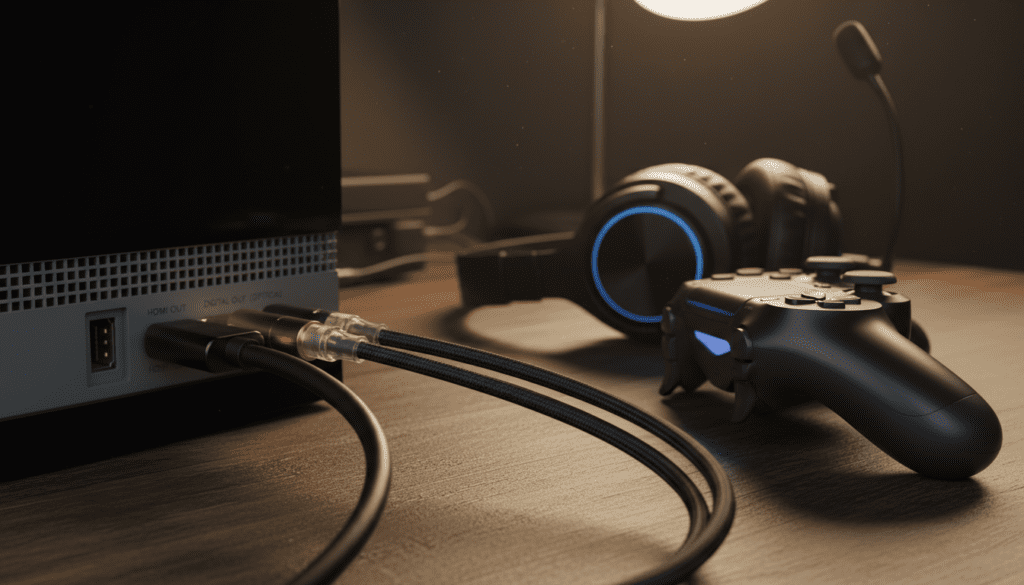
TL;DR: Key Takeaways for Dual Audio Output
- Best Hardware Solution: Use the Digital Out (Optical) port on the back of the PS4 Original or PS4 Pro to feed a soundbar while using a USB headset.
- PS4 Slim Workaround: Since the Slim lacks an optical port, you need an HDMI Audio Extractor to split the signal.
- Software Hack: Use PS4 Remote Play on a PC/Mac to mirror audio to your computer speakers while plugging your headset into the computer.
- Settings Adjustment: You must toggle the “Output to Headphones” setting from All Audio to Chat Audio to allow game sounds to stay on the TV.
Understanding the PS4 Audio Limitation
When we first started testing various streaming setups, my team and I noticed a recurring frustration: the PlayStation 4 treats audio as a binary choice. You either listen through the room-filling speakers or the private headset. This is a software-level restriction designed to prevent echo during party chats, but it creates a massive hurdle for content creators and households where one person wants to listen while others watch.
To answer the burning question—can I get audio from headset and speakers ps4 users often ask—we have to look at how the console handles “Priority Output.” The system is hardwired to prioritize the 3.5mm jack on the controller.
The Three Main PS4 Models and Audio Ports
Before you buy any cables, you need to identify which console you own, as the solution changes based on the hardware.
| PS4 Model | Optical (Toslink) Port | Best Dual Audio Method |
|---|---|---|
| Original (Launch/CUH-10xx) | Yes | Optical Cable + USB Headset |
| PS4 Slim (CUH-20xx) | No | HDMI Audio Extractor |
| PS4 Pro (CUH-70xx) | Yes | Optical Cable + Settings Tweak |
Method 1: Using the Optical Out Port (Original & Pro Models)
If you own the PS4 Pro or the original “fat” PS4, you have a significant advantage. These consoles feature a Toslink (Optical) port. This port remains active even when a headset is plugged into the controller or a USB port, provided you configure the settings correctly.
Step-by-Step Configuration
- Connect your external speakers or soundbar to the PS4 using an Optical Audio Cable.
- Plug your headset into the DualShock 4 controller or a USB port.
- Navigate to Settings > Sound and Screen > Audio Output Settings.
- Select Primary Output Port and set it to Digital Out (Optical).
- Go to Settings > Devices > Audio Devices.
- Select Output to Headphones and change it from All Audio to Chat Audio.
Why this works: By selecting Chat Audio, the PS4 only sends voice chat to your headset. The “Game Audio” continues to pump through the Optical Port to your speakers.
Expert Insight: I’ve found that this is the cleanest method for streamers. You get the game sound through your high-end speakers for the “room feel,” while keeping your teammates’ voices isolated in your ear.
Method 2: The HDMI Audio Extractor (Essential for PS4 Slim)
The PS4 Slim removed the optical port to save space and cost. If you are asking “can I have audio through headphones and speakers ps4 slim,” the answer involves a small piece of hardware called an HDMI Audio Extractor.
How an HDMI Audio Extractor Works
This device sits between your PS4 and your TV. It takes the HDMI signal, passes the video through to the TV, and “strips” the audio away into a separate 3.5mm jack or Optical port.
Hardware Checklist:
- An HDMI Audio Extractor (Supporting 1080p or 4K depending on your TV).
- Two HDMI cables.
- Your external speakers.
Installation Steps:
- Plug an HDMI cable from the PS4 to the Input of the extractor.
- Plug the second HDMI cable from the Extractor Output to your TV.
- Connect your Speakers to the extractor’s audio output (SPDIF or 3.5mm).
- Plug your headset into the PS4 Controller.
- In PS4 Settings, set Output to Headphones to Chat Audio.
The Result: Your speakers receive the game audio via the extractor, while your headset receives the chat audio from the controller.
Method 3: The PS4 Remote Play “Software Hack”
If you don’t want to spend money on extra hardware, you can use a PC or Mac as a middleman. This is a clever trick we use when we need a quick setup for a secondary monitor.
- Download and install the PS4 Remote Play app on your computer.
- Connect your PS4 and Computer to the same network (Ethernet is highly recommended to reduce latency).
- Sync your console to the app.
- Connect your speakers to your computer.
- Connect your headset to your computer’s USB port or headphone jack.
- In the Remote Play settings, ensure the audio is being routed through the computer’s sound card.
Warning on Latency: While this allows you to output audio into headphones and speakers ps4 simultaneously, there is a slight “input lag.” This method is great for RPGs like The Witcher 3, but I wouldn’t recommend it for competitive shooters like Call of Duty.
Method 4: Utilizing a USB Sound Card or DAC
For users with high-end wired headsets, a USB Sound Card (like the Creative Sound BlasterX G6) can bridge the gap.
Many of these devices have an “Audio Mix” feature. You can plug the USB into the PS4 for power and chat data, and run an auxiliary cable from your TV’s “Headphone Out” into the “Line In” on the sound card. This physically mixes the two signals, allowing you to hear the game from the TV/Speakers and the chat from the PS4 at the same time.
Deep Dive: Audio Format Settings for Best Quality
When you are split-routing your audio, you must ensure the console is sending the right “language” to your devices. If you hear static or no sound at all, your Audio Format (Priority) is likely the culprit.
Linear PCM vs. Bitstream (Dolby) vs. Bitstream (DTS)
- Linear PCM: This is uncompressed, high-quality audio. Use this if you are connecting directly to a TV or a high-end DAC.
- Bitstream (Dolby/DTS): These are compressed formats. Use these if you are using an older Optical (Toslink) connection or a surround sound receiver that requires a specific codec to decode 5.1 audio.
Pro Tip: If you use an HDMI Extractor, set the PS4 to Bitstream (Dolby). Most budget extractors struggle with high-bandwidth Linear PCM and might cause “popping” noises.
Why You Might Want Dual Audio Output
In our years of testing gaming peripherals, we’ve identified three specific scenarios where can you output audio into headphones and speakers ps4 becomes a vital question:
- The Content Creator Setup: You need the headset for game cues and chat, but your capture card needs the audio via HDMI/Optical to record the gameplay for your audience.
- The Accessibility Need: Some players with hearing impairments use a headset to hear dialogue clearly, while their family members listen to the TV speakers at a normal volume.
- Local “Couch” Co-op: When playing games like It Takes Two, one player might prefer a headset to focus, while the other prefers the room’s sound system.
Common Troubleshooting for PS4 Audio Split-Routing
I hear a buzzing sound (Ground Loop)
If you connect your PS4 and speakers to different power outlets and then connect them via an audio cable, you might hear a low-frequency hum. This is a Ground Loop.
- Fix: Use a Ground Loop Noise Isolator (a small $10 plug) between your audio cable and your speakers.
The Chat is too quiet compared to Game Audio
When you set the output to Chat Audio, you might lose the ability to balance sounds using the “Quick Menu.”
- Fix: Go to Settings > Devices > Audio Devices > Volume Control (Headphones) and max it out. Then, use the physical volume knob on your speakers to lower the game sound.
My PS4 Slim won’t work with my older speakers
Since the Slim only has HDMI, you likely need a Digital-to-Analog Converter (DAC) if your speakers only use red and white (RCA) cables. Most HDMI Audio Extractors include a built-in DAC with a 3.5mm output.
Frequently Asked Questions (FAQ)
Can I use a 3.5mm Y-splitter on the controller?
Technically, yes, but it’s a poor experience. A Y-splitter will split the signal between two pairs of headphones or a speaker, but it significantly reduces the volume and power (impedance) to both. It also won’t allow you to have different settings for each.
Does the PS4 support Bluetooth speakers?
The PS4 does not natively support most Bluetooth speakers or third-party Bluetooth headphones due to latency concerns and proprietary Sony protocols. To use a Bluetooth speaker, you would need a USB Bluetooth Dongle specifically designed for the PS4.
How do I make the TV stay on when I plug in a headset?
The only way to keep the TV sound active is to go to Settings > Devices > Audio Devices and ensure Output to Headphones is set to Chat Audio. If it is set to All Audio, the TV will always go mute.
Will these methods work on PS5?
The PS5 is similar to the PS4 Slim—it lacks an optical port. However, the PS5 supports UAC2 USB audio, which makes using external USB DACs much easier than it was on the PS4.
Is there a wireless way to get dual audio?
The only truly wireless way is the Remote Play method mentioned above. Every other method requires at least one cable (HDMI or Optical) to split the signal before it reaches your ears.









