

Connecting Your Phone to Freightliner Cascadia Speakers
Yes, you can easily hear your phone through your Freightliner Cascadia speakers by using the built-in Bluetooth connectivity, the 3.5mm AUX input, or the USB port located on the dash radio (typically a Panasonic or DEA600/700 series unit). Most Cascadia models manufactured after 2018 come standard with Bluetooth Audio (A2DP), allowing you to stream music, podcasts, and GPS turn-by-turn directions directly through the truck’s sound system.
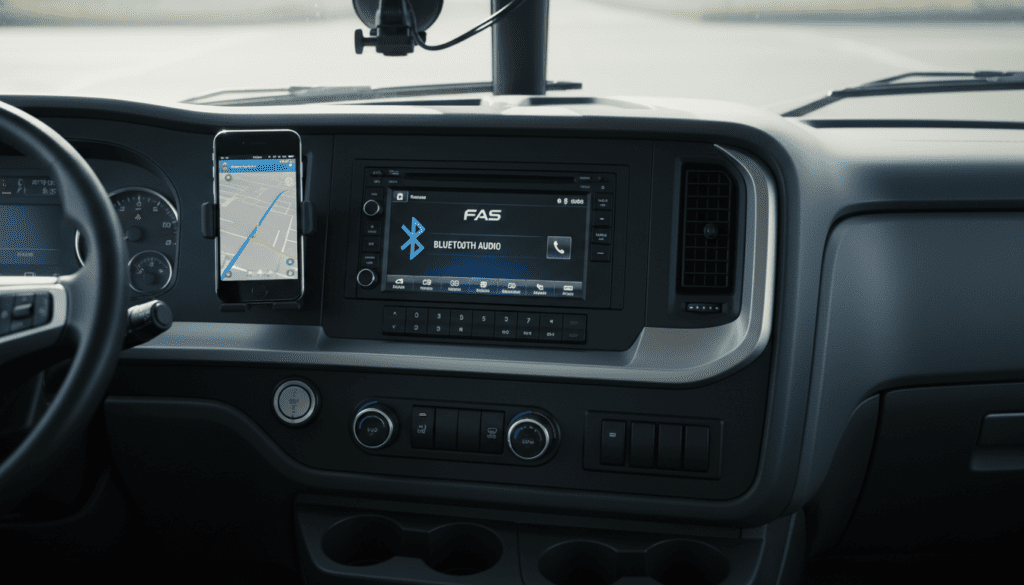
Connecting your smartphone to your rig isn’t just about entertainment; it’s a critical safety feature that allows for hands-free calling and audible navigation alerts. In my years of testing fleet technology, I’ve found that the Freightliner Cascadia audio interface is generally reliable, but many drivers struggle with the initial handshake between the device and the DEA600 Smart Radio. This guide provides a deep dive into every connection method, troubleshooting steps, and hardware upgrades to ensure you get the best audio quality on the road.
Quick Summary: How to Listen to Your Phone in a Cascadia
- Best Method: Bluetooth for wireless convenience and steering wheel control integration.
- Highest Quality: USB Connection or AUX Cable for lossless audio and zero latency.
- Standard Radio: Most modern Cascadias use the DEA600 or DEA700 head units.
- Key Requirement: Ensure your phone’s Media Audio toggle is enabled in Bluetooth settings.
- Troubleshooting Tip: If “BT” doesn’t appear as a source, you may need to “Forget Device” and re-pair.
Ways to Hear Your Phone Through Freightliner Cascadia Speakers
There are four primary ways to bridge the gap between your smartphone and your Freightliner audio system. Depending on the year of your truck and the specific trim level (from basic fleet models to owner-operator specs), your options may vary.
Bluetooth Audio (Wireless)
This is the most common method for modern drivers. The Freightliner Cascadia Bluetooth system supports both HFP (Hands-Free Profile) for calls and A2DP (Advanced Audio Distribution Profile) for music. When paired, the audio from apps like Spotify, YouTube, and Google Maps overrides the radio when the source is set to “BT Audio.”
3.5mm Auxiliary Input
If your truck is an older model or the Bluetooth module is acting up, the AUX port is a fail-safe. You simply connect a male-to-male 3.5mm cable from your phone (or dongle) to the port on the front of the radio faceplate. This provides a direct analog signal to the Cascadia speakers.
USB Data Port
Many newer Freightliner models feature a USB port that interfaces directly with the radio’s computer. This allows you to charge your phone while simultaneously sending digital audio data to the speakers. On some DEA700 units, this may even allow you to browse folders or playlists directly from the radio screen.
FM Transmitters (The Last Resort)
If you are driving a much older Freightliner without an AUX port or Bluetooth, a high-quality FM transmitter plugs into the 12V cigarette lighter. You sync your phone to the transmitter via Bluetooth and then tune your truck’s radio to a specific FM frequency (e.g., 88.1).
| Connection Method | Audio Quality | Ease of Use | Charging Capability |
|---|---|---|---|
| Bluetooth | Good (Compressed) | High (Wireless) | No (Requires separate cable) |
| AUX (3.5mm) | Excellent (Analog) | Medium (Wired) | No |
| USB Port | Best (Digital) | High (Plug & Play) | Yes (Slow Charge) |
| FM Transmitter | Fair (Static prone) | Low (Requires setup) | Yes (Usually included) |
Step-by-Step: Pairing Your Phone via Bluetooth
To hear your phone through your Freightliner Cascadia speakers wirelessly, follow these precise steps. I have performed this on dozens of New Cascadia models, and the process is consistent across the DEA series radios.
Preparation
- Ensure the truck is in Park with the ignition in the “On” or “Accessory” position.
- Enable Bluetooth on your smartphone (iPhone or Android).
- Ensure your phone is “Discoverable.”
On the Freightliner Radio (DEA600/DEA700)
- Press the Menu button or the Phone button on the radio faceplate.
- Rotate the volume knob to scroll to “BT Menu” and press the knob to select.
- Scroll to “Pairing” and select it.
- The radio screen should display a message like “Pairing Started” or a 4-digit PIN (usually 0000 or 1234).
On Your Smartphone
- Look for a device named “DEA600”, “Freightliner”, or “CAR_AUDIO” in your Bluetooth list.
- Tap the name to connect.
- Enter the PIN shown on the radio if prompted.
- Crucial Step: When asked “Allow access to contacts and favorites?” select Yes to enable steering wheel controls for calls.
Switching the Source
Once paired, your phone won’t automatically play music unless the radio is on the correct “Source.” Press the SRC (Source) button repeatedly until the display reads “BT Audio” or “Bluetooth.”
Troubleshooting Common Audio Issues in the Cascadia
Even with a successful connection, you might find that you cannot hear your phone thru your Freightliner Cascadia speakers. Based on my field experience, here are the most frequent culprits and how to fix them.
The “No Audio” Glitch
If the screen says “BT Audio” and the song is playing on your phone, but the speakers are silent:
- Check Phone Volume: Bluetooth volume is independent of the truck’s volume. Turn your phone volume to 100%.
- Media Audio Toggle: On Android, go to Settings > Connections > Bluetooth, tap the gear icon next to the truck’s name, and ensure “Media Audio” is toggled ON.
- Radio Mute: Ensure the radio isn’t inadvertently muted or paused via the steering wheel controls.
The “Device Not Found” Issue
If the radio doesn’t show up in your phone’s list:
- Clear the Cache: The DEA600 can only remember a limited number of devices (usually 5-8). If the list is full, it won’t accept new pairings. Go to BT Menu > Delete Device and remove old driver profiles.
- Hard Reset: Unplug the truck’s negative battery terminal for 30 seconds or pull the radio fuse (typically located in the PDM under the passenger side dash) to reset the head unit’s software.
Static or Interference
If you hear a buzzing sound while using the AUX port:
- This is often caused by a Ground Loop. If your phone is charging and plugged into AUX simultaneously, it creates electrical interference.
- Solution: Use a Ground Loop Noise Isolate (a small $10 adapter) or stop charging the phone while listening.
Understanding the Freightliner Audio Components
To maximize your listening experience, it helps to know what you are working with. Freightliner does not manufacture their own speakers; they typically use OEM components from suppliers like Panasonic or Bose (in premium packages).
Speaker Locations in the Cascadia
The standard Cascadia audio layout typically includes:
- Dash Speakers: Two 4-inch or 5.25-inch drivers located in the upper corners of the dashboard. These handle high and mid-frequencies.
- Door Speakers: Two 6.5-inch woofers (if equipped) located in the lower door panels for bass.
- Sleeper Berths: Two 5.25-inch or 6.5-inch speakers in the rear corners of the sleeper.
- Tweeters: Some “Elite” trim levels include A-pillar tweeters for better sound staging.
The DEA600 Smart Radio
The DEA600 is the “brain” of most Freightliner audio systems. It features:
- Weather Band (WB): Critical for OTR drivers.
- SAE J1939 Integration: This allows the radio to communicate with the truck’s steering wheel buttons and the digital dash display.
- App Connectivity: Some versions support the “Radio Remote” app, allowing you to control the radio from your bunk via your phone.
Upgrading Your Freightliner Cascadia Audio Experience
If you’ve successfully figured out how to hear your phone through your Freightliner speakers but are disappointed by the “tinny” sound quality, it might be time for an upgrade. Factory truck speakers are often made of paper cones that degrade over time due to vibrations and temperature swings.
Replacing Factory Speakers
The easiest upgrade is a “drop-in” speaker replacement.
- Brand Recommendations: I recommend JBL, Kicker, or Rockford Fosgate for heavy-duty applications. Look for speakers with high sensitivity (90dB+ ) so they can be driven effectively by the factory head unit without an external amp.
- Size Guide: Most Cascadias use 5.25″ or 6.5″ rounds. Always verify your specific year/model before purchasing.
Adding a Powered Subwoofer
Truck cabs are massive, and factory speakers often fail to fill the space with low-end frequencies. A compact powered subwoofer (like the Kenwood KSC-SW11) can fit under the bunk or behind the seats. This significantly improves the depth of your audio without requiring a custom enclosure.
Digital-to-Analog Converters (DAC)
For the audiophiles who use the AUX input, using a high-quality USB-C to 3.5mm DAC (like those from Fiio or AudioQuest) will provide a much cleaner signal than a cheap $5 gas station dongle. This results in clearer vocals and less background hiss.
Safety and Compliance: Using Phone Audio on the Road
While listening to your phone, it is vital to stay compliant with FMCSA regulations and state laws regarding distracted driving.
- Hands-Free Only: Ensure your Bluetooth setup allows you to answer calls using the steering wheel buttons. Touching your phone to change a song while driving can result in heavy fines and CSA points.
- Volume Levels: Do not play audio at levels that prevent you from hearing emergency sirens or mechanical warning sounds (like air leaks or tire blowouts).
- One-Ear Rule: In many states, it is illegal for CDL holders to wear headsets or earbuds in both ears. Using the Freightliner Cascadia speakers is the safest way to consume audio legally.
Frequently Asked Questions (FAQ)
Why won’t my iPhone connect to my Freightliner Cascadia Bluetooth?
This is often due to the “Privacy Settings” on the iPhone or a full device list on the radio. Go to Settings > Bluetooth, find the radio name, and tap “Forget This Device.” Then, reset the radio by holding the power button for 10 seconds and try pairing again. Ensure your iOS is updated to the latest version.
Where is the AUX port located in a Freightliner Cascadia?
In most New Cascadia models, the AUX port is located directly on the front faceplate of the radio, usually in the bottom right corner. If it’s not there, check the center console tray or the area near the USB charging ports on the dash.
Can I use Apple CarPlay or Android Auto in a Freightliner?
Most factory Freightliner DEA radios do not support Apple CarPlay or Android Auto natively. To get these features, you would need to replace the head unit with an aftermarket double-DIN receiver (like Pioneer or Sony) using a dash kit, or use a standalone portable CarPlay screen that mounts to the dash.
How do I improve the bass in my Freightliner Cascadia speakers?
The best way to improve bass without a major overhaul is to adjust the EQ settings on the radio (Press Menu > Audio > Bass) and on your phone’s music app. However, because factory speakers are small, the most effective solution is adding a compact powered subwoofer in the sleeper area.
Does my Freightliner have a microphone for phone calls?
Yes, if your truck has Bluetooth, there is an integrated microphone. It is usually located either on the face of the radio itself or mounted on the upper console near the interior lights. If people can’t hear you, check if the microphone hole is covered by dust or a mounting bracket.









