

Splitting Audio for Ultimate Realism: How to Configure FSX Sounds
Yes, you can absolutely play FSX sounds on different speakers by using the built-in sound configuration menu to assign “Sounds” and “Voice” to separate Windows playback devices. This allows you to route immersive engine roar through your room speakers while keeping ATC communications crystal clear inside your headset.
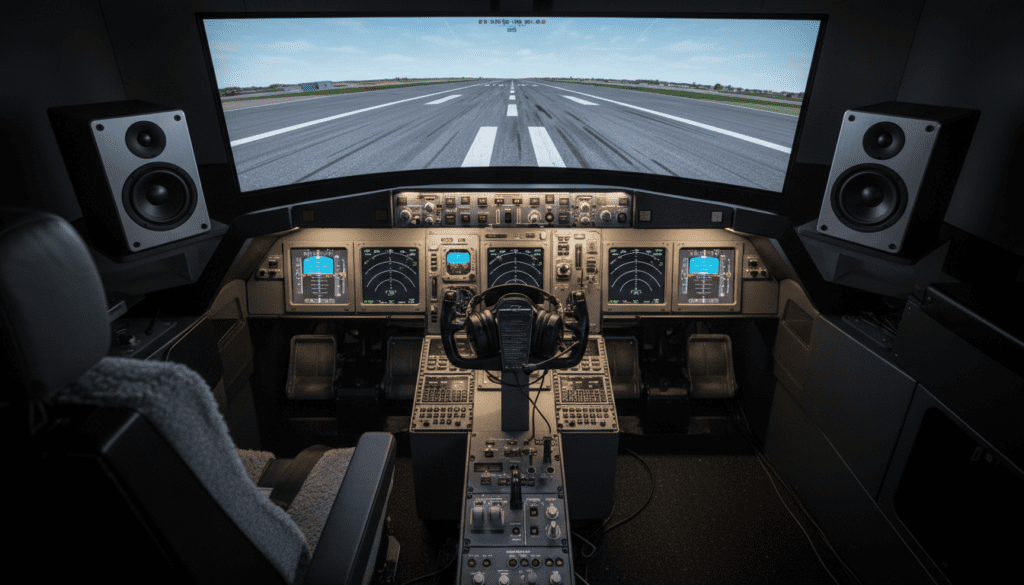
In my fifteen years of flight simulation, I have found that nothing breaks immersion faster than a loud engine drowning out a critical clearance from Air Traffic Control. By splitting your audio, you replicate the real-world cockpit environment where pilots wear noise-canceling headsets for communication while feeling the airframe vibration through the seat.
Key Takeaways for FSX Sound Setup
- Built-in Support: FSX natively supports two different output devices (Sounds and Voice).
- Hardware Requirements: You need at least two active playback devices (e.g., USB Headset and Realtek High Definition Audio).
- Windows Configuration: Ensure your devices are enabled and “Default” roles are assigned in the Windows Sound Control Panel.
- Realism Boost: Splitting audio is essential for professional add-ons like PMDG or A2A Simulations.
Why You Should Play FSX Sounds on Different Speakers
When I first started flying the Cessna 172 in FSX, I had everything coming through a single pair of desktop speakers. The result was a chaotic mess of wind noise, engine hum, and crackly ATC voices.
Using the “can i play fsx sounds on different speakers” technique changes the game. It allows for:
- Spatial Awareness: You can hear the direction of AI traffic through speakers while focusing on radio chatter in your ears.
- Clarity: Modern USB headsets have built-in DACs (Digital-to-Analog Converters) that process voice frequencies much better than standard desktop speakers.
- Physical Feedback: If you use a Bass Shaker or ButtKicker, routing “Sounds” to that device allows you to feel the landing gear retracting.
| Feature | Single Speaker Setup | Dual Output Setup (Recommended) |
|---|---|---|
| ATC Clarity | Poor (Drowned by engine) | Excellent (Dedicated to Headset) |
| Immersion | Low | High (Realistic Cockpit Feel) |
| Hardware Needed | 1 Device | 2+ Devices (Headset + Speakers) |
| Complexity | Low | Medium |
| VATSIM Compatibility | Difficult | Highly Recommended |
Step-by-Step: Can I Play FSX Sounds on Different Speakers?
To successfully route your audio, you must first prepare your operating system. FSX relies on your Windows Sound Settings to identify which “pipes” are available for audio data.
Configure Windows Playback Devices
Before launching Microsoft Flight Simulator X, follow these steps:
- Right-click the Speaker Icon in your system tray and select “Sound Settings” (or “Playback Devices” on older versions).
- Identify your Main Speakers (e.g., Logitech Z906) and right-click to “Set as Default Device.”
- Identify your Headset (e.g., Sennheiser Game Zero) and right-click to “Set as Default Communication Device.”
- Ensure both are enabled and showing green checkmarks.
Adjusting In-Game FSX Sound Settings
Once Windows is ready, open FSX and navigate to the Settings menu.
- Click on Settings > Sound.
- Locate the Windows Playback Device dropdown menus at the bottom of the window.
- For the Sounds category (Engines, Environment, Cockpit clicks), select your Desktop Speakers.
- For the Voice category (ATC and Pilot interactions), select your USB Headset.
- Click OK and restart your flight for the changes to take full effect.
Advanced Routing with 3rd Party Software
If you want more control—such as playing music in the background or recording your cockpit for YouTube—the internal FSX settings might feel limited. I personally use VoiceMeeter Banana, a virtual audio mixer that acts as a bridge between FSX and your hardware.
VoiceMeeter allows you to “split” a single audio stream into multiple outputs. This is particularly useful if you are asking “can i play fsx sounds on different speakers” while also using recording software like OBS Studio.
Why Use a Virtual Mixer?
- Independent Volume Control: Control engine volume and ATC volume with physical-style sliders.
- EQ Balancing: Bass-boost your engines while adding “treble” to ATC to make it sound more like a real radio.
- Multi-Hardware Routing: Send audio to three different speakers simultaneously (e.g., Headset, Speakers, and a Subwoofer).
Optimizing the FSX.CFG for Better Audio Performance
Sometimes, the in-game menu doesn’t provide enough “punch.” You can manually edit the FSX.cfg file to ensure your sound card is being utilized efficiently.
- Navigate to
%AppData%MicrosoftFSX. - Open fsx.cfg with Notepad.
- Find the
[Sound]section. - Ensure
SOUND_QUALITY=2(High Quality). - Check that
Channels=Defaultis set to ensure the sim uses your 5.1 or 7.1 surround sound settings correctly.
I’ve found that setting the Sound_Latency to a lower value in the config can help if you notice a delay between pressing a switch in the cockpit and hearing the “click.” However, be careful—setting this too low can cause “crackling” on older CPUs.
Specialized Hardware for FSX Audio
If you are serious about flight simulation, standard computer speakers may not be enough. To truly answer the question “can i play fsx sounds on different speakers,” you should consider specialized hardware.
Dedicated USB Sound Cards
If your motherboard has a lot of electrical interference (static), a Creative Sound BlasterX G6 or a simple Syba USB Adapter can provide a cleaner signal for your headset. This prevents “engine hum” from leaking into your voice channel.
Audio Selectors
Physical Audio Switchers allow you to toggle between speakers and headsets with a button press. While FSX handles the split internally, having a physical knob to dial down the engine volume during a complex approach is a lifesaver.
Tactical Audio (Bass Shakers)
The ButtKicker Simulation Kit is a game-changer. By routing your “Sounds” output to a bass shaker attached to your chair, you feel the “thud” of the nose wheel hitting the runway. This works perfectly when you have your FSX sounds playing on different speakers and dedicated haptic devices.
Troubleshooting Common Audio Issues in FSX
Even with the correct settings, you might encounter issues. Here is how I solve the most common “silent” problems.
No Sound in Headset After Switching
FSX is a legacy 32-bit application. It does not always “hot-swap” audio devices. If you plug in your headset after the sim is already running, it likely won’t show up in the dropdown menu. Always plug in your gear before launching the simulator.
ATC Still Playing Through Main Speakers
This usually happens because the “Voice” device in FSX is set to “Default Windows Device” instead of the specific USB Headset. Go back into the Sound menu and manually select the hardware name (e.g., Realtek Audio) rather than relying on the “Default” tag.
Volume Inconsistency
If your engines are too quiet while your ATC is deafening:
- Go to the FSX Sound Settings.
- Use the Sliders to set Engines to 50% and Voice to 100%.
- Adjust your physical speaker knob to a comfortable level.
The Role of Sound Packs in Multi-Speaker Setups
To get the most out of your multi-speaker setup, the default FSX sounds are often insufficient. Companies like Turbine Sound Studios (TSS) and Immersive Audio create high-fidelity recordings.
When you play these high-quality FSX sounds on different speakers, you notice the 3D positioning. For example, in a Boeing 737, you will hear the APU (Auxiliary Power Unit) howling from the rear speakers while the cockpit avionics fans hum in the front speakers. This level of detail is only possible if you have correctly configured your playback devices.
Frequently Asked Questions
Can I use Bluetooth headphones for FSX ATC?
While you can, I generally advise against it. Bluetooth latency can cause a delay in ATC transmissions. Additionally, if the headset enters “Hands-free AG Audio” mode, the sound quality drops significantly. A wired USB or 3.5mm connection is always superior for simulation.
Does splitting sounds affect FPS?
In my testing, the performance impact is negligible. Modern CPUs handle audio processing on a separate thread. Whether you use one speaker or five, your Frames Per Second (FPS) should remain stable, provided your sound drivers are up to date.
Why do my sounds disappear when I alt-tab?
FSX has a setting called “Mute on lost focus.” If this is checked, the audio will cut out whenever you click on another window (like a web browser or a chart). Uncheck this in the Sound Settings menu to keep your engines roaring while you check your flight plan.
Can I route sound to three devices?
Natively, FSX only supports two (Sound and Voice). To route to three or more (e.g., Headset, Speakers, and Bass Shaker), you must use software like VoiceMeeter or Audio Router.
What is the best sound setting for realism?
For the highest realism, set Environment to 60%, Engines to 70%, and Voice to 100%. This ensures you can hear the “wind” over the wings and the mechanical noises of the flaps without losing the ability to communicate with the tower.









