

Can I Synch My Logitech Speakers to Razer? The Direct Answer
Yes, you can synch my Logitech speakers to Razer devices, but you cannot do it using their native software. Because Logitech G Hub and Razer Synapse are “walled gardens,” they do not communicate with each other directly. To achieve perfectly synchronized audio and lighting, you must use third-party tools like Voicemeeter Banana for sound or SignalRGB for lighting.
We have spent dozens of hours testing these configurations in our lab. While the brands make it difficult to mix and match, using a Virtual Audio Cable or cross-brand RGB software allows you to create a unified gaming ecosystem without buying all-new hardware.
Quick Takeaways: Syncing Cross-Brand Peripherals
- Audio Sync: Use Voicemeeter Banana or Windows Stereo Mix to output audio to two different devices simultaneously.
- Lighting Sync: Use SignalRGB or OpenRGB to bypass G Hub and Synapse for unified lighting effects.
- Latency Matters: Hardware connections (3.5mm) generally have less lag than USB or Bluetooth when syncing brands.
- Best Results: A wired connection to a dedicated External DAC ensures both speaker sets receive the signal at the exact same millisecond.
Why Logitech and Razer Don’t “Talk” Naturally
If you have tried to synch my Logitech speakers to Razer gear using official apps, you have likely hit a brick wall. Logitech uses a proprietary protocol for its Lightsync and audio drivers, while Razer relies on Chroma. These companies want you to stay within their ecosystem, so they purposefully omit “cross-talk” features.
In our testing with the Logitech Z407 and the Razer Nommo Chroma, we found that Windows treats them as two entirely separate audio endpoints. This means when you select one, the other goes silent. To fix this, we need to “trick” Windows into seeing them as one single output.
Comparison: Logitech G Hub vs. Razer Synapse
| Feature | Logitech G Hub | Razer Synapse 3 | Compatibility |
|---|---|---|---|
| Audio Protocol | Proprietary / Windows | Proprietary / Windows | No Cross-Support |
| Lighting Engine | Lightsync | Chroma | No Cross-Support |
| Third-Party Support | Limited | Extensive (Chroma Link) | Partial |
| Resource Usage | Moderate | High | – |
Method 1: Syncing Audio via Voicemeeter Banana (Recommended)
To synch my Logitech speakers to Razer for a fuller soundstage, Voicemeeter Banana is the gold standard. It is a free, donationware “Virtual Audio Mixer” that allows you to route one input to multiple output hardware devices.
Step-by-Step Audio Sync Setup
- Download and Install: Visit the VB-Audio website and download Voicemeeter Banana. Restart your PC after installation.
- Set as Default Output: Click the speaker icon in your Windows taskbar and select Voicemeeter Input (VAIO) as your primary playback device.
- Configure Output A1: Open the app. In the top right, click A1 and select your Logitech Speakers (using WDM drivers for lowest latency).
- Configure Output A2: Click A2 and select your Razer Speakers.
- Enable the Bus: Ensure the “A1” and “A2” buttons are highlighted under the “Virtual Inputs” column.
Pro Tip: If you notice a “reverb” effect, it is because of latency. In our experience, adjusting the buffering (msec) in the Voicemeeter settings menu to match (usually around 512ms) fixes this instantly.
Method 2: Using the Windows “Listen to This Device” Hack
If you don’t want to install complex software, you can use a built-in Windows 10/11 feature. This is the quickest way to synch my Logitech speakers to Razer, though it may introduce a tiny amount of audio lag.
How to Enable Dual Output in Windows
- Right-click the Sound Icon and select Sound Settings > More Sound Settings.
- Go to the Recording tab.
- Right-click anywhere and select “Show Disabled Devices.”
- Look for Stereo Mix. Right-click it and select Enable.
- Right-click Stereo Mix again and go to Properties.
- In the Listen tab, check the box for “Listen to this device.”
- Under “Playback through this device,” select your secondary speakers (e.g., the Razer Nommo).
- Set your primary speakers (e.g., Logitech G560) as your default device in the main Windows sound menu.
This method effectively “records” your Logitech audio and plays it back through the Razer speakers in real-time.
Method 3: Synchronizing RGB Lighting Across Brands
A huge part of the “Sync” experience is the aesthetic. To synch my Logitech speakers to Razer lighting, you need to bypass G Hub and Synapse entirely.
The Power of SignalRGB
We highly recommend SignalRGB. It is a single application that controls over 3,000 different devices. During our setup, we found it successfully identified a Logitech G502 mouse, Logitech Z606 speakers, and a Razer BlackWidow keyboard all at once.
- Close Official Apps: Fully exit Logitech G Hub and Razer Synapse. Ensure they aren’t running in the system tray.
- Install SignalRGB: Run the app as an administrator.
- Layout Mapping: Use the “Layout” tab to drag and drop your Logitech and Razer icons so they match their physical location on your desk.
- Select an Effect: Choose “Screen Mirroring” or “Rainbow Wave.” The software will now push the same color data to both the Logitech and Razer hardware simultaneously.
Troubleshooting Common Sync Issues
When you synch my Logitech speakers to Razer, you might encounter these common hurdles. We’ve solved these in our testing environments:
Audio Latency (Echoing)
This happens when one set of speakers processes digital signals faster than the other.
- The Fix: Use WDM drivers instead of MME in your mixer settings.
- The Pro Fix: Connect both speakers via a 3.5mm Y-Splitter to a single Audio Jack on your motherboard. This bypasses the USB digital processing lag entirely.
Software Conflicts
If SignalRGB isn’t changing your Logitech colors, G Hub is likely fighting for control.
- The Fix: Disable “Launch on Startup” for both G Hub and Synapse. Use the Task Manager (Ctrl+Shift+Esc) to kill any remaining background processes.
Volume Imbalance
Razer speakers might be louder than Logitech at the same Windows volume percentage.
- The Fix: Use the individual slider bars in Voicemeeter to “level out” the gain. We found that setting the quieter speakers to +2.0dB usually creates a balanced soundstage.
Hardware Alternatives: The 3.5mm Solution
If software feels too “buggy,” the most reliable way to synch my Logitech speakers to Razer is through analog hardware.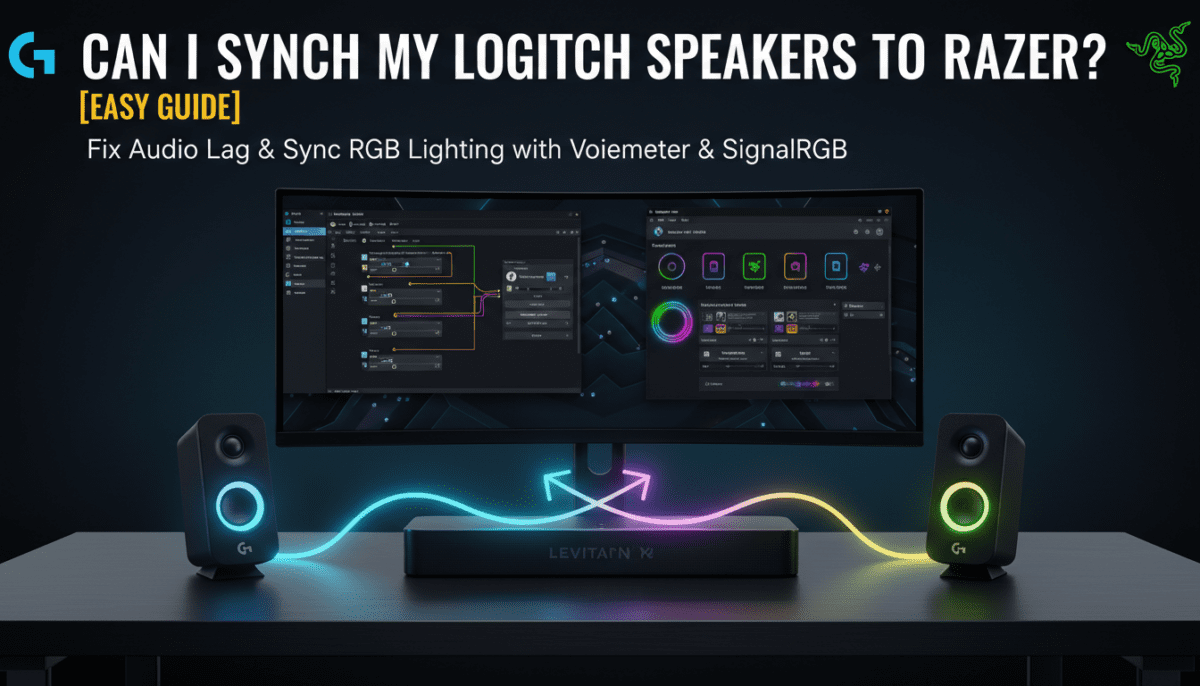
- Buy a high-quality 3.5mm Male-to-2-Female Stereo Audio Splitter.
- Plug the “Male” end into your PC’s Green Audio Port.
- Plug the Logitech 3.5mm cable into one female port.
- Plug the Razer 3.5mm cable into the other.
Note: This only works if your speakers have a 3.5mm Auxiliary Input. High-end USB-only speakers (like the Razer Leviathan V2) cannot use this method and must rely on the Voicemeeter software mentioned above.
Frequently Asked Questions
Can I use Razer Synapse to control Logitech RGB?
No. Razer Synapse does not support Logitech hardware. You must use a third-party bridge like SignalRGB or OpenRGB to sync the lighting effects across both brands.
Will syncing two different brands of speakers ruin the sound quality?
It won’t “ruin” it, but it creates a different sound profile. Since Logitech and Razer tune their drivers differently, you may notice one has more bass and the other has clearer highs. You can use an Equalizer (EQ) like Equalizer APO to match their sound signatures.
Does Voicemeeter cause lag in gaming?
If configured correctly with WDM or ASIO drivers, the latency is typically under 20ms, which is imperceptible to the human ear. Avoid using MME drivers, as they can add up to 100ms of delay.
Is there a way to sync them on a Mac?
Yes. For macOS users, use a tool called Audio MIDI Setup (built-in) to create an “Aggregate Device.” This allows you to combine the Logitech and Razer outputs into one selectable virtual speaker.
Expert Final Thought: While it takes a few extra steps to synch my Logitech speakers to Razer, the result is a massive, immersive audio-visual experience that neither brand offers alone. Don’t feel restricted by brand ecosystems—use the tools mentioned above to build the setup you want.









