

Can I Turn Off a Program’s Access to My Speakers?
Yes, you can easily turn off or restrict a specific program’s access to your speakers through your operating system’s Volume Mixer or Privacy Settings. Whether you are on Windows 11, macOS, or Linux, modern interfaces allow you to mute individual applications without silencing your entire computer.
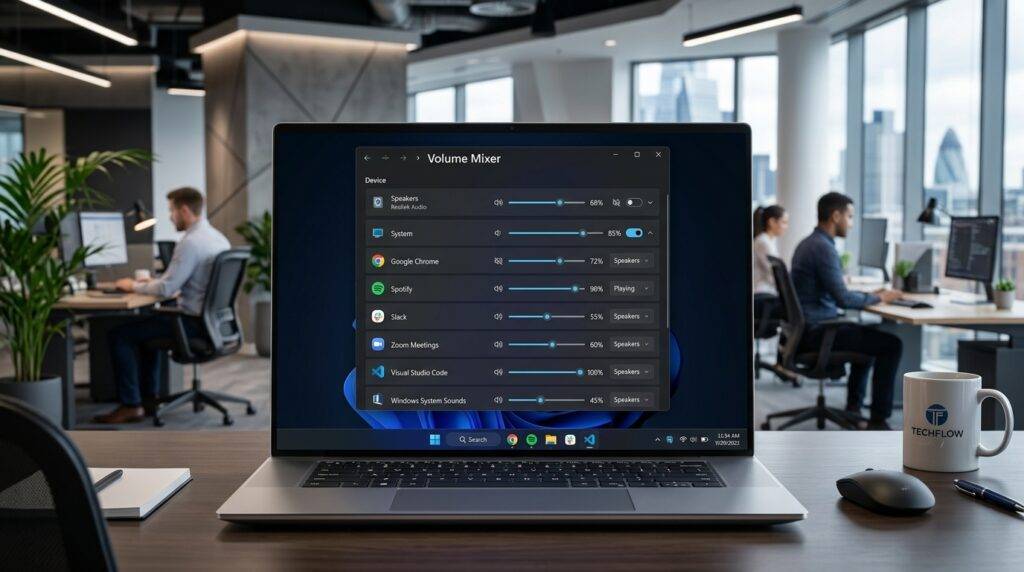
I have spent years managing complex audio setups for podcasting and remote work, and I have found that “rogue” audio from background apps is a common productivity killer. In this guide, I will show you exactly how to take control of your audio output permissions and ensure only the programs you want are making noise.
TL;DR: Key Takeaways for Fast Results
- Windows Users: Right-click the Speaker Icon in the taskbar and select Open Volume Mixer to mute individual apps.
- macOS Users: Use Control Center for basic muting or third-party apps like SoundSource for granular “per-app” control.
- Privacy Settings: You can disable Microphone and Speaker hardware access for specific apps in the Privacy & Security menu.
- Browser Tip: Right-click any browser tab and select Mute Site to stop audio from specific websites instantly.
- Expert Recommendation: Use EarTrumpet (Windows) for a much faster way to manage multiple audio streams.
Can I Turn Off a Program’s Access to My Speakers on Windows?
If you are wondering “can i turn off a program’s access to my speakers” on a PC, the answer is a resounding yes. Windows has evolved from a simple master volume slider to a sophisticated per-app audio controller.
Using the Windows 11 Volume Mixer
Windows 11 integrated the volume mixer directly into the Quick Settings panel, making it easier than ever to manage.
- Click on the Sound/Wi-Fi/Battery icon in the bottom-right corner of your taskbar.
- Click the Select a sound output icon (the arrow next to the volume slider).
- Select Volume Mixer at the bottom of the list.
- Under the Apps section, locate the specific program you want to silence.
- Click the Speaker Icon next to that program’s slider to mute it entirely.
Legacy Volume Mixer (Windows 10)
In Windows 10, the process is slightly different but equally effective.
- Right-click the Speaker Icon on your taskbar.
- Select Open Volume Mixer.
- A window will appear showing all currently active applications.
- Slide the volume bar to zero or click the Mute button for the specific app.
Pro Tip: This only works if the program is currently running and attempting to play audio. If the app isn’t listed, try playing a sound within that app first.
Step-by-Step: Disabling Hardware Access via Privacy Settings
Sometimes, simply muting an app isn’t enough. You might want to prevent a program from even “seeing” your audio hardware for privacy or security reasons.
Revoking Permissions in Windows
- Press Windows Key + I to open Settings.
- Navigate to Privacy & Security > Microphone (Windows treats input and output permissions similarly for many modern apps).
- Ensure Let apps access your microphone is toggled off for specific unwanted programs.
- To block output, go to System > Sound > Volume Mixer and set the Output Device to “None” if the app allows it.
Windows Audio Privacy Comparison
| Feature | Volume Mixer | Privacy Settings | Third-Party Tools |
|---|---|---|---|
| Control Type | Volume Level/Mute | Hardware Permission | Advanced Routing |
| Speed | Very Fast | Moderate | Fast (Hotkeys) |
| Permanence | Resets on Restart* | Permanent | Permanent |
| Best For | Temporary Silence | Security/Privacy | Power Users |
Note: Some Windows versions remember mixer settings, but updates often reset them.*
How to Mute Specific Apps on macOS
Unlike Windows, macOS does not have a native, built-in “Volume Mixer” that displays every running app in one list. However, you can still achieve this with a few workarounds.
Using the Control Center
On macOS Sonoma or Ventura, you can see which apps are using your hardware.
- Click the Control Center icon in the top right menu bar.
- Click on Sound.
- If an app is playing media, it will often appear in the Now Playing section, allowing you to pause or mute it.
The “Expert” Way: Rogue Amoeba SoundSource
As an audio professional, I find the default Mac tools lacking. To truly answer “can i turn off a program’s access to my speakers” on Mac, I recommend SoundSource.
- SoundSource adds a per-app volume slider to your menu bar.
- You can mute Safari while keeping Spotify loud.
- It allows you to redirect audio from one app to headphones while others stay on speakers.
Third-Party Software for Advanced Program Access Control
If the built-in Windows or Mac tools feel clunky, several “power user” applications provide better interfaces for controlling program access to speakers.
EarTrumpet (Windows – Free)
EarTrumpet is a popular replacement for the standard Windows volume control. It lives in your system tray and provides a multi-slider interface that allows you to mute or adjust any app with two clicks.
Voicemeeter (Windows – Donationware)
For those who need to route audio between different virtual channels, Voicemeeter is the industry standard. I use this when I want to ensure my Discord audio never accidentally bleeds into my OBS recording.
BackgroundMusic (macOS – Open Source)
If you want a free version of SoundSource, BackgroundMusic is an excellent open-source project. It adds a volume slider for every individual app on your Mac.
Why Should You Turn Off a Program’s Access to Speakers?
Controlling which apps can talk to your hardware isn’t just about silence; it’s about system performance and digital privacy.
- Preventing “Audio Ducking”: Some apps (like Communication tools) automatically lower the volume of other programs when they detect sound. Muting them prevents this annoying behavior.
- Privacy Protection: Some malicious apps or “adware” might use your speakers to play ultrasonic frequencies for cross-device tracking.
- Focus & Productivity: Background tabs in browsers often refresh and play “auto-play” video ads. Controlling access ensures your workflow isn’t interrupted.
- System Resources: While minimal, stopping an app from processing audio streams can slightly reduce CPU usage on older machines.
Advanced: Using Browser Controls for Tab-Specific Muting
A common reason people ask “can i turn off a program’s access to my speakers” is because of a noisy web browser. You don’t have to mute the entire browser; you can target the specific website.
- Google Chrome / Microsoft Edge: Look for the Speaker Icon on the tab that is making noise. Right-click the tab and select Mute Site.
- Mozilla Firefox: Click the Mute Toggle directly on the tab.
- Global Media Control: In Chrome/Edge, click the Music Note icon next to your profile picture to control all media playing across all tabs.
Managing Audio Hardware Permissions for Privacy
If you are concerned about security, you can take a “Zero Trust” approach to your hardware.
Disabling Speakers at the Driver Level
I have occasionally seen users who want to ensure a specific program never accesses the sound card. You can do this by using Virtual Audio Cables (VAC).
- Install a Virtual Audio Cable.
- In the Windows Volume Mixer, set the “Output” of the problematic app to the Virtual Cable.
- Since nothing is “listening” to the other end of that virtual cable, the app thinks it is playing audio, but you hear nothing.
Troubleshooting: When an App Won’t Stay Muted
I’ve encountered scenarios where a program seems to “reset” its volume every time it restarts. This is common with games or communication software like Zoom or Teams.
- Check In-App Settings: Many programs have an internal setting labeled “Allow exclusive control of this device.” Uncheck this in the Windows Sound Control Panel under the Advanced tab of your speakers.
- Run as Administrator: Sometimes, the Volume Mixer needs admin privileges to save “per-app” settings permanently.
- Update Audio Drivers: If the Volume Mixer is missing apps, your Realtek or High Definition Audio drivers may be outdated.
Summary Table: Best Methods by Use Case
| Goal | Recommended Method | Ease of Use |
|---|---|---|
| Quick Mute | Taskbar Volume Mixer | ⭐⭐⭐⭐⭐ |
| Permanent Block | Privacy Settings / Permissions | ⭐⭐⭐ |
| Professional Routing | Voicemeeter / SoundSource | ⭐⭐ |
| Browser Noise | Right-click Tab > Mute Site | ⭐⭐⭐⭐⭐ |
| Faster Control | EarTrumpet (Windows) | ⭐⭐⭐⭐ |
Frequently Asked Questions (FAQ)
Can I turn off a program’s access to my speakers without muting my mic?
Yes. Output (speakers) and Input (microphone) are handled as separate streams by your operating system. Muting an app in the Volume Mixer only affects what you hear, not what the app “hears” through your mic.
Why does the app keep reappearing in my volume mixer after I mute it?
This usually happens because the app has been closed and reopened. While Windows tries to remember settings, certain updates or “Exclusive Mode” settings in the app can override your preferences.
Is there a way to mute background apps automatically?
Yes, you can use a tool like EarTrumpet on Windows to set persistent volumes, or use macOS Focus Modes to silence specific notifications and apps based on your current activity.
Can websites access my speakers without permission?
Websites can play audio through your speakers by default, but they cannot access your microphone or camera without a browser pop-up asking for your explicit permission.
Does muting an app save battery life?
On laptops and mobile devices, muting an app can slightly improve battery life because the system doesn’t have to power the digital-to-analog converter (DAC) and the physical speaker drivers as intensely.









