Can I Use Any Speakers for Surround on My PC? The Short Answer
Yes, you can use virtually any powered (active) speakers for surround sound on your PC, provided your computer has the necessary output ports or you use an external USB Sound Card. Most modern motherboards support 5.1 or 7.1 channel audio through three or more 3.5mm color-coded jacks. If you have passive speakers (like old bookshelf units), you will simply need a multi-channel amplifier or several mini-amps to bridge the gap between your PC and the speakers.
Quick Summary: Key Takeaways for DIY Surround Sound
If you are looking for a fast answer on how to repurpose old hardware for a theater-like experience, here are the essential facts:
- Compatibility: Most active speakers (those with their own power cord) connect directly via 3.5mm to RCA or 3.5mm to 3.5mm cables.
- The Hub: Your motherboard’s back panel is the primary hub; look for Green (Front), Black (Rear), and Orange (Center/Sub) ports.
- Mixing Brands: You can mix different brands (e.g., using Logitech for fronts and Creative for rears), but you must calibrate their volume levels individually.
- The Passive Exception: Traditional home theater speakers (passive) require an AV Receiver or a Multi-channel DAC to function with a PC.
- Software is King: Windows Sound Control Panel and Realtek Audio Manager are the tools you will use to tell the PC which speaker is in which position.
Identifying Your PC’s Audio Capabilities
Before you start hunting for cables, you must determine what your computer is capable of outputting. In my years of building custom gaming rigs, I’ve found that users often overlook the “hidden” potential of their onboard audio.
Checking Your Motherboard Ports
Look at the back of your PC. You are looking for a cluster of circular, colored ports. Here is the standard color coding for multichannel audio:
- Green: Front Left and Front Right speakers.
- Black/Blue: Rear Surround speakers.
- Orange/Yellow: Center channel and Subwoofer.
- Grey/Silver: Side Surround speakers (for 7.1 setups).
If you only see a Green, Pink (Mic), and Blue (Line-in) port, your motherboard might only support 2.1 stereo. In this case, you cannot “just use any speakers” without buying a USB External Sound Card or an internal PCIe Sound Card like the Creative Sound Blaster AE-5 Plus.
Active vs. Passive Speakers
This is the most critical distinction in the “can I use any speakers” debate.
- Active Speakers: These have built-in amplifiers. If your speaker has a volume knob and a power plug, it is active. These are “Plug and Play” for PC surround.
- Passive Speakers: These have raw wire terminals on the back. They require an external power source. To use these, you must run an HDMI cable from your GPU to an AV Receiver, then connect the speakers to the receiver.
Step-by-Step: How to Configure Any Speakers for Surround on My PC
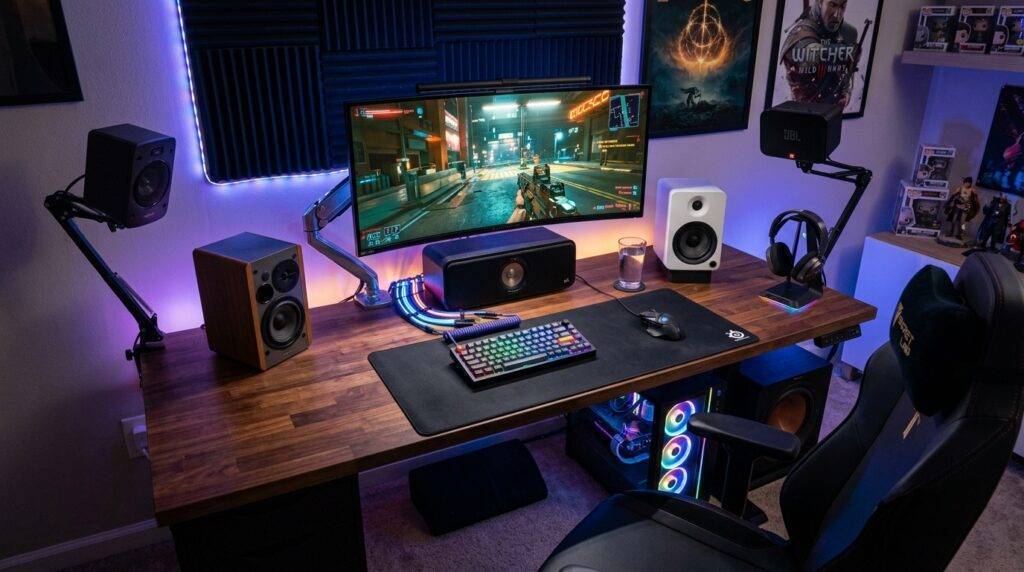
Setting up a “frankenstein” surround system—using different sets of speakers you have lying around—is entirely possible. I recently set up a system using a high-end pair of Edifier studio monitors for the front and a cheap pair of Logitech Z200s for the rear. Here is the exact process I followed.
Step 1: Physical Connection
Gather your speakers. You will likely need 3.5mm Male-to-Male cables or 3.5mm to RCA adapters.
- Plug your “best” speakers into the Green Port (Fronts).
- Plug your secondary speakers into the Black Port (Rears).
- If you have a third set or a standalone sub, plug it into the Orange Port.
Step 2: Windows Sound Configuration
Windows doesn’t always automatically detect that you’ve plugged in multiple sets of speakers.
- Press the Windows Key and type “Control Panel.”
- Navigate to Hardware and Sound > Sound.
- Highlight your “Speakers” (usually listed as Realtek(R) Audio) and click Configure.
- Select 5.1 Surround (or 7.1) from the list.
- Click through the “Test” buttons. You should hear a chime from each specific speaker.
Step 3: Level Matching and Calibration
Because you are likely using “any” speakers rather than a matched set, one pair might be significantly louder than the other.
- In the same Sound menu, right-click your Speakers and select Properties.
- Go to the Levels or Balance tab.
- Sit in your gaming chair and play a 5.1 test video on YouTube.
- Adjust the sliders for Rear or Center until the sound feels centered around your head.
Hardware Comparison: Connecting Different Speaker Types
| Connection Method | Speaker Type | Best For | Pros | Cons |
|---|---|---|---|---|
| 3.5mm Analog | Active PC Speakers | Budget DIY Setups | No extra amp needed | Susceptible to electrical hum |
| Optical (Toslink) | Soundbars / Receivers | High-Fidelity Audio | Digital, no interference | Limited to 5.1 compressed |
| HDMI (GPU) | AV Receivers | Professional Home Theater | Uncompressed 7.1 & Atmos | Requires bulky receiver |
| USB | USB Gaming Speakers | Simplicity | Bypasses bad onboard audio | Can be hard to sync brands |
The Challenges of Mixing and Matching Speakers
While the answer to “can I use any speakers for surround on my pc” is a resounding yes, there are two technical hurdles I frequently encounter: Timbre Matching and Crossover Frequencies.
Understanding Timbre Matching
Every speaker brand has a “signature sound.” Some are bright and sharp (like Klipsch), while others are warm and bass-heavy. If your front speakers sound vastly different from your rears, you might notice a “sonic jump” when a car drives from the front of the screen to the back in a game like Cyberpunk 2077. To fix this, use a software equalizer like Equalizer APO to manually adjust the treble and bass of each individual channel to match.
Managing the Subwoofer (LFE)
If you are using three sets of random bookshelf speakers, you won’t have a dedicated subwoofer. In your Realtek Audio Console, you must enable “Speaker Fill” or “Bass Management.” This tells Windows to redirect the low frequencies from all speakers to whichever one you’ve designated as the “large” speaker, preventing your audio from sounding thin or tinny.
Recommended Tools for Custom PC Surround Sound
If you find that Windows’ built-in tools are too basic for your “any speaker” setup, I highly recommend these expert-level tools:
- Equalizer APO: This is a parametric equalizer for Windows that allows you to change the gain, EQ, and delay of every single speaker channel independently.
- Peace GUI: An interface for Equalizer APO that makes it much easier to use.
- HeSuVi: If you decide to switch to headphones, this tool can mimic the surround sound of specific 7.1 systems using HRTF filters.
- VoiceMeeter Banana: A virtual audio mixer that allows you to route audio from any app to any physical output. This is perfect if you want to use a USB Speaker for the center and Analog Speakers for the rest.
Advanced Setup: Using Passive Speakers with Mini-Amps
If you have high-quality passive speakers from an old stereo system, don’t throw them away. You can use them for your PC surround setup by purchasing Class D Mini-Amps.
Brands like Fosi Audio and SMSL sell small, affordable amplifiers that take a 3.5mm input from your PC and output to raw speaker wire. I’ve successfully built a 5.1 system using three Fosi Audio TB10A amps. This setup often provides much better sound quality than a standard “all-in-one” PC speaker kit from a big-box store.
Frequently Asked Questions
Can I mix USB speakers and 3.5mm speakers for surround sound?
Normally, Windows treats these as two separate “Sound Devices,” meaning it will only play audio through one at a time. However, you can use software like VoiceMeeter Banana to “bridge” these devices, allowing you to use a USB set for your fronts and an analog set for your rears simultaneously.
Do I need a sound card for 5.1 surround on my PC?
Most motherboards made in the last 10 years have 5.1 support built-in. If your motherboard has three or more audio jacks on the back, you do not need a separate sound card. However, a dedicated sound card or an external DAC will often provide a cleaner signal with less “static” or “hissing” caused by internal PC interference.
Why is only my front speakers working when I play music?
Most music is recorded in Stereo (2.0). By default, Windows will only play stereo music through the front two speakers. To hear music through all your speakers, you must go into your audio driver settings (Realtek) and enable “Speaker Fill” or “Room Correction.”
Can I use Bluetooth speakers for a PC surround setup?
I strongly advise against this. Bluetooth introduces significant latency (delay). If your front speakers are wired and your rear speakers are Bluetooth, the sound from the rear will be delayed by a fraction of a second, creating a distracting “echo” effect that ruins the spatial immersion.