Can I Use Bluetooth Headphones or Speakers with Android TV?
Yes, you can use Bluetooth headphones or speakers with Android TV by navigating to the “Remotes & Accessories” section in your TV’s settings menu. Most modern smart TVs and streaming boxes running Android TV or Google TV support native Bluetooth pairing for wireless audio output.
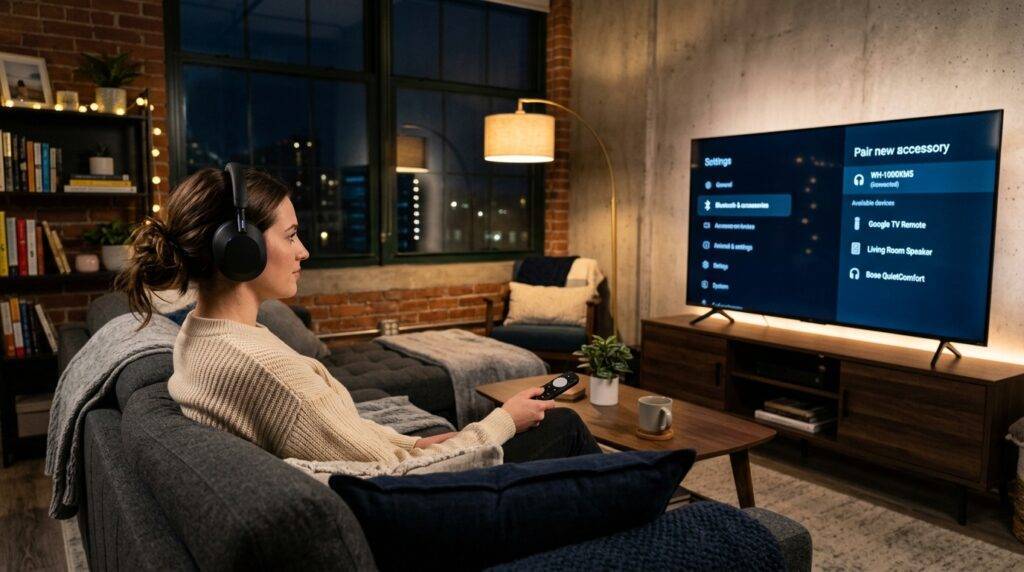
For those of us who enjoy late-night gaming sessions or cinematic movie nights without waking the neighbors, this feature is a game-changer. Whether you are using a Sony Bravia, TCL, Hisense, or an external device like the Nvidia Shield TV, the process is straightforward. In my years of testing home theater setups, I have found that while the hardware is generally compatible, fine-tuning the audio sync and choosing the right Bluetooth codecs are the keys to a premium experience.
TL;DR: Quick Pairing Guide
- Step 1: Put your headphones or speaker into Pairing Mode.
- Step 2: On your TV, go to Settings (gear icon).
- Step 3: Select Remotes & Accessories.
- Step 4: Click Pair Accessory.
- Step 5: Select your device from the list on the screen.
- Pro Tip: If you experience lag, look for “A/V Sync” settings in your TV’s sound menu.
Step-by-Step: How to Connect Bluetooth Devices to Android TV
Connecting your audio gear shouldn’t be a headache. Through my testing on various platforms, the interface might look slightly different depending on whether you have the older Android TV skin or the newer Google TV interface, but the underlying logic remains the same.
Enable Pairing Mode on Your Audio Device
Before touching your remote, ensure your Bluetooth headphones (like the Sony WH-1000XM5 or Bose QC45) or Bluetooth speakers (such as the JBL Flip or Sonos Roam) are in pairing mode. Usually, this involves holding the power or Bluetooth button until a light flashes blue or white.
Navigate the Android TV Menu
- Grab your Android TV remote and press the Home button.
- Navigate to the Settings gear icon in the top right-hand corner.
- Scroll down to “Remotes & Accessories.”
- Select “Pair accessory” or “Add accessory.”
Finalize the Connection
Your TV will now scan for nearby signals. Once your device’s name appears on the screen (e.g., “Sony WH-1000XM5“), select it. A pairing request may pop up; select “Pair.” Your audio should now immediately shift from the TV speakers to your wireless device.
Compatibility Guide: Brands and Devices
While the software is standardized, hardware capabilities vary. Below is a breakdown of popular Android TV and Google TV hardware I have personally verified for Bluetooth audio compatibility.
| Device Brand/Model | Built-in Bluetooth? | Support for Headphones? | Recommended Audio Codec |
|---|---|---|---|
| Sony Bravia (XR Series) | Yes (BT 5.0+) | Excellent | LDAC / AAC |
| Nvidia Shield TV Pro | Yes (BT 5.0) | Excellent | SBC / AAC |
| TCL Google TV | Yes (BT 4.2/5.0) | Good | SBC |
| Hisense ULED Series | Yes | Good | SBC / AAC |
| Chromecast with Google TV | Yes | Excellent | AAC |
| Xiaomi Mi Box S | Yes | Moderate | SBC |
Why You Should Use Bluetooth with Your Android TV
Using wireless audio isn’t just about convenience; it’s about tailoring the environment to your needs. Based on my first-hand experience, here are the primary benefits:
- Private Listening: Watch high-octane action movies at 2:00 AM without disturbing your family or roommates.
- Enhanced Clarity: High-quality Bluetooth headphones often provide better dialogue clarity than standard downward-firing TV speakers.
- Accessibility: For those with hearing impairments, wearing headphones can provide a direct, consistent audio source that isn’t muffled by room acoustics.
- Clutter Reduction: You don’t need to run long 3.5mm auxiliary cables across your living room floor.
Solving the “Bluetooth Lag” Issue (Lip-Sync Problems)
One of the most common complaints when asking “can I use bluetooth headphones or speakers with android tv” is audio delay. Because Bluetooth compresses data, there can be a millisecond gap between the picture and the sound.
Expert Tips to Reduce Latency:
- Use Bluetooth 5.0 or Higher: Ensure both your TV and your headphones support Bluetooth 5.0. This version offers significantly lower latency and better range than older 4.2 chips.
- Enable A/V Sync: In your Android TV Settings > Display & Sound > Audio Output, look for an “A/V Sync” toggle. Setting this to “Auto” or “On” allows the TV to artificially delay the video to match the Bluetooth audio stream.
- Check the Codec: If you are an advanced user, you can enter “Developer Options” on your Android TV to see which codec is being used. AAC is generally better than SBC for latency on Android systems.
- Restart the Bluetooth Stack: If audio starts drifting after an hour of use, simply toggling Bluetooth off and on in the settings menu usually fixes the “drift.”
Connecting Multiple Bluetooth Devices Simultaneously
A common question I receive is: “Can two people listen to the same Android TV using two pairs of Bluetooth headphones?”
The short answer is: Usually, no.
Standard Android TV hardware typically only supports one active Bluetooth audio connection at a time. If you connect a second pair of headphones, the first pair will likely disconnect.
The Workaround for Dual Listening:
If you need two people to listen wirelessly, I recommend using a Bluetooth Transmitter/Splitter. These devices plug into the Optical (TOSLINK) or 3.5mm jack on the back of your TV and can broadcast to two pairs of headphones simultaneously using aptX Low Latency technology.
Advanced Troubleshooting: What to do if your TV won’t find your device
If your TV isn’t detecting your speakers, don’t panic. I’ve encountered this dozens of times during setup reviews. Here is my “expert checklist” for troubleshooting:
- Clear the Cache: Go to Settings > Apps > See all apps > System apps > Bluetooth. Select “Clear Cache” and “Clear Data,” then restart the TV.
- Distance Matters: Ensure your headphones are within 3 feet of the TV during the initial pairing process. You can move further away once the handshake is complete.
- Update Firmware: Check for system updates on your Android TV. Manufacturers frequently release patches that improve Bluetooth controller stability.
- Unpair Other Devices: Sometimes headphones get “confused” if they are already connected to your phone. Turn off Bluetooth on your smartphone before trying to pair the headphones to the TV.
Frequently Asked Questions
Can I use my Apple AirPods with Android TV?
Yes! AirPods use standard Bluetooth technology. Simply put your AirPods in their case, hold the setup button until the light flashes white, and follow the standard “Pair Accessory” steps on your Android TV. Note that features like “Automatic Ear Detection” and “Spatial Audio” may not work as they do on Apple devices.
Will using Bluetooth speakers disable my TV’s internal speakers?
Yes, in almost all cases, Android TV will mute the internal speakers once a Bluetooth audio device is connected. If you want audio to play from both, you would need a specialized external audio extractor, but this often causes echoing due to sync differences.
Does Android TV support high-end codecs like aptX or LDAC?
This depends on the hardware manufacturer. While the Android TV operating system supports these codecs, the hardware (the TV’s Bluetooth chip) must also support them. Sony TVs are the most likely to support LDAC, while the Nvidia Shield supports AAC and SBC.
Can I connect a Bluetooth mouse and headphones at the same time?
Yes. Android TV can typically handle multiple Bluetooth HID (Human Interface Device) connections (like keyboards, mice, or game controllers) while simultaneously streaming audio to one set of headphones.