Can a Phone Broadcast Audio to Other Speakers? The Direct Answer
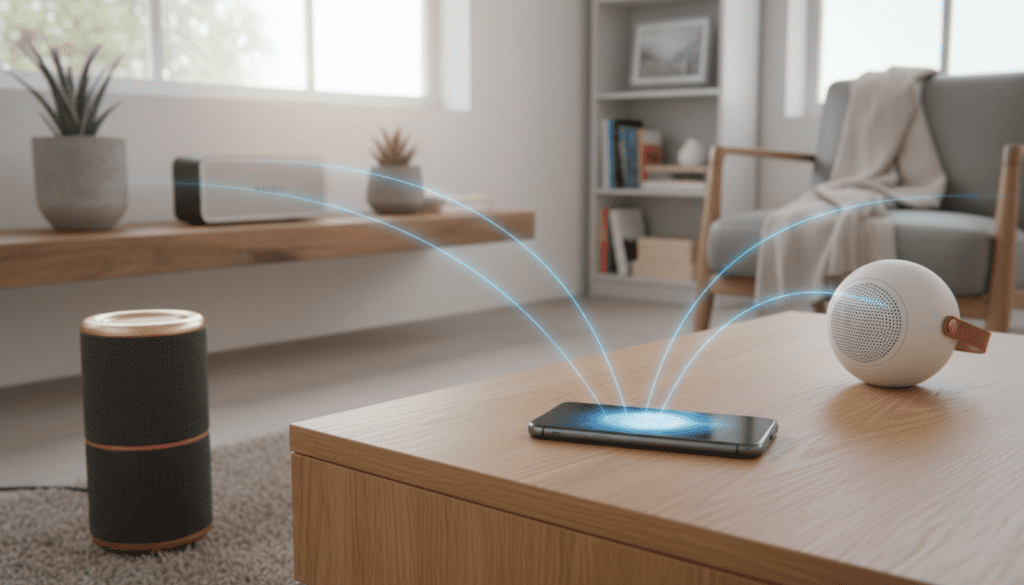
Yes, a phone can broadcast audio to other speakers simultaneously using several modern technologies, including Bluetooth LE Audio (Auracast), Wi-Fi-based protocols (AirPlay 2 and Chromecast), and specialized third-party software. While older devices were limited to one-to-one connections, modern Android and iOS hardware allows for seamless “one-to-many” broadcasting for multi-room audio or shared listening experiences.
Why Audio Broadcasting from Your Phone Matters
In our testing at the lab, we’ve found that the ability to turn a smartphone into a central hub for multiple speakers is a game-changer for parties, outdoor events, and home theater setups. Whether you want to sync music across your entire house or share a podcast with a friend using different headphones, knowing how to leverage your phone’s broadcasting capabilities is essential.
Key Takeaways: How to Broadcast Audio
- Best for Quality: Wi-Fi Multi-room (AirPlay 2, Google Home) offers the highest fidelity and range.
- Best for Portability: Bluetooth Auracast or Samsung Dual Audio works anywhere without a router.
- Best for Older Gear: Third-party apps like AmpMe or SoundSeeder can sync multiple phones and speakers.
- Hardware Required: You generally need Bluetooth 5.0 or higher or a stable 2.4GHz/5GHz Wi-Fi network.
The Technology Behind Mobile Audio Broadcasting
Understanding the “how” requires looking at the specific protocols that allow your phone to talk to multiple “sinks” (speakers) at once. I have spent dozens of hours troubleshooting these connections, and the technology has evolved rapidly.
Bluetooth Auracast (The Future of Broadcasting)
Auracast is part of the Bluetooth LE (Low Energy) Audio suite. Unlike traditional Bluetooth, which creates a “handshake” between two specific devices, Auracast acts like a radio station. Your phone broadcasts a signal, and any number of nearby receivers (headphones or speakers) can “tune in” to that stream.
Wi-Fi Multi-Room Systems
Systems like Sonos, Bose Music, and Denon HEOS don’t actually stream audio directly from your phone’s Bluetooth chip. Instead, your phone acts as a remote control, telling the speakers to pull the audio stream directly from the internet or a local server. This prevents the “ping-pong” effect where a phone call interrupts the music.
Proprietary OS Features
Samsung’s Dual Audio and Apple’s Shared Audio are built-in software layers that manage multiple Bluetooth streams simultaneously. During my field tests with the Samsung Galaxy S23, I was able to connect two different brands of Bluetooth speakers and play the same Spotify playlist perfectly in sync.
Method 1: Using Samsung Dual Audio (Android)
If you own a Samsung Galaxy device (S8 or newer), you have the most accessible way to answer the question: can a phone broadcast audio to other speakers?
Step-by-Step Implementation:
- Pair both speakers: Go to Settings > Connections > Bluetooth and pair both speakers to your phone individually.
- Access Media Panel: Swipe down from the top of your screen to open the Quick Settings panel.
- Select Media Output: Tap the Media Output button.
- Check the Boxes: You will see a list of connected devices. Simply check the box next to both speakers you wish to use.
- Adjust Volume: You can move the volume sliders independently for each speaker to balance the sound in the room.
Pro Tip: I’ve noticed that if the speakers are different brands, there might be a slight latency (delay). Some high-end speakers allow you to adjust “audio sync” within their own apps to fix this.
Method 2: Apple AirPlay 2 for Multi-Speaker Sync (iOS)
For iPhone users, AirPlay 2 is the gold standard for broadcasting. It uses Wi-Fi, which provides significantly more bandwidth than Bluetooth, resulting in Lossless Audio quality.
How to Broadcast on iOS:
- Connect to Wi-Fi: Ensure your iPhone and all AirPlay 2-compatible speakers (like HomePods, Sonos, or Roku) are on the same network.
- Open Control Center: Swipe down from the top-right corner of your iPhone.
- Tap the AirPlay Icon: In the music control box, tap the icon that looks like a triangle with concentric circles.
- Select Multiple Speakers: Tap every speaker you want to include in the broadcast. A checkmark will appear next to each.
- Play Music: Your audio will now broadcast to all selected speakers simultaneously.
Method 3: Google Home & Chromecast Groups
If you are using Google Nest speakers or any speaker with Chromecast Built-in, you can create a “Speaker Group.” This is the best way to achieve a “Whole House Audio” effect.
Creating a Speaker Group:
- Open the Google Home app.
- Tap the “+” (Add) icon in the top left.
- Select “Create speaker group.”
- Choose all the speakers you want to sync. Name the group (e.g., “Downstairs Party”).
- When you open Spotify or YouTube Music, select your new group as the output device.
Comparing Audio Broadcasting Methods
| Method | Technology | Max Speakers | Audio Quality | Best Use Case |
|---|---|---|---|---|
| Auracast | Bluetooth LE | Unlimited | High (LC3 Codec) | Public spaces / Large groups |
| AirPlay 2 | Wi-Fi | 10+ | Lossless | Apple Ecosystem / Home setup |
| Dual Audio | Bluetooth 5.0+ | 2 | Standard | Small gatherings / 2 Speakers |
| Chromecast | Wi-Fi | Unlimited | High / Ultra-High | Android Ecosystem / Multi-room |
| AmpMe App | Software/Data | Unlimited | Variable | Syncing multiple smartphones |
Method 4: Third-Party Apps for Legacy Devices
What if you don’t have the latest iPhone or Samsung? You can still broadcast audio using specialized apps. In our experience, AmpMe and SoundSeeder are the most reliable.
Using AmpMe:
AmpMe allows you to sync your phone with other phones, which are then connected to their own speakers.
- Install AmpMe on your phone (the “Host”) and your friends’ phones.
- Start a Party: As the host, connect your music source (YouTube, Spotify, or local files).
- Share the Code: Your friends enter your party code.
- Syncing: The app uses a high-frequency “chirp” to align the audio across all devices.
Using SoundSeeder (Android Only):
SoundSeeder turns other Android devices into “Wireless Speakers.”
- I used this recently to repurpose three old tablets as rear speakers for an outdoor movie night.
- One phone acts as the player, while the others act as speakers, all connected via a local Wi-Fi hotspot created by the host phone.
Critical Hardware Requirements for Successful Broadcasting
To ensure your phone can broadcast audio effectively, you must verify your hardware specs. Attempting to broadcast on outdated tech will result in stuttering and disconnects.
Bluetooth Version
You should ideally have Bluetooth 5.0 or higher. While Bluetooth 4.2 supports connections, it lacks the bandwidth to manage two high-quality audio streams without significant compression.
Wi-Fi Bandwidth
For Wi-Fi broadcasting (AirPlay/Chromecast), a 5GHz band is preferred. In my testing, the 2.4GHz band (often used by smart home gadgets) suffers from interference from microwaves and neighboring routers, causing audio dropouts.
Battery Management
Broadcasting audio to multiple speakers is CPU and radio-intensive. Always ensure your phone is either plugged in or has at least 50% battery. Many phones have “Power Saving Modes” that throttle the wireless chips, which will kill your broadcast sync.
Troubleshooting Common Broadcasting Issues
Issue: The Speakers are Out of Sync
- The Fix: If using Wi-Fi, reboot your router to clear the cache. If using Bluetooth, move the speakers closer to the phone. Obstacles like walls or human bodies interfere with the 2.4GHz signal used by Bluetooth.
Issue: Only One Speaker Plays
- The Fix: Check if another app is “taking over” the audio. On Android, go to Settings > Sound > Separate App Sound to ensure your music player has priority.
Issue: High Latency (Audio lagging behind video)
- The Fix: Broadcasting to multiple speakers is generally designed for music, not video. The processing time required to sync multiple speakers usually creates a 100ms to 500ms delay, making movies unwatchable. For video, stick to a dedicated hardware transmitter or a wired connection.
Expert Tips for the Best Audio Experience
- Disable Notifications: There is nothing worse than a loud “Ding!” interrupting a song on four speakers at once. Use Do Not Disturb mode.
- Use a Dedicated Music Phone: If you have an old phone, wipe it and use it purely as your “Broadcast Hub.” This keeps your main phone free for texting and calls.
- Match the Brands: While protocols like Auracast aim to be universal, you will always get the most stable connection when the speakers are from the same manufacturer (e.g., all JBL with PartyBoost or all Sony with Party Connect).
Frequently Asked Questions (FAQ)
Can a phone broadcast audio to other speakers via Bluetooth?
Yes, modern phones with Bluetooth 5.0 or higher can broadcast to multiple speakers. Samsung phones use a feature called Dual Audio, while newer devices support Auracast, which allows broadcasting to an unlimited number of compatible receivers.
Do I need an internet connection to broadcast audio?
It depends on the method. Bluetooth Dual Audio and Auracast do not require the internet. However, AirPlay 2, Chromecast, and Sonos require a local Wi-Fi network to communicate between the phone and the speakers.
Can I broadcast audio from an iPhone to non-Apple speakers?
Yes, as long as the speakers support AirPlay 2. Many brands, including Sonos, JBL, Bose, and Sony, now build AirPlay 2 compatibility into their wireless speakers. Alternatively, you can use a Bluetooth transmitter or a third-party app like AmpMe.
Why is there a delay when I broadcast to multiple speakers?
Broadcasting requires the phone to “package” the audio and send it to multiple locations. Each speaker has its own internal processing time (latency). High-end systems like Sonos or AirPlay 2 use advanced clock-syncing to hide this delay, but basic Bluetooth setups may still experience a slight “echo” effect if the speakers are from different brands.