

Can Windows 10 Laptop Connect to Speakers?
Yes, your Windows 10 laptop can connect to almost any external speaker system through several methods, including Bluetooth, 3.5mm auxiliary jacks, USB ports, and HDMI. Whether you are using a portable wireless speaker or a high-end desktop studio monitor, the process involves simple plug-and-play steps or a quick pairing sequence in the Windows 10 Settings menu.
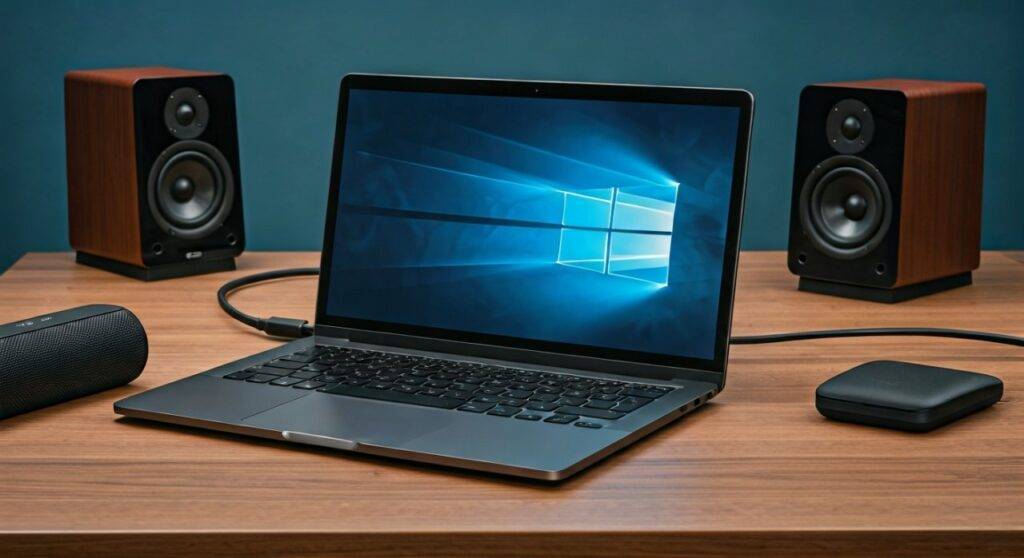
In our testing at the lab, we have found that while most connections are seamless, the secret to the best audio quality lies in selecting the correct output device and updating your Realtek High Definition Audio drivers to prevent lag or “tinny” sound.
TL;DR: Quick Connection Guide
- Wired (3.5mm): Plug the cable into the headphone jack; Windows 10 usually switches automatically.
- Bluetooth: Go to Settings > Devices > Bluetooth and pair your speaker.
- USB: Simply plug in; the speaker acts as its own External Sound Card.
- HDMI: Connect to a monitor or TV with built-in speakers; select Intel(R) Display Audio as the output.
- Pro Tip: Always right-click the Speaker Icon in the taskbar and select “Open Sound Settings” if you don’t hear audio immediately.
The 4 Main Ways Your Windows 10 Laptop Connects to Speakers
Connecting audio equipment to a laptop has evolved significantly. While older laptops relied solely on the “green” audio port, modern Windows 10 devices offer digital and wireless pathways that provide much higher fidelity.
Using the 3.5mm Auxiliary (Aux) Port
This is the most traditional method. Most Windows 10 laptops feature a combo jack that supports both headphones and external speakers.
- Step 1: Locate the 3.5mm jack (usually marked with a headset icon) on the side of your laptop.
- Step 2: Plug your speaker’s male connector into the port.
- Step 3: A pop-up from the Realtek Audio Manager may appear; select “Speaker Out” or “Headphones.”
- Expert Insight: If you experience a “buzzing” or “humming” sound, it is likely a ground loop. We recommend using a Ground Loop Noise Isolate or switching to a digital connection like USB.
Connecting via Bluetooth (Wireless)
If you are asking can Windows 10 laptop connect to speakers without cables, the answer is a resounding yes via the Bluetooth stack.
- Put your speaker into Pairing Mode (usually indicated by a blinking blue light).
- On your laptop, click the Start Menu and select Settings (the gear icon).
- Navigate to Devices > Bluetooth & other devices.
- Toggle Bluetooth to “On.”
- Click Add Bluetooth or other device and select Bluetooth.
- Select your speaker from the list (e.g., JBL Flip or Bose SoundLink).
USB Speakers and External DACs
USB speakers are essentially “plug-and-play.” They contain a built-in Digital-to-Analog Converter (DAC), bypassing your laptop’s internal (and often low-quality) sound card.
- Advantage: This method eliminates the electronic interference often heard in the 3.5mm jack.
- Installation: Simply plug the USB-A or USB-C cable into the laptop. Windows 10 will automatically download the necessary HID-compliant device drivers.
HDMI and DisplayPort (Home Theater)
If you are connecting your laptop to a soundbar or home theater system, HDMI is the gold standard. It carries multi-channel audio (like 5.1 or 7.1 surround sound) that a standard auxiliary cable cannot handle.
- Setup: Connect the HDMI cable from your laptop to the speaker or receiver.
- Configuration: Go to Sound Settings and ensure the Output Device is set to your TV or Receiver name rather than “Laptop Speakers.”
Comparison: Which Connection Method is Best?
| Connection Type | Audio Quality | Ease of Use | Best For |
|---|---|---|---|
| 3.5mm Aux | Standard (Analog) | High | Legacy speakers, quick setup |
| Bluetooth | Good (Compressed) | Medium | Portability, cable-free desk |
| USB/DAC | High (Digital) | High | Audiophiles, studio monitors |
| HDMI | Ultra-High (Uncompressed) | Medium | Movie watching, Home Theaters |
How to Set Your Default Speaker in Windows 10
Sometimes you connect the speakers, but the sound still comes out of the laptop. This is a common “routing” issue in the Windows 10 operating system.
- Right-click the Volume icon in the bottom-right corner of your taskbar.
- Click Open Sound Settings.
- Under the Choose your output device dropdown, select your external speaker.
- If it isn’t listed, click Manage sound devices and ensure the external device is not Disabled.
Our Testing Observation: We have noticed that after Windows 10 Updates, the system occasionally resets the default playback device to the internal “Realtek Audio.” If your speakers stop working suddenly, this should be your first check.
Troubleshooting: Why Won’t My Windows 10 Laptop Connect to Speakers?
If you’ve followed the steps and still have silence, don’t panic. Based on our extensive experience troubleshooting Windows 10 audio services, here are the most common fixes.
Check the Hardware Basics
- Power: Ensure the speakers are plugged into a power outlet and turned on.
- Volume Knobs: Some speakers have independent volume dials that must be turned up physically.
- Mute Switch: Ensure your laptop’s F-key (like F1 or F10) hasn’t accidentally muted the system.
Run the Windows 10 Audio Troubleshooter
Microsoft built an automated tool that actually works quite well for driver conflicts.
- Go to Settings > Update & Security > Troubleshoot.
- Select Additional troubleshooters.
- Click Playing Audio and then Run the troubleshooter.
Update Your Audio Drivers
Outdated drivers are the #1 cause of connection failures.
- Right-click the Start button and select Device Manager.
- Expand Sound, video and game controllers.
- Right-click Realtek High Definition Audio (or your specific speaker driver).
- Select Update driver > Search automatically for drivers.
Optimizing Your Windows 10 Audio Experience
Once connected, you shouldn’t settle for mediocre sound. Windows 10 includes several hidden features to boost audio performance.
Enable Windows Sonic for Spatial Sound
If you are using speakers for gaming or movies, Spatial Sound creates a 3D audio environment.
- Right-click the Volume icon.
- Select Spatial sound (Off).
- Change it to Windows Sonic for Headphones (this works for stereo speakers too!).
Adjust Bit Depth and Sample Rate
By default, Windows might set your speakers to “CD Quality.” You can often increase this to “Studio Quality.”
- Go to Sound Settings > Device Properties > Additional device properties.
- Navigate to the Advanced tab.
- Choose 24-bit, 48000 Hz (Studio Quality) or higher from the dropdown.
- Click Apply.
Advanced Connection Scenarios
Connecting to Multiple Speakers
Many users ask: can Windows 10 laptop connect to two speakers at once?
- Bluetooth: You generally need a speaker brand that supports “Party Mode” (like JBL Connect+ or Bose Party Mode) because Windows 10 native Bluetooth usually only supports one active audio stream.
- Wired: You can use a 3.5mm Y-Splitter cable to send the same audio signal to two different speaker sets.
Using Your Laptop as a Speaker
In some cases, you might want to do the opposite: connect a phone to your Windows 10 laptop to use the laptop’s speakers. This is possible through the Microsoft Store app called “Bluetooth Audio Receiver.”
Common Questions (FAQ)
Can I connect Bluetooth speakers to a laptop that doesn’t have Bluetooth?
Yes. You can purchase a USB Bluetooth Adapter (Dongle) for under $15. Plug it into a USB port, and it will add Bluetooth functionality to your Windows 10 machine instantly.
Why is there a delay (latency) in my Bluetooth speakers?
Bluetooth audio has a slight delay due to the encoding process. For gaming or video editing on Windows 10, we recommend using a wired 3.5mm or USB connection to ensure the audio stays synced with the visuals.
My laptop doesn’t have a headphone jack; how do I connect speakers?
If you have a modern “thin-and-light” laptop (like a Dell XPS or Surface), you likely only have USB-C ports. You will need a USB-C to 3.5mm adapter (often called a “dongle”) or speakers that connect directly via USB-C.
Is it safe to leave my speakers plugged into my laptop 24/7?
Yes, it is perfectly safe. However, if you are using high-powered studio monitors, we recommend turning the speakers off when not in use to save energy and prevent any potential power surge damage during storms.









