Can You Connect Klipsch Reference Speakers to a Computer?
Yes, you can connect Klipsch Reference speakers to a computer, but the method depends entirely on whether your speakers are Powered (Active) or Passive. If you own Klipsch Powered Monitors (like the R-41PM or R-51PM), you can connect them directly via USB, Optical, or 3.5mm Aux. If you have Passive Reference Speakers (like the R-41M or R-51M), you must use an external Amplifier or AV Receiver to bridge the gap between your PC and the speakers.
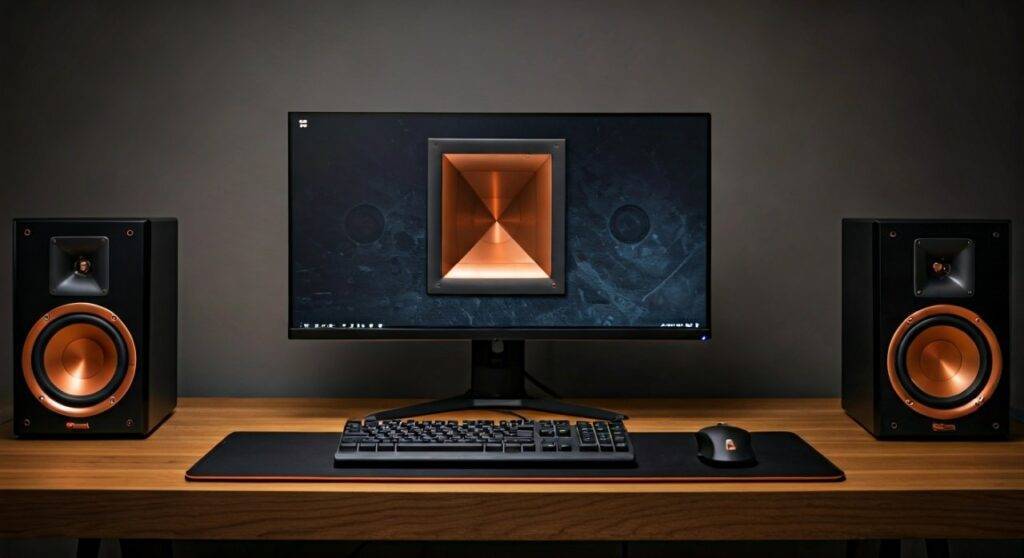
In my years of testing high-end desktop audio, I’ve found that Klipsch speakers offer a unique “horn-loaded” sound signature that brings a “live” feel to PC gaming and music. However, many users struggle with the initial setup because Klipsch Reference is a broad category that includes different connectivity requirements. This guide will walk you through every possible scenario to ensure you get the best Hi-Fi audio out of your PC setup.
Quick Summary: Klipsch to PC Setup
| Speaker Type | Required Hardware | Best Connection Method | Effort Level |
|---|---|---|---|
| Powered (Active) | None (Internal Amp) | USB-B to USB-A | Easy (Plug & Play) |
| Passive | Integrated Amp / Receiver | Speaker Wire + USB DAC | Moderate |
| Bluetooth Models | None | Wireless Pairing | Very Easy |
| Legacy Passive | Mini-Amp (e.g., Fosi Audio) | 3.5mm to RCA | Moderate |
Key Takeaways for Fast Setup
- Identify Your Model: Check the back of your speaker. If it has a power cord and volume knob, it is Powered. If it only has red/black wire terminals, it is Passive.
- Prioritize Digital: Always use USB or Optical over 3.5mm Analog to avoid the electrical interference (static) common in computer motherboards.
- Subwoofer Support: Most Klipsch Powered Monitors feature a Sub-Out port, allowing you to add a Klipsch Reference Subwoofer for a 2.1 desktop experience.
- Software Settings: Ensure your Windows or Mac output is set to 24-bit/96kHz (or higher) in the sound settings to match Klipsch’s hardware capabilities.
## Identifying Your Speakers: Can You Connect Klipsch Reference Speakers to a Computer Directly?
Before you buy cables, you must determine if your speakers are “Active” or “Passive.” This is the most common point of confusion for new Klipsch owners.
Klipsch Powered Monitors (Active)
These speakers are designed specifically for “Zero-Click” connectivity. They have a built-in amplifier inside the cabinet.
- Common Models: R-41PM, R-51PM, The Fives, The Sevens, The Nines.
- Identification: Look for a power plug, a volume dial, and a panel of inputs (USB, RCA, Optical) on the back of the right speaker.
- PC Compatibility: High. You can connect these directly to your computer without extra gear.
Klipsch Reference Bookshelf/Floorstanding (Passive)
These are traditional Hi-Fi speakers that require an external power source.
- Common Models: R-41M, R-51M, R-15M, RP-600M.
- Identification: The back only features two metal binding posts (Red and Black). There is no power cord.
- PC Compatibility: Requires an Amplifier or Receiver.
## Step-by-Step: Connecting Powered Klipsch Reference Speakers to a Computer
If you have the Powered versions, follow these steps to achieve the highest possible audio fidelity.
Step 1: Use the USB Digital Audio Connection
We highly recommend using the USB-B to USB-A cable provided by Klipsch. This allows the speaker’s internal DAC (Digital-to-Analog Converter) to bypass your computer’s low-quality internal sound card.
- Plug the USB-B end (square-ish) into the “USB Audio” port on the back of the primary speaker.
- Plug the USB-A end into a port directly on your PC’s motherboard (avoid USB hubs to prevent lag).
- Switch the source on the speaker to “USB” (The LED usually turns White or Blue depending on the model).
Step 2: The Optical (Toslink) Alternative
If your motherboard has an Optical S/PDIF output (common on gaming PCs), this is an excellent second choice.
- Connect the Optical cable from the PC to the speaker.
- This provides “Electrical Isolation,” meaning you won’t hear “coil whine” or buzzing from your GPU while gaming.
Step 3: Configure Windows/Mac Audio Settings
To get the most out of your Klipsch Reference setup, you must tell your OS to send high-quality data:
Windows: Go to Settings > System > Sound > Properties*. Change the “Default Format” to 24-bit, 48000Hz or 96000Hz.
Mac: Open Audio MIDI Setup*. Select the Klipsch output and set the format to the highest available sample rate.
## How to Connect Passive Klipsch Reference Speakers to a Computer
Can you connect Klipsch reference speakers to a computer if they are passive? Yes, but you need a middleman.
The Desktop “Mini-Amp” Solution
Since passive speakers like the R-41M don’t have a plug, you need a small desktop amplifier. We have tested the Klipsch PowerGate and third-party options like the Schiit Rekkr or Fosi Audio BT20A.
- Connect the PC to the Amp: Use a USB cable (best) or a 3.5mm-to-RCA cable from your PC’s headphone jack to the Amp’s “Input.”
- Connect the Amp to the Speakers: Use 14-gauge speaker wire. Strip the ends, insert them into the binding posts, and tighten. Ensure Red goes to Red and Black goes to Black to maintain “Phase.”
- Power On: Turn on the amp first, then your PC audio.
Why Passive Speakers for a Computer?
While more complex, using passive Klipsch Reference speakers allows you to upgrade your DAC or Amplifier later without replacing the speakers themselves. This is the preferred route for true audiophiles.
## Optimizing Your Klipsch Desktop Audio Experience
Setting up the connection is only half the battle. To make Klipsch Reference speakers sound their best on a desk, follow these professional tips:
The “Tractrix Horn” Placement
Klipsch uses a proprietary Tractrix Horn for the tweeter. These are highly “directional.”
- Toe-in: Angle the speakers slightly toward your ears, not pointing straight ahead.
- Ear Level: Use Desktop Speaker Stands (like Kanto S4 or ISO-Acoustics) to bring the horn to ear level. This prevents the sound from reflecting off your desk surface, which causes “muddiness.”
Managing the Bass (The Port Issue)
Most Klipsch Reference speakers are Rear-Ported.
- Distance from Wall: If the speaker is too close to the wall (less than 6 inches), the bass can become “boomy” and undefined.
- Solution: Try to keep at least 8-12 inches of space between the back of the speaker and the wall.
Adding a Subwoofer
If you are using the R-41PM or R-51PM, they have a dedicated Sub-Out.
- We recommend the Klipsch R-100SW or R-120SW.
- Connect a single RCA Subwoofer Cable from the speaker to the sub.
- The speakers will automatically engage a Crossover, sending the deep frequencies to the sub and letting the bookshelf speakers focus on the mids and highs.
## Common Troubleshooting: Klipsch Speakers and PCs
“I hear a buzzing or hissing sound.”
- This is often a Ground Loop. If you are using a 3.5mm Aux cable, switch to USB or Optical. Digital connections eliminate this analog noise.
“The volume is too low.”
- Check the physical volume knob on the back of the speaker. Klipsch powered speakers often have an independent volume level from the Windows volume slider. Set Windows to 100% and use the Klipsch remote to find your “ceiling.”
“The speakers go to sleep and won’t wake up.”
- Klipsch speakers have an Auto-Standby feature. Ensure your PC volume is high enough to “trigger” the speakers to wake up.
## FAQ: Connecting Klipsch to Computer
Q: Do I need a sound card for Klipsch Reference speakers?
A: If you have Powered speakers, No. The speakers have a built-in high-quality sound card (DAC). If you have Passive speakers, a dedicated external DAC is recommended over an internal sound card for better noise isolation.
Q: Can I use Bluetooth to connect my Klipsch speakers to my PC?
A: Yes, if your model is a “PM” (Powered Monitor) or “The Fives/Sevens/Nines” series. However, Bluetooth introduces Latency (Lag), which makes it poor for gaming or video editing. Stick to USB for desktop use.
Q: Which Klipsch Reference speaker is best for a small desk?
A: The Klipsch ProMedia 2.1 THX is the classic choice, but for better musicality, the Klipsch R-41PM is the gold standard for compact desktop Hi-Fi.
Q: Can I connect these to a laptop?
A: Absolutely. Use the same USB-A (or USB-C with an adapter) method. It works exactly like a desktop setup.