

What Does It Mean to Properly Don Audio?
To don audio means to properly put on and set up your audio equipment, such as a headset, microphone, and communication pack. This is a professional term used in fields like broadcasting, military operations, and live event production. It’s more than just wearing a headset; it’s a deliberate, procedural process to ensure crystal-clear communication, reliability, and comfort for extended periods.
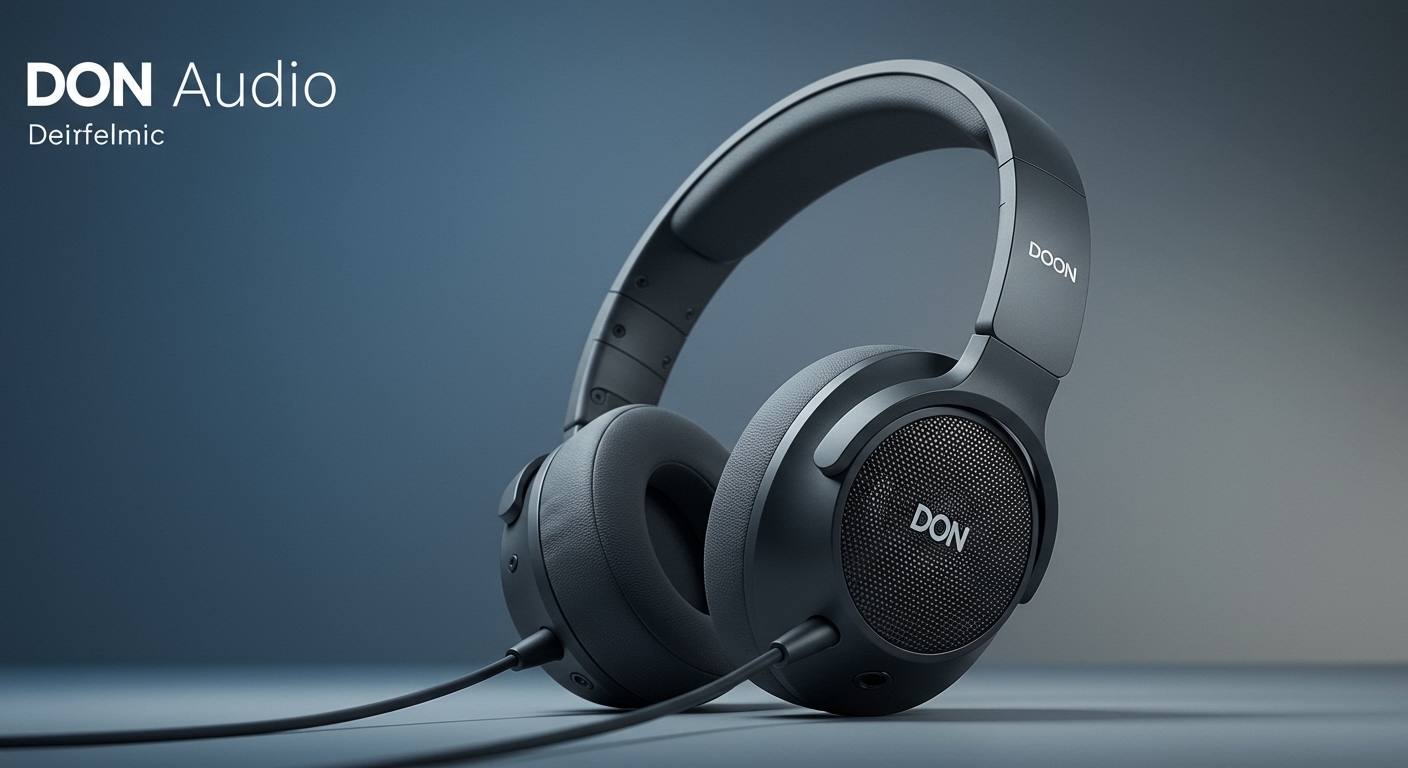
Getting this process right is the difference between a seamless operation and a frustrating experience filled with muffled sound, missed cues, and distracting feedback. In my years as an audio engineer, I’ve seen major productions nearly derailed by something as simple as a poorly placed microphone. This guide provides the step-by-step, professional method to don audio correctly every single time.
Key Takeaways: The 5 Steps to Don Audio
- Inspect Your Gear: Before anything else, perform a 5-point check of your cables, connectors, earpads, microphone, and power source.
- Position for Comfort & Seal: Place the headset on your head, ensuring earpieces are correctly oriented (L/R) and create a firm but comfortable seal to isolate external noise.
- Place the Mic for Clarity: Use the “two-finger rule” to position the microphone capsule approximately two fingers’ width from the corner of your mouth to avoid plosives and breathing noises.
- Secure All Connections: Firmly plug in all connectors and use clothing clips to secure cables, preventing snags that could disconnect or damage your gear.
The Pre-Donning Inspection: Your 5-Point Checklist
Before you even think about putting the gear on, a thorough inspection is non-negotiable. I can’t count the number of times a five-second check has saved me 30 minutes of troubleshooting later. A professional treats their gear like a pilot treats their aircraft—with a pre-flight check.
We use a simple 5-point system to ensure every piece of kit is mission-ready.
- Inspect Cables and Connectors
- Check Earpieces and Padding
- Examine the Microphone Boom and Windscreen
- Verify Power Source
- Confirm Channel and Frequency Settings
How to Don Audio: A Step-by-Step Professional Guide
Once your gear has passed inspection, it’s time to put it on. This process is about creating a stable, comfortable, and acoustically optimized setup. We’ll break it down into four distinct steps.
Step 1: Positioning the Headset or Earpiece
The goal here is a balance between a secure fit and long-term comfort.
- Identify Left and Right: Most headsets are ergonomic and marked with an “L” and “R.” Orient the headset correctly before placing it on your head.
- Seat the Earcup: Place the headset on your head and adjust the earcups so they fully enclose your ears (for over-ear models) or sit comfortably on them (for on-ear models). You should feel a slight, even pressure.
- Create a Seal: Adjust the headband so the earcups form a seal around your ears. This is your first line of defense against outside noise and is crucial for hearing comms clearly in loud environments like a concert or a film set.
- For In-Ear Monitors (IEMs): Gently insert the earpiece into your ear canal, pulling up on the top of your ear with your opposite hand to straighten the canal. This ensures a deep, secure fit for maximum bass response and isolation.
Step 2: Securing the Fit
A loose headset will shift, causing discomfort and inconsistent mic placement.
- Adjust the Headband: The headband should rest comfortably on the crown of your head, distributing the headset’s weight evenly. It shouldn’t be so tight that it causes a pressure headache.
- Cable Management: This is a pro move. Route the headset cable down your back or clip it to your shirt collar. This prevents the cable from snagging on equipment and violently pulling the headset off your head. Trust me, it happens.
- Use Clothing Clips: Most professional audio packs come with clips. Secure the belt pack to your belt or waistband, and use any provided clips to attach the cable to your clothing, creating strain relief.
Step 3: Placing the Microphone
This is the most critical step for ensuring your voice is transmitted with maximum clarity. Poor mic placement is the number one cause of bad audio.
- The Two-Finger Rule: Position the microphone boom so the mic capsule is located about two fingers’ width away from the corner of your mouth. This is the sweet spot.
- Avoid the “Plosive Zone”: Never place the microphone directly in front of your mouth. This position picks up explosive bursts of air from “p” and “b” sounds, creating a distorted “popping” noise known as plosives.
- Check the Mic Capsule Orientation: Many headset mics are directional. Look for a small dot or marking that indicates the “front” of the microphone and ensure it is pointing directly at your mouth.
Step 4: Connecting to Your System
The final physical step is making the connection.
- Secure the Connector: Whether you’re plugging into a belt pack, an audio interface, or a camera body, make sure the connector clicks firmly into place. A partially inserted plug will cause crackling or no audio at all.
- Engage Locking Rings: If your connector (like a Lemo or 4-pin XLR) has a locking mechanism, make sure you engage it. This prevents accidental disconnection during movement.
- Test the Mute Switch: If your headset or pack has a mute function, know how it works. I’ve seen people think their audio was dead for 10 minutes, only to realize they had accidentally muted themselves.
The Critical Final Step: Performing a Comms Check
You never assume your gear is working. You verify it is working. A communications check is the last, most important part of the process to don audio.
Establish Contact: Get on the designated channel and make a clear, concise call. The standard format is: “Radio check, this is [Your Name/Position] on [Channel]. How do you copy?”*
Wait for a Response: The person on the other end should respond with how they hear you. A typical clear response is: “Copy you loud and clear, [Your Name].”*
- Listen for Problems: When they respond, listen critically to your own earpiece. Are they clear? Is there static? Is the volume too low or painfully high?
- Adjust Levels: Use this opportunity to adjust the volume knob on your pack or headset to a comfortable listening level. You want it loud enough to hear over ambient noise but not so loud that it’s fatiguing.
Comparing Audio Donning Techniques for Different Equipment
The specific steps to don audio can vary based on the equipment you’re using. Here’s a breakdown of the key differences for common professional gear.
| Equipment Type | Key Donning Step | Common Mistake to Avoid |
|---|---|---|
| Broadcast Headset | Mic Placement: The two-finger rule is paramount for vocal clarity and avoiding plosives on air. | Placing the mic directly in front of the mouth, causing distorted audio. |
| Tactical Comms Gear | Integration: Ensuring the earpiece fits comfortably under a helmet and doesn’t break a seal. | Routing cables where they can be snagged by other gear or obstruct movement. |
| In-Ear Monitors (IEMs) | Achieving a Seal: Proper insertion into the ear canal is critical for bass response and noise isolation. | Using the wrong size ear tip, which leads to a poor seal and tinny sound. |
| Lavalier Microphone | Placement & Hiding: Securing the mic to clothing where it won’t be muffled by fabric or create rustling noise. | Clipping the mic in a “noise zone” like a collar that will rub against the user’s chin. |
Troubleshooting Common Issues After You Don Audio
Even with perfect preparation, issues can arise. Here’s how to quickly diagnose and solve the most common problems I’ve encountered in the field.
- Problem: Your audio sounds muffled or far away.
- Problem: You hear static, crackling, or intermittent dropouts.
- Problem: No one can hear you, or you can’t hear anyone.
*









