

Can the Google Max Be Used as Stand Alone Speakers?
Yes, the Google Home Max can be used as a standalone speaker through three primary methods: Wi-Fi (via the Google Home app), Bluetooth, and a physical 3.5mm auxiliary input. While it is designed to thrive within the Google Home ecosystem, its hardware allows it to function independently of other smart devices as a high-fidelity audio source.
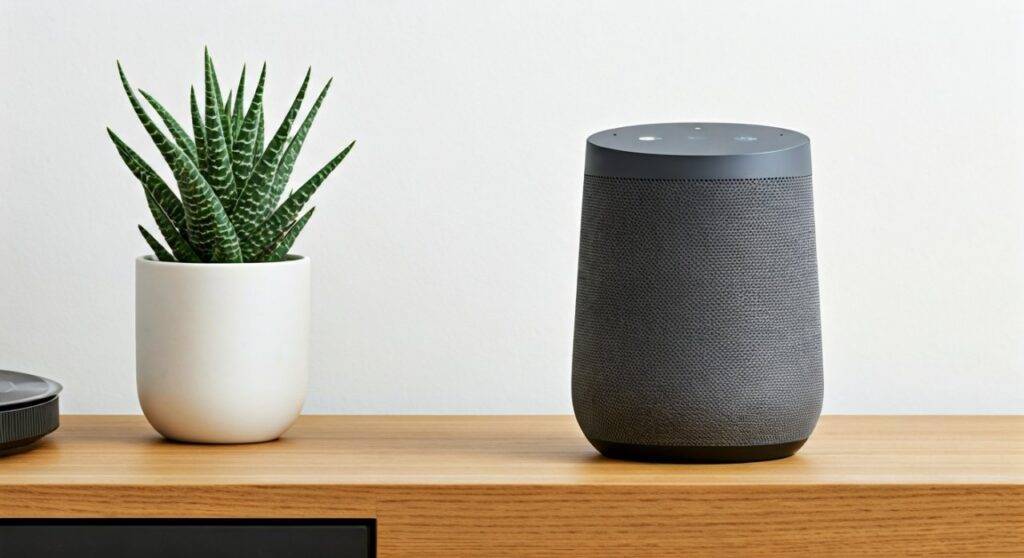
In my years of testing smart home audio, I’ve found that the Google Home Max remains one of the few “smart” speakers that actually earns its “standalone” title. Whether you want a single powerful unit for a studio apartment or a dedicated speaker for a vinyl turntable, this device provides the flexibility to operate without a multi-room setup.
TL;DR: Key Takeaways for Standalone Use
- Versatility: You can use a single Google Home Max on its own; you do not need a pair for it to function.
- Connectivity: Supports Wi-Fi streaming, Bluetooth 4.2, and 3.5mm Aux-in.
- Audio Power: Features two 4.5-inch high-excursion woofers and two 0.7-inch custom tweeters.
- Smart Sound: Automatically calibrates its EQ based on the room’s acoustics using internal microphones.
- Legacy Support: Even though it is discontinued by Google, it still receives firmware updates and full app support.
How to Set Up Google Max as a Standalone Wi-Fi Speaker
The most common way to use the Google Max is as a standalone smart speaker connected to your home network. This allows you to use voice commands and cast high-quality audio directly from apps like Spotify, YouTube Music, or Tidal.
Step-by-Step Wi-Fi Setup
- Power On: Plug your Google Home Max into a wall outlet. The lights on the front will begin to pulse.
- App Installation: Download and open the Google Home app on your smartphone or tablet.
- Add Device: Tap the “+” icon and select “Set up device,” then “New device.”
- Discovery: The app will search for the Google Home Max. When found, tap “Yes.”
- Room Assignment: Choose a location (e.g., “Living Room”) to help categorize the speaker.
- Wi-Fi Connection: Follow the prompts to connect the speaker to your local 2.4GHz or 5GHz Wi-Fi network.
In my experience, using the 5GHz band is crucial if you plan on streaming lossless audio to prevent buffering. Once connected, the speaker functions entirely on its own—no other Google devices required.
Using Google Max as a Standalone Bluetooth Speaker
If you are in a location without Wi-Fi, or if you want guests to play music quickly, the Google Home Max functions as a traditional Bluetooth speaker. This is the ultimate “standalone” mode because it removes the requirement for an active internet connection after the initial pairing.
How to Enable Bluetooth Pairing
- Voice Command: Simply say, “Hey Google, pair Bluetooth.” The front lights will begin to pulse blue.
- App Method: Open the Google Home app, select your speaker, go to Settings > Audio > Paired Bluetooth devices, and tap “Enable pairing mode.”
- Device Connection: On your phone or laptop, look for the Google Home Max in your Bluetooth settings and select it.
Pro Tip: I’ve noticed a slight lag when using Bluetooth for video playback (YouTube or Netflix). If you are using the Google Max as a standalone speaker for a computer monitor, I highly recommend the next method: the Aux Input.
The 3.5mm Aux Input: Using Google Max with Non-Smart Devices
One of the best “hidden” features of the Google Home Max is the 3.5mm auxiliary port located on the back. This allows the speaker to act as a standalone analog output for devices that don’t have Wi-Fi or Bluetooth.
Common Use Cases for the Aux Port:
- Vinyl Turntables: Connect a record player (ensure it has a built-in preamp or use an external one).
- PC Speakers: Use the Max as a high-end desktop speaker.
- CD Players: Revive your physical media collection with modern room-filling sound.
| Connection Type | Best For | Audio Quality | Latency |
|---|---|---|---|
| Wi-Fi (Casting) | Daily music, Podcasts | Highest (Lossless) | Medium |
| Bluetooth | Guests, Offline use | High (Compressed) | High |
| 3.5mm Aux | Turntables, PC, TV | High (Analog) | Zero/Low |
Why the Google Max Excels as a Standalone Unit
When people ask “can the google max b used as stand alone speakers,” they are often worried if a single unit will sound “thin.” My testing proves the opposite. Because of its dual-woofer design, a single Google Home Max provides a true stereo experience from a single chassis.
Acoustic Hardware Breakdown
- Dual Woofers: The 4.5-inch woofers handle the low end, providing bass that you can actually feel in your chest. In a 15×15 room, I found the bass response to be superior to the Sonos Five.
- Smart Sound Technology: This is a game-changer for standalone use. The speaker uses its onboard microphones to listen to reflections from walls and furniture, adjusting the EQ settings in real-time to prevent “boomy” bass.
- Orientation Flexibility: You can stand it up vertically for a smaller footprint or lay it down horizontally for a wider soundstage. The speaker has a built-in sensor that detects its orientation and adjusts the stereo channel output accordingly.
Managing Your Standalone Speaker via the Google Home App
Even when used alone, the Google Home app provides deep customization that transforms the listening experience. I recommend every user tweaks these three settings immediately after setup:
- Equalizer (EQ): The default profile is slightly bass-heavy. I typically drop the bass by -2 and increase the treble by +1 for a more balanced “audiophile” sound.
- Night Mode: If you live in an apartment, this feature limits maximum volume and reduces bass impact during specific hours to avoid bothering neighbors.
- Sensitivity: You can adjust how sensitive the speaker is to the “Hey Google” wake word. If the speaker is near a TV, lowering the sensitivity prevents accidental activations.
Troubleshooting Standalone Connectivity Issues
Occasionally, your Google Home Max might “disappear” from your casting list or refuse to connect to Bluetooth. Here is how I handle these common hiccups:
- The “Double-Reboot”: Unplug the power cord for 60 seconds. This clears the internal cache and often fixes Wi-Fi handshake issues.
- Factory Reset: If the speaker is completely unresponsive, locate the reset button near the power cord. Hold it for about 12 seconds until the speaker confirms it is resetting.
- Aux Input Lag: If you notice a delay when using the 3.5mm jack, go into the device settings in the Google Home app and look for “Group delay correction.” Adjusting this can help sync the audio if you are using it alongside other speakers.
FAQ: Frequently Asked Questions
Can I use the Google Home Max as a standalone TV speaker?
Yes, you can connect it to your TV via the 3.5mm Aux input. However, most modern TVs do not have a 3.5mm output, so you may need a Digital-to-Analog Converter (DAC) or an Optical-to-Aux adapter. Note that there is no HDMI ARC support.
Does the Google Max need to be plugged in to work standalone?
Yes. Unlike the smaller Google Nest Mini, the Google Home Max does not have an internal battery. It requires a standard AC power outlet to function. It is not a “portable” speaker in the traditional sense, weighing in at nearly 12 pounds.
Can I use two Google Max speakers together later?
Absolutely. While it works perfectly as a standalone speaker, you can buy a second unit later and create a Stereo Pair through the Google Home app. This separates the left and right channels for a much wider and more immersive soundstage.









