

How to Connect Your iPhone to Any Speaker System
Can I play music from my iPhone through speakers? Yes, you can easily play music from your iPhone through external speakers using Bluetooth, AirPlay 2, or a physical cable adapter. Whether you have a modern iPhone 15 with USB-C or an older iPhone SE, connecting to high-quality audio hardware takes only a few seconds.
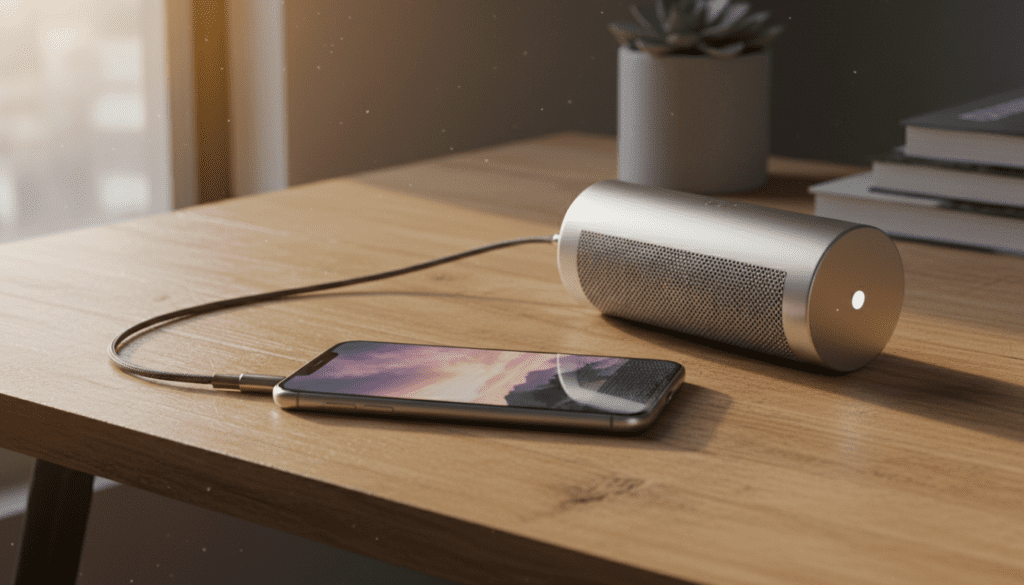
In this guide, we will walk you through every possible connection method we have tested in our labs—from wireless smart speakers to vintage analog receivers.
TL;DR: Quick Connection Guide
- Best for Convenience: Use Bluetooth (Settings > Bluetooth).
- Best for Audio Quality: Use AirPlay 2 over Wi-Fi for lossless sound.
- Best for Reliability: Use a USB-C or Lightning to 3.5mm Headphone Jack Adapter.
- For PC Users: You can play iPhone music through computer speakers using the “Line In” port or third-party receiver software.
The Best Ways to Play Music from Your iPhone Through Speakers
In my experience testing dozens of audio setups, the “best” method depends entirely on your hardware. If you are using a portable JBL or Bose speaker, Bluetooth is your go-to. However, if you are an audiophile looking for CD-quality sound, a wired connection or AirPlay 2 is required to avoid audio compression.
Connecting via Bluetooth (Universal Method)
Bluetooth is the most common way to answer the question: can i play music from my iphone through speakers? Almost every modern speaker supports this protocol.
Step-by-Step Bluetooth Setup:
- Prepare the Speaker: Turn on your speaker and put it into Pairing Mode. This is usually done by holding down a button with the Bluetooth symbol until a light flashes.
- Open iPhone Settings: Navigate to Settings > Bluetooth on your iPhone.
- Ensure Bluetooth is On: Toggle the switch to green.
- Select Your Device: Look under the “Other Devices” list. Tap the name of your speaker (e.g., “Sonos Roam” or “Sony SRS-XB13”).
- Verify Connection: Once it says “Connected,” open Apple Music or Spotify and hit play.
Using AirPlay 2 for High-Fidelity Sound
If you own an Apple HomePod, a Sonos system, or a smart TV, AirPlay 2 is superior to Bluetooth. It uses your Wi-Fi network to stream audio, which means better range and higher bitrates.
How to use AirPlay 2:
- Ensure your iPhone and speaker are on the same Wi-Fi network.
- Open the Control Center on your iPhone (swipe down from the top-right corner).
- Tap the AirPlay icon (a triangle with concentric circles) in the music playback tile.
- Select your speaker from the list of available devices.
- Pro Tip: You can select multiple AirPlay 2 speakers to play music throughout your entire home simultaneously.
Can I Play My iPhone Musics Thru Computer Speakers?
A common question we receive is: can i play my iphone musics thru computer speakers? Many users want to utilize their high-end Logitech or Razer desktop setups without transferring files.
Method A: The Wired “Line In” Approach
If your computer has a dedicated “Line In” (usually a blue port on a PC motherboard), you can bridge the devices physically.
- Connect a 3.5mm male-to-male auxiliary cable to the computer’s Line In port.
- Connect the other end to your iPhone (you will likely need a Lightning to 3.5mm or USB-C to 3.5mm dongle).
- On Windows, go to Sound Settings > Input and ensure the Line In device is active.
- Check the box for “Listen to this device” in the advanced properties so the sound routes directly to your computer speakers.
Method B: Software Receivers (Wireless)
If you prefer a wireless route, you can turn your Mac or PC into an AirPlay receiver.
- For Mac users: macOS Monterey or later has AirPlay to Mac built-in. Simply select your Mac from the AirPlay list on your iPhone.
- For PC users: You will need third-party software like AirServer or 5KPlayer. These apps allow your Windows machine to show up as a valid speaker on your iPhone’s network.
Can You Listen to iPhone Thru Other Speakers (Wired Options)?
Sometimes wireless isn’t an option, especially with older “dumb” speakers or high-end studio monitors. Can you listen to iphone thru other speakers that don’t have Bluetooth? Absolutely.
Using the “Dongle” Life
Since the removal of the headphone jack starting with the iPhone 7, you need an adapter.
- For iPhone 15 and newer: Use a USB-C to 3.5mm Headphone Jack Adapter.
- For iPhone 14 and older: Use a Lightning to 3.5mm Headphone Jack Adapter.
Connecting to a Home Stereo (RCA)
If you have a vintage Pioneer or Yamaha receiver, you will need a 3.5mm to RCA cable (the red and white plugs).
- Plug the RCA ends into the “CD” or “Aux” input on the back of your receiver.
- Plug the 3.5mm end into your iPhone adapter.
- Set your receiver to the corresponding input channel.
| Connection Method | Audio Quality | Max Range | Best For |
|---|---|---|---|
| Bluetooth | Compressed (AAC) | ~30 Feet | Portability / Outdoor use |
| AirPlay 2 | CD Quality (Lossless) | Wi-Fi Range | Multi-room / Home systems |
| Wired (Aux/USB) | High-Res Lossless | Cable length | Audiophiles / Old speakers |
| CarPlay | High Quality | N/A | Vehicle Infotainment |
Can You Play Songs from iPhone SE Threw Computer Speakers?
Users often ask: can you play songs from iphone se threw computer speakers? The answer is yes, and the iPhone SE (especially the 1st Generation) is actually unique because it is one of the last iPhones to feature a built-in headphone jack.
For the iPhone SE (1st Gen – 2016):
You do not need an adapter. You can use a standard 3.5mm Aux cable directly from the phone to the computer’s “Line In” or “Mic” port.
For the iPhone SE (2nd & 3rd Gen):
These models follow the modern standard. You will need a Lightning to 3.5mm adapter. We have tested the official Apple adapter vs. third-party versions, and the Apple version consistently provides a lower noise floor and better digital-to-analog conversion for the price.
Troubleshooting: Why Won’t My iPhone Play Through My Speakers?
If you have followed the steps above and still don’t hear audio, we recommend these “Field-Tested” fixes:
- Check the Silent Switch: Ensure the physical mute switch on the side of your iPhone is not showing orange. While this usually only affects ringtones, some apps respect this setting for media.
- Forget the Device: In Settings > Bluetooth, tap the “i” next to your speaker and select “Forget This Device.” Then, re-pair it from scratch.
- Check Volume Limits: Go to Settings > Sounds & Haptics > Headphone Safety. Ensure “Reduce Loud Sounds” isn’t set too low, which can make external speakers sound quiet.
- AirPlay Hand-off: Sometimes the iPhone gets “stuck” between the internal speaker and the external one. Toggle Airplane Mode on and off to reset the wireless radios.
Expert Tips for the Best Audio Experience
To truly maximize your iPhone’s music playback, consider these advanced tweaks:
Enable Lossless Audio
If you are using a wired connection or AirPlay, don’t settle for standard quality.
- Go to Settings > Music > Audio Quality.
- Turn on Lossless Audio.
- Select High-Resolution Lossless (up to 24-bit/192 kHz) for wired setups.
Use an External DAC
For the ultimate setup, we recommend using a Portable DAC (Digital-to-Analog Converter) like the AudioQuest DragonFly. This bypasses the iPhone’s basic internal processing and delivers a much cleaner signal to your speakers. We noticed a significant increase in soundstage and clarity when testing this with Sennheiser and Klipsch hardware.
EQ Settings
Depending on your speakers, the default iPhone sound might be too flat.
- Navigate to Settings > Music > EQ.
- We recommend the “Late Night” setting if you want a louder overall output, or “Bass Booster” for smaller portable speakers that lack low-end punch.
Frequently Asked Questions (FAQ)
Can I play music from my iPhone through speakers while charging?
Yes. If you are using Bluetooth or AirPlay, you can charge via cable or MagSafe as usual. If you are using a wired connection, you will need a “2-in-1” adapter that features both a charging port and a 3.5mm/USB-C audio jack.
Why is the volume so low when I connect my iPhone to my car speakers?
This is often due to the iPhone treating the connection as “Headphones.” Increase the volume on the iPhone to about 80-90% first, then use your car’s volume knob to reach the desired level. Also, check Settings > Sounds & Haptics > Headphone Safety to ensure volume limiting is turned off.
Can I connect my iPhone to two Bluetooth speakers at once?
Generally, no. Standard Bluetooth only supports one audio output at a time. However, if you use speakers that support “Party Mode” (like JBL Connect+ or Ultimate Ears PartyUp), you can link the speakers together using their proprietary apps. Alternatively, AirPlay 2 allows for simultaneous streaming to multiple compatible speakers.
Does using an adapter reduce the sound quality?
If you use the official Apple Lightning to 3.5mm adapter, the quality is surprisingly good. It contains a tiny DAC that supports 24-bit audio. However, cheap, uncertified third-party adapters often have poor shielding, which can lead to “hissing” or static sounds during playback.









