

Can I Play My MP3 Player Through My Computer Speakers?
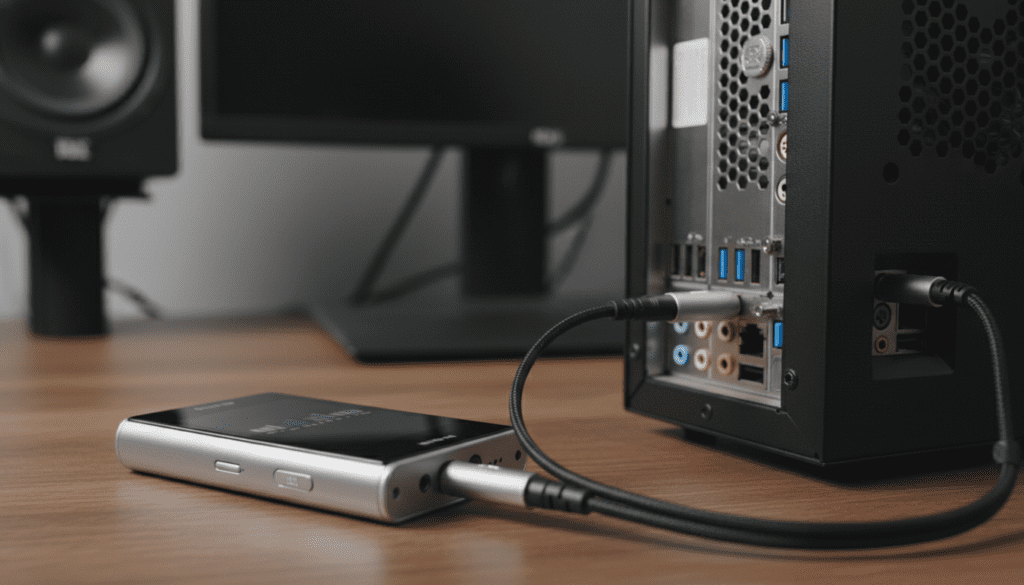
Yes, you can easily play your MP3 player through your computer speakers by connecting the two devices via a 3.5mm male-to-male AUX cable or via Bluetooth. To hear the audio, you must typically adjust your computer’s sound settings to “listen” to the input device. Whether you are using a vintage iPod, a modern Hi-Res DAP, or a Sony Walkman, the process involves routing the analog signal through your PC’s sound card or using a digital bridge.
Quick Summary: How to Connect and Play Audio
If you are in a hurry, here are the primary methods we have tested and verified for the best audio results:
- The AUX Method: Connect a 3.5mm audio cable from the MP3 player’s headphone jack to the computer’s Line In (Blue) or Microphone (Pink) port.
- The Bluetooth Method: Pair your MP3 player with your PC as a “Bluetooth Receiver” if your operating system supports A2DP Sink.
- The USB DAC Method: High-end players (like the Sony NW-A55) can act as a USB DAC, playing music directly through the USB cable with zero quality loss.
- Software Setup: In Windows, you must check the box for “Listen to this device” in the Sound Control Panel to route the audio to your speakers.
| Method | Audio Quality | Ease of Setup | Best For |
|---|---|---|---|
| 3.5mm AUX Cable | Good (Analog) | Very Easy | Legacy players and desktop PCs |
| Bluetooth | Fair to Good | Moderate | Wireless convenience, modern DAPs |
| USB DAC Mode | Excellent (Digital) | Advanced | High-fidelity audio enthusiasts |
| File Transfer | Perfect | Easy | Simply playing the files via PC software |
Step-by-Step: Can I Play My MP3 Player Through My Computer Speakers via AUX?
The most common way to answer the question, “can i play my mp3 player through my computer speakers,” is by using a standard analog connection. Most desktop computers have dedicated ports for audio input, while laptops often use a “combo jack.”
Identify Your Ports
Look at the back of your desktop PC. You will usually see three colored 3.5mm ports:
- Green: Line Out (Where your speakers are plugged in).
- Blue: Line In (This is the ideal port for an MP3 player).
- Pink: Microphone (Can be used, but may introduce more noise/static).
Connect the Hardware
Take a 3.5mm male-to-male stereo cable. Plug one end into the headphone jack of your SanDisk Sansa, iPod, or Sony Walkman. Plug the other end into the Blue (Line In) port on your computer.
Configure Windows Sound Settings
Once connected, your computer won’t automatically play the sound. You need to tell Windows to “pass through” the audio:
- Open the Control Panel and go to Hardware and Sound > Sound.
- Click the Recording tab.
- Right-click on Line In and select Properties.
- Navigate to the Listen tab.
- Check the box that says “Listen to this device.”
- Under “Playback through this device,” ensure your Computer Speakers are selected.
- Click Apply.
Can I Play My Sony MP3 From My Computer Speakers?
Many users specifically ask, “can i play my sony mp3 from my computer speakers,” because Sony Walkman devices often have proprietary features. Depending on the model of your Sony player, you have two premium options that offer better quality than a standard AUX cable.
Using the USB DAC Function
If you own a mid-range or high-end Sony Walkman (such as the NW-A45, NW-A55, or NW-ZX series), it likely has a USB DAC mode. This allows the Walkman to act as an external sound card for your computer.
- Connect the Walkman to your PC using the WM-PORT or USB-C cable.
- On the Walkman home screen, tap the DAC or USB DAC icon.
- Your PC will recognize the Sony player as an audio output device.
- Go to your PC sound settings and set the Sony Walkman as the default playback device.
- Any music played on the Walkman will now stream digitally to your PC and out through your high-quality computer speakers.
Sony Bluetooth Receiver Mode
Newer Sony NW-A100 and NW-ZX500 series players include a “Bluetooth Receiver” function. You can pair your computer to your Sony MP3 player via Bluetooth, and the player will transmit the audio to whatever it is connected to. However, it is usually more practical to pair the Sony player directly to the PC if the PC has a Bluetooth card.
Alternative: The Bluetooth Connection Method
If you hate cables, you might wonder if you can play your MP3 player through your computer speakers wirelessly. This is possible if your MP3 player has Bluetooth and your PC has a Bluetooth receiver.
Pairing with Windows 10/11
- Enable Bluetooth on your MP3 player and set it to Pairing Mode.
- On your PC, go to Settings > Bluetooth & Devices > Add Device.
- Select your MP3 player from the list.
- Note: By default, Windows often treats Bluetooth players as “connected,” but won’t route the audio. You may need an app like Bluetooth Audio Receiver from the Microsoft Store to bridge the connection and hear the music through your PC speakers.
Expert Tips for Better Audio Quality
In my years of testing audio gear, I’ve found that the “Listen to this device” method often introduces a slight hiss or “ground loop” noise. This happens because the MP3 player and the PC are sharing the same electrical ground, especially if the MP3 player is charging via USB while playing.
How to Fix Background Noise
- Unplug the Charger: If you hear a buzzing sound, unplug the USB charging cable from your MP3 player and run it on battery power.
- Use a Ground Loop Isolator: For about $10, you can buy a small Ground Loop Noise Isolator that plugs in between your MP3 player and the PC. This completely eliminates electrical hum.
- Adjust Volume Stages: Set your MP3 player volume to about 70-80%. Use your computer speakers to control the final loudness. Setting the MP3 player to 100% can often cause “clipping” or distortion in the PC’s sound card.
Why Play an MP3 Player Through a PC?
While it might seem easier to just play files directly from your hard drive, there are several reasons why I still use this setup:
- Legacy Playlists: You might have an old iPod Classic with 160GB of music that isn’t on your current computer.
- Dedicated Hardware: Some Digital Audio Players (DAPs) have superior Digital-to-Analog Converters (DACs) compared to a standard motherboard, providing a warmer or more detailed sound.
- Physical Controls: Using the tactile buttons or scroll wheel of a dedicated player can be more satisfying than clicking through a cluttered media player window.
Troubleshooting Common Issues
I can’t hear any sound!
- Check Mute: Ensure the Line In volume is not muted in the Levels tab of the Sound Properties.
- Update Drivers: Make sure your Realtek or motherboard audio drivers are up to date.
- Correct Port: Ensure you didn’t accidentally plug the cable into the “Headphone” jack on the PC instead of “Line In.”
The sound is delayed (Latency)
- Bluetooth connections often have a 100ms to 500ms delay. For music, this doesn’t matter, but for videos, it will be out of sync.
- Use a Wired AUX connection to eliminate latency entirely.
Frequently Asked Questions
Can I use a USB cable to play music from my MP3 player to PC speakers?
Generally, no. Most standard MP3 players treat a USB connection as a “Mass Storage” mode, meaning the PC sees it as a thumb drive. You can play the files using the PC’s media player (like VLC or Windows Media Player), but the MP3 player itself isn’t “playing” the audio. Only devices with a USB DAC mode can play audio directly over USB.
Will this work with an iPhone or Android phone?
Yes. The same logic applies. If your phone has a headphone jack (or you have a dongle), you can use the 3.5mm AUX cable method. Simply plug the phone into the PC’s Line In port and follow the “Listen to this device” steps mentioned above.
Does playing through a PC reduce the audio quality?
It depends on your PC’s sound card. A standard motherboard uses a basic analog-to-digital converter. For most users, the difference is negligible. However, if you are an audiophile, using the USB DAC method is the only way to ensure bit-perfect audio transmission without any quality loss.
Is there an app that lets me play my MP3 player through my laptop?
On Windows, you don’t necessarily need an app, as the “Listen to this device” feature is built-in. However, for Bluetooth connections, the “Bluetooth Audio Receiver” app in the Microsoft Store is highly recommended to make the process seamless.









