Can I Play Music from Bluetooth Speakers and Computer Speakers Simultaneously?
Yes, you can play music from bluetooth speakers and computer speakers at the same time. While most operating systems default to a single audio output to prevent echo, you can bypass this limitation using built-in settings like Stereo Mix on Windows, Audio MIDI Setup on macOS, or third-party routing software like VoiceMeeter.
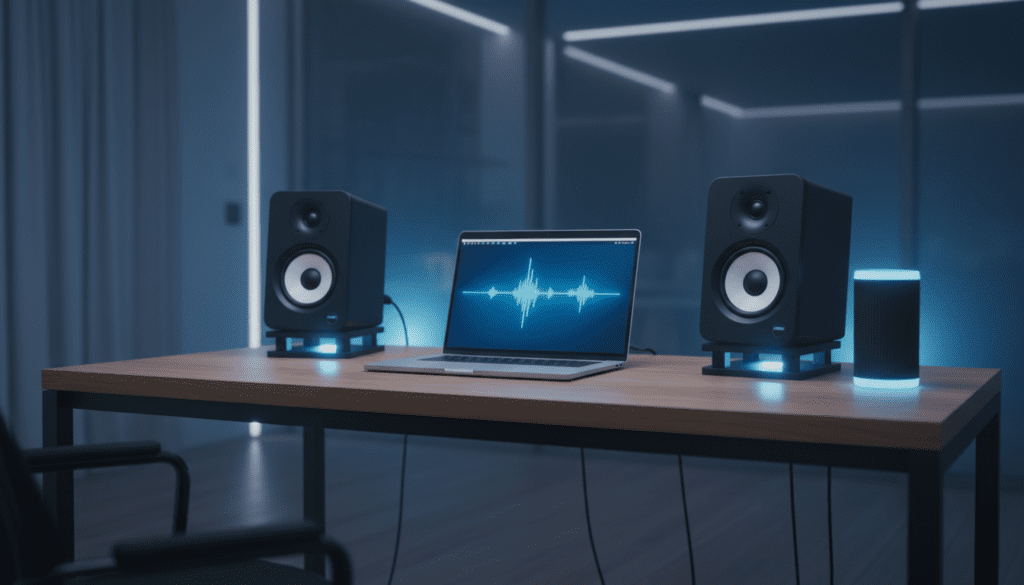
In my years testing home audio configurations, I’ve found that while the setup is straightforward, the real challenge lies in audio latency. Bluetooth signals naturally lag behind wired computer speakers. However, by following the specific calibration steps I’ve outlined below, you can achieve a perfectly synced “surround sound” experience without spending a dime on new hardware.
TL;DR: Quick Summary for Multi-Speaker Setup
- Windows Users: Use the Stereo Mix feature in Control Panel or download VoiceMeeter for better sync control.
- Mac Users: Use the native Audio MIDI Setup utility to create a “Multi-Output Device.”
- Key Challenge: Bluetooth latency can cause a “stadium echo.” You may need to adjust millisecond delays in your media player.
- Best Results: Use Bluetooth 5.0 or higher to minimize lag and improve connection stability.
Why Use Both Computer and Bluetooth Speakers?
When you can use computer speakers and bluetooth speakers together, you effectively expand your soundstage. I often use this setup in my home office to fill the room during deep-work sessions or to provide background music for small gatherings.
By combining your existing desktop setup with a portable Bluetooth unit, you gain:
- Increased Volume: Doubling the drivers increases the decibel output.
- Room Coverage: You can place the Bluetooth speaker in a corner where your desk speakers can’t reach.
- Better Bass: If your Bluetooth speaker has a better woofer, it can act as a makeshift sub.
Method 1: Using Windows Stereo Mix (Native Solution)
The most common way to answer the question, “can you make computer audio play from speakers bluetooth and wired simultaneously?” is by using Stereo Mix. This is a built-in Windows feature that “listens” to your primary output and mirrors it to a secondary device.
Step-by-Step Configuration
- Connect your Bluetooth speaker to your PC and ensure your wired speakers are also plugged in.
- Right-click the Speaker icon in your taskbar and select Sound Settings.
- Scroll down to More sound settings (on Windows 11) or Recording tab (on Windows 10).
- Find Stereo Mix. If you don’t see it, right-click any empty space and check Show Disabled Devices.
- Right-click Stereo Mix and select Enable.
- Right-click it again and select Properties.
- Navigate to the Listen tab.
- Check the box that says Listen to this device.
- Under Playback through this device, select your Bluetooth speaker from the dropdown menu.
- Set your wired Computer Speakers as the “Default Device” in the main Playback tab.
| Feature | Stereo Mix | VoiceMeeter (Pro) | Audio MIDI (Mac) |
|---|---|---|---|
| Cost | Free (Built-in) | Free / Donationware | Free (Built-in) |
| Complexity | Low | Medium | Low |
| Latency Control | None | High (Adjustable) | Minimal |
| Best For | Casual listening | Gaming/Streaming | Music Production |
Method 2: VoiceMeeter (The “Expert” Choice for Windows)
If you find that the Stereo Mix method results in too much lag, I recommend VoiceMeeter. This is a virtual audio mixer that we use in professional streaming environments. It provides much more granular control over how you play music from bluetooth speakers and computer speakers.
How to Set Up VoiceMeeter
- Download and install VoiceMeeter (the Basic version is fine for two outputs).
- Restart your computer to initialize the virtual drivers.
- Open VoiceMeeter and look at the top right section labeled A1 and A2.
- Click A1 and select your Computer Speakers (use WDM driver for lower latency).
- Click A2 and select your Bluetooth Speaker.
- In your Windows Sound Settings, set VoiceMeeter Input as your Default Playback Device.
Expert Insight: If you hear a delay between the speakers, VoiceMeeter allows you to “offset” the timing. Usually, adding a 100ms–200ms delay to the wired speakers helps them match the slower Bluetooth signal.
Method 3: macOS Audio MIDI Setup
Apple makes it remarkably easy to use computer speakers and bluetooth speakers at the same time. The macOS Audio MIDI Setup is a powerful utility that creates a single virtual device out of multiple physical ones.
Creating a Multi-Output Device
- Open Finder > Applications > Utilities > Audio MIDI Setup.
- Click the + (Plus) icon in the bottom left corner.
- Select Create Multi-Output Device.
- In the right-hand panel, check the boxes for Built-in Output (or your wired speakers) and your Bluetooth Speaker.
- Check the Drift Correction box for the Bluetooth speaker. This helps macOS keep the two devices in sync.
- Right-click the new “Multi-Output Device” and select Use This Device For Sound Output.
Dealing with Bluetooth Latency (The “Echo” Effect)
The biggest hurdle when you make computer audio play from speakers bluetooth and wired setups simultaneously is the speed of sound… or rather, the speed of data.
Why does it happen?
Wired speakers receive analog or digital signals almost instantly. Bluetooth speakers must compress the audio, transmit it over the air, and then decompress it. This creates a latency of 30ms to 250ms.
Solutions for Audio Lag
- VLC Media Player: If you are watching a movie, press ‘K’ or ‘J’ to shift the audio track forward or backward until it matches.
- Browser Extensions: For YouTube, use extensions like “Audio Delay” to manually sync the stream.
- Upgrade your Hardware: I’ve noticed a significant lag reduction when moving from Bluetooth 4.2 to Bluetooth 5.3. If your PC uses an old dongle, a $15 upgrade can solve your sync issues.
Can I Use Multiple Bluetooth Speakers?
Many readers ask if they can play music from bluetooth speakers and computer speakers while adding a second Bluetooth speaker.
This is more difficult because most PCs can only maintain one active high-quality (A2DP) Bluetooth audio stream. However, there are workarounds:
- Bluetooth 5.0+ (Dual Audio): Some modern laptops and smartphones support “Dual Audio” natively.
- Brand-Specific Tech: If you have two JBL speakers, use JBL PartyBoost. For Sonos, use the Sonos S2 app.
- Hardware Transmitters: You can buy a 1-to-2 Bluetooth Transmitter that plugs into your computer’s headphone jack and sends the signal to two speakers simultaneously.
The Best Use Cases for Combined Audio
In my testing, some scenarios work better than others when you use computer speakers and bluetooth speakers together.
Home Office Background Music
This is the “Goldilocks” scenario. Since the music is continuous, minor sync issues are often unnoticeable. It creates a “wall of sound” that is great for focus.
Social Gatherings
By placing a Bluetooth speaker in the kitchen and keeping your computer speakers in the living room, you can maintain a consistent vibe throughout the house.
Gaming (Not Recommended)
I do not recommend this for competitive gaming. The slight delay in the Bluetooth speaker will create a “ghosting” effect on footsteps or gunfire, which can be highly distracting.
Frequently Asked Questions
Can I play music from my laptop speakers and a Bluetooth speaker at the same time on Windows 11?
Yes. You must enable Stereo Mix in the sound control panel. Once enabled, set the “Listen” property of Stereo Mix to play through your Bluetooth speaker while your laptop speakers remain the default output.
Does using both speakers affect sound quality?
The quality of each individual speaker remains the same, but you may experience “phase cancellation” if they are placed too close together. This can make the audio sound “thin.” To fix this, try moving your Bluetooth speaker at least 5-10 feet away from your computer speakers.
Will this work with Spotify?
Yes, these methods route the entire system audio. Whether you are using Spotify, YouTube, or iTunes, the sound will come out of all connected and configured devices.
Is there an app that does this automatically?
For Windows, VoiceMeeter is the most reliable app. For Mac, Airfoil by Rogue Amoeba is a fantastic paid alternative that allows you to stream to multiple speakers (including AirPlay and Bluetooth) with perfect sync.
Why does my Bluetooth speaker keep disconnecting when I use Stereo Mix?
This usually happens due to Power Management settings. Go to Device Manager, find your Bluetooth adapter, right-click Properties, and uncheck “Allow the computer to turn off this device to save power.”
Final Thoughts from the Expert
Setting up a dual-audio output is a great way to recycle old speakers and enhance your listening environment. While the native Windows Stereo Mix is the easiest way to play music from bluetooth speakers and computer speakers, don’t be afraid to try VoiceMeeter if the lag becomes annoying.
We have found that taking ten minutes to calibrate your “Multi-Output Device” on a Mac or PC provides a much more immersive experience than any single desktop speaker can offer.