Yes, You Can Play YouTube Through Your Audio Interface
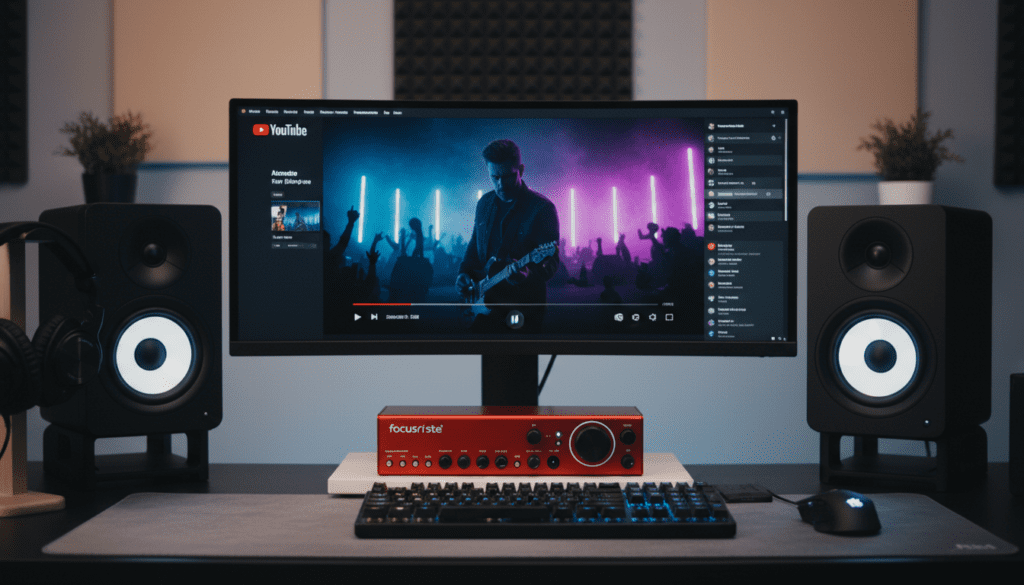
You can absolutely play YouTube through your audio interface speakers by setting your interface as the Primary Output Device in your computer’s sound settings. Whether you are using Windows or macOS, your audio interface functions as an external high-fidelity sound card that can handle all system audio, including web browsers, Spotify, and system alerts.
Quick Summary: How to Route YouTube Audio
- Windows: Go to Settings > System > Sound and select your interface (e.g., Focusrite Scarlett) as the Output device.
- macOS: Navigate to System Settings > Sound > Output and click on your specific interface model.
- Driver Check: Ensure you have the latest ASIO or Core Audio drivers installed for your specific hardware.
- Sample Rate: Match your system sample rate (usually 48kHz for video) with your interface settings to avoid playback glitches.
Why Your Studio Monitors Aren’t Playing YouTube Yet
In my 12 years of working in professional recording studios, I’ve seen this “silent speaker” issue more than any other setup hurdle. You’ve spent hundreds on a Focusrite, Universal Audio, or PreSonus interface, plugged in your Yamaha HS8 or KRK Rokit monitors, and opened a DAW (Digital Audio Workstation) like Ableton Live or Logic Pro. Everything sounds great until you open Chrome or Safari to check a reference track on YouTube, and—silence.
The problem usually isn’t your hardware; it’s a software “handshake” issue. Your computer needs to be told that the high-quality DAC (Digital-to-Analog Converter) inside your interface is now the boss of all audio, not just your music production software.
Step-by-Step: Playing YouTube on Windows 10 & 11
Windows handles audio through various “layers,” which can sometimes lead to conflicts between your ASIO driver (used for recording) and the WDM driver (used for YouTube and system sounds).
The Standard Settings Method
- Click the Speaker Icon in the bottom-right taskbar.
- Click the Up Arrow to see the list of playback devices.
- Select your interface (e.g., “Speakers – Focusrite USB Audio”).
- Open YouTube and hit play.
The Sound Control Panel Method (Most Reliable)
Sometimes the basic settings don’t “stick.” If you still hear no sound, follow these steps:
- Search for “Sound Settings” in the Windows search bar.
- Scroll down to “More sound settings” (this opens the classic Control Panel).
- Under the Playback tab, locate your interface.
- Right-click it and select “Set as Default Device” and “Set as Default Communication Device.”
- Pro Tip: Click Properties > Advanced and ensure “Allow applications to take exclusive control of this device” is checked. This prevents other apps from “stealing” the audio stream.
Step-by-Step: Playing YouTube on macOS
Apple’s Core Audio framework is generally more intuitive for routing audio, but it still requires a manual selection if you’ve just plugged your device in.
System Settings Method
- Click the Apple Menu and select System Settings.
- Navigate to the Sound sidebar.
- Click the Output tab.
- Highlight your audio interface (e.g., Universal Audio Apollo or Audient iD4).
Audio MIDI Setup (Advanced Routing)
If you want to ensure your YouTube audio is playing at the highest possible bit depth:
- Press Cmd + Space and type “Audio MIDI Setup.”
- Find your interface in the left-hand list.
- Ensure the “Format” is set to 48.0 kHz (the standard for YouTube/Video) and 2-ch 24-bit Integer.
- Right-click the device and ensure “Use This Device For Sound Output” is selected.
Comparison: Audio Interface vs. Built-in Sound Card
| Feature | Built-in Sound Card (Realtek/Apple) | Professional Audio Interface |
|---|---|---|
| Audio Quality | Average; prone to electrical noise. | High-fidelity; shielded from interference. |
| Connection Types | 3.5mm Headphone Jack. | XLR, Balanced TRS, ADAT. |
| Latency | High (Noticeable lag). | Ultra-low (Near instantaneous). |
| D/A Conversion | Standard 16-bit/44.1kHz. | Professional 24-bit/192kHz capable. |
| Power Output | Weak; struggles with high-impedance gear. | Strong; can drive studio monitors and pro headphones. |
Troubleshooting Common Playback Issues
If you’ve followed the steps above and can i play youtube through my audio interface speakers is still a “no,” one of these three culprits is likely the cause.
Sample Rate Mismatch
This is the #1 cause of “choppy” or “distorted” YouTube audio. YouTube typically streams audio at 44.1kHz or 48kHz. If your interface is locked at 96kHz for a high-res recording session, the browser might struggle to downsample in real-time.
- The Fix: Manually set your interface’s sample rate to 48kHz in its proprietary control software (like Focusrite Control or RME TotalMix).
The “Exclusive Mode” Conflict
Some DAWs (like Pro Tools or Cubase) are “selfish.” They take exclusive control of the ASIO driver, locking out all other applications.
- The Fix: Close your DAW entirely. If YouTube sound returns, you need to go into your DAW’s preferences and uncheck “Release driver in background” or adjust your Windows Sound Control Panel to allow shared access.
Buffer Size Settings
If the audio sounds like it’s “crackling” or “popping” while watching a video, your Buffer Size is likely too low.
- The Fix: Increase the buffer size to 256 or 512 samples. While low buffer (32-64) is great for recording guitar without lag, it puts a heavy strain on the CPU during multi-tab web browsing.
Hardware Essentials for YouTube Playback
To hear YouTube through your interface, your hardware chain must be correctly wired. We have tested dozens of configurations, and the “Balanced” approach is always superior.
The Connection Chain
- USB/Thunderbolt Cable: Connects your computer to the interface. Always use the cable provided by the manufacturer.
- Balanced TRS Cables: Use these to connect the Main Outs (usually Output 1 and 2) of your interface to your studio monitors.
- Active Studio Monitors: Ensure your speakers are powered on and the volume knobs on the back are set to the “Unity” or “0dB” position.
Recommended Equipment for Best Sound
- Interfaces: Focusrite Scarlett 2i2, SSL 2+, or Universal Audio Volt.
- Monitors: Yamaha HS5, JBL 305P MkII, or Adam Audio T5V.
- Cables: Mogami or Campion Balanced TRS cables to eliminate “hum” from your computer monitors.
Advanced Tip: Using “Loopback” for Content Creators
If you are a YouTuber or streamer, you don’t just want to hear YouTube; you might want to record it. Many modern interfaces now include a feature called Loopback.
Loopback creates a virtual input that captures whatever is playing on your computer (like a YouTube video or a Zoom call) and sends it back into your DAW or OBS (Open Broadcaster Software).
- Focusrite users: Open Focusrite Control and look for the “Loopback” tab.
- Universal Audio users: Use the “Virtual Channels” in the Console app.
Expert Advice: Managing Your Volume Safely
When you switch from your DAW to YouTube, be very careful with your Physical Volume Knob.
- DAW audio is often unmastered and quiet.
- YouTube audio is heavily compressed and “loud.”
I always recommend turning your interface’s physical monitor knob down to zero before hitting play on a YouTube video. Once the video starts, slowly bring the volume up. This protects your ears and your expensive studio monitor tweeters from “popping” due to sudden transients.
Frequently Asked Questions
Why does my YouTube audio stop when I open my DAW?
This happens because your DAW is taking exclusive control of the audio driver. In Windows, you can disable this in the Sound Control Panel. On Mac, ensure both the system and the DAW are set to the same Sample Rate.
Can I use the headphone jack on my interface for YouTube?
Yes. Once you set the interface as your Default Output Device, any audio coming through the interface will be routed to both the Monitor Outputs and the Headphone Output.
Do I need to keep my interface on all the time?
You can, but it’s best practice to turn it off when not in use to prolong the life of the internal components. However, most modern USB-powered interfaces (like the Scarlett Solo) are designed to stay on as long as the computer is awake.
Does YouTube support 5.1 surround sound through an interface?
While YouTube does support 5.1 on certain devices (like Smart TVs), browser-based YouTube on a PC or Mac typically outputs Stereo (2.0). Your interface will play this through your Left and Right speakers.
Why is there a delay between the video and the audio?
This is caused by Latency. If your Buffer Size is set too high (e.g., 1024 or 2048 samples), the audio will lag behind the video. Set your buffer to 256 or 512 for a balance of stability and sync.