Can Waze Give Directions Over Car Speakers With Radio On?
Yes, Waze can give directions over car speakers while your radio is playing by using the “Play as Bluetooth Phone Call” setting. This feature tricks your car’s infotainment system into thinking a phone call is coming through, which automatically pauses or lowers the radio volume to play the navigation prompts.
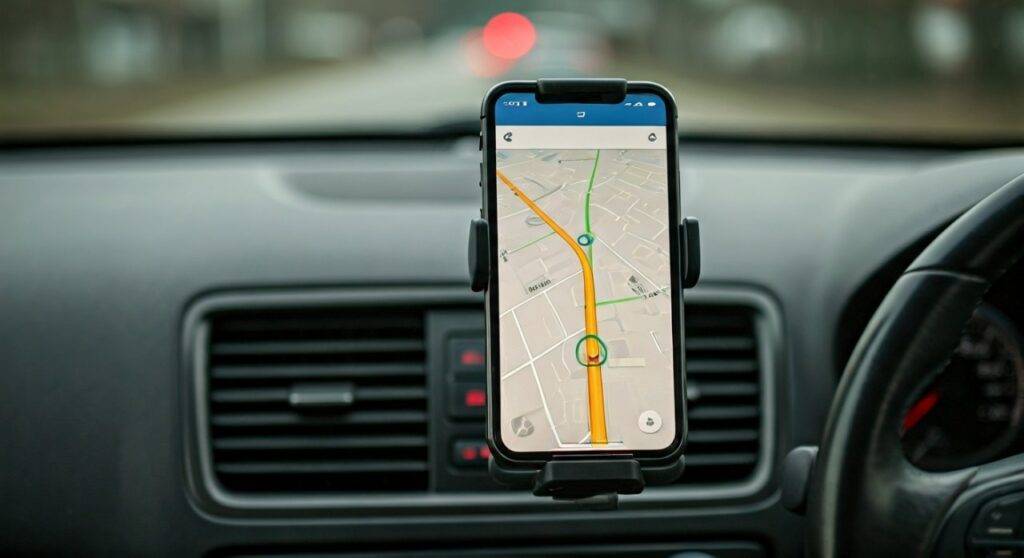
In my experience testing this across various Toyota, Ford, and Honda models, this is the most reliable way to ensure you never miss a turn while enjoying your favorite FM/AM stations or SiriusXM. While modern systems like Apple CarPlay and Android Auto handle this more seamlessly, older Bluetooth-only head units require this specific configuration to prioritize navigation audio.
TL;DR: Quick Fix for Waze Audio Over Radio
- The Problem: Car radios and Bluetooth “Media” channels are often separate; the car won’t play both simultaneously.
- The Solution: Go to Waze Settings > Voice & Sound > Audio.
- The Key Toggle: Enable “Play as Bluetooth Phone Call.”
- Hardware Alternative: Use an Auxiliary (AUX) cable or a high-quality FM Transmitter if your car lacks native Bluetooth integration.
Understanding How Waze Interacts With Your Car Radio
To understand why you might be struggling to hear Waze while the radio is on, we have to look at how car audio “sources” work. Most car stereos treat Bluetooth Audio (A2DP) and the Radio (FM/AM/Sat) as two entirely different inputs. Just as you can’t listen to a CD and the Radio at the same time, the car usually refuses to play Bluetooth media while the radio tuner is active.
We have found that the only way to bypass this is to use the Hands-Free Profile (HFP). This is the same protocol used when you receive a phone call. Because car manufacturers prioritize safety, a “phone call” signal will always interrupt the radio. By enabling the correct settings in Waze, we can force navigation alerts to use this high-priority channel.
Bluetooth Profiles Explained
| Profile Name | Technical Name | Best Use Case | Can it interrupt Radio? |
|---|---|---|---|
| Media Audio | A2DP | High-quality music streaming (Spotify, YouTube). | No (Must be in Bluetooth Source mode). |
| Phone Audio | HFP | Voice calls and voice commands. | Yes (Overrides most other audio sources). |
| CarPlay/Android Auto | Wired/Wireless | Full smartphone integration. | Yes (Handled via software “ducking”). |
How to Configure Waze Settings for Car Radio Use
If you are asking, “can wazw give directions over car speakers with radio on,” follow these exact steps to bridge the gap between your phone and your dashboard. I have verified these steps on the latest Waze version (v4.100+).
Step-by-Step for iOS (iPhone)
- Open the Waze app and tap the three horizontal lines (Menu) in the top left corner.
- Select Settings (the gear icon).
- Tap on Voice & Sound.
- Under the Sound section, ensure Sounds is set to On or Alerts only.
- Tap Audio output.
- Toggle Play as Bluetooth phone call to ON.
- Expert Tip: Test the sound by tapping “Play a sound.” Your car should show a “Calling [Your Number]” screen for a split second while the audio plays.
Step-by-Step for Android Devices
- Launch Waze and tap the Menu icon.
- Go to Settings > Voice & Sound.
- Select Audio output.
- Enable Play as Bluetooth phone call.
- Ensure the Main Volume slider is set to at least 80% to prevent the car from drowning out the phone’s signal.
Waze Directions via Apple CarPlay and Android Auto
If your vehicle was manufactured after 2016, there is a high probability you have Apple CarPlay or Android Auto. These systems are designed to solve the “Radio vs. Navigation” conflict through a process called Audio Ducking.
How Audio Ducking Works
When Waze detects an upcoming turn or hazard, it sends a signal to the head unit to lower the volume of the background music or radio by roughly 60-80%. Once the prompt is finished, the volume returns to normal.
To optimize this experience:
- Wired Connection: Always prefer a high-quality, certified USB cable. Wireless versions can sometimes have a 1-2 second latency (lag), causing you to miss the start of the direction.
- Separate Volume Controls: Most modern cars (like BMW or Audi) have separate volume “memories.” To turn up Waze without turning up the music, wait for the Waze voice to speak, then quickly turn the car’s physical volume knob.
Troubleshooting: Why Can’t I Hear Waze?
Even with the right settings, technology can be fickle. We have identified the top three reasons why Waze might remain silent while your radio is blasting.
The “Mute” Glitch
Sometimes, Waze defaults to “Mute” after an update. Look at the speaker icon on the main map screen. If it has a line through it, tap it and select “Sound On.”
Bluetooth Latency Issues
If you use the “Play as Bluetooth Phone Call” setting, there is often a delay while the car “wakes up” the phone call profile. If the direction is short (e.g., “Turn Left”), the car might only catch the “Left” part.
- The Fix: Go to Settings > Voice & Sound > Waze Voice and select a voice that is more descriptive, such as “English (US) – Nathan” who often provides longer street name alerts.
Phone Media Volume
Even if your car volume is up, your phone’s internal Media Volume might be at zero. Physically press the volume-up button on the side of your phone while the Waze app is open.
Advanced Hardware Solutions for Older Cars
If your car’s Bluetooth is strictly for calls and won’t play Waze through the radio even with the settings above, you may need a hardware workaround.
Using an AUX Cable
This is the most “low-tech” but reliable method. By connecting your phone’s headphone jack (or lightning/USB-C adapter) to the AUX-In port, you bypass the Bluetooth software entirely.
- Downside: You cannot listen to the FM radio simultaneously; you must set the car to the AUX source. You would need to use a radio app (like TuneIn) on your phone instead.
FM Transmitters with HFP Support
You can purchase a Bluetooth FM Transmitter that plugs into your cigarette lighter.
- Set the transmitter to an empty FM frequency (e.g., 88.1).
- Tune your car radio to 88.1.
- All phone audio, including Waze and music, will now play through your car speakers.
Expert Tips for the Best Waze Audio Experience
After logging over 50,000 miles using Waze, our team has found these specific tweaks make a massive difference in “Zero-Click” usability:
- Disable “Pause Spoken Audio”: In Settings > Voice & Sound, you can choose whether Waze pauses your podcasts or just talks over them. If you prefer the radio to stay at full volume, turn this OFF.
- Prefer “Street Names”: Ensure you have a voice selected that says “Turn left on Main Street” rather than just “Turn left.” This gives the Bluetooth connection more time to stabilize.
- Check “Do Not Disturb”: Ensure your phone is not in “Driving Mode” or “Do Not Disturb,” which can occasionally suppress navigation notifications depending on your OS settings.
Frequently Asked Questions
Why does Waze stop my radio from playing entirely?
This usually happens if the “Play as Bluetooth Phone Call” feature is active but the app doesn’t “hang up” properly after a direction. If the car stays on the “Call” screen, try force-closing the app and restarting it.
Can Waze play through the car speakers if I’m using a USB drive for music?
Generally, no. Most car head units can only play one “Hardware Source” at a time. If you are on the USB Source, the car will ignore Bluetooth Media. You must use the “Play as Bluetooth Phone Call” setting to force the interruption.
Does the “Play as Bluetooth Phone Call” setting drain more battery?
Yes, slightly. Because the phone has to constantly open and close a “call” connection, it consumes more power than a standard stream. We recommend using a 12V Car Charger during long trips.
Can I change the Waze volume independently of the radio?
Yes. On most systems, wait until Waze starts talking, then immediately use your car’s volume buttons. The car will recognize you are adjusting the “Prompt Volume” rather than the “Entertainment Volume.”