

Understanding Why Your Headphones Are Detected as Speakers
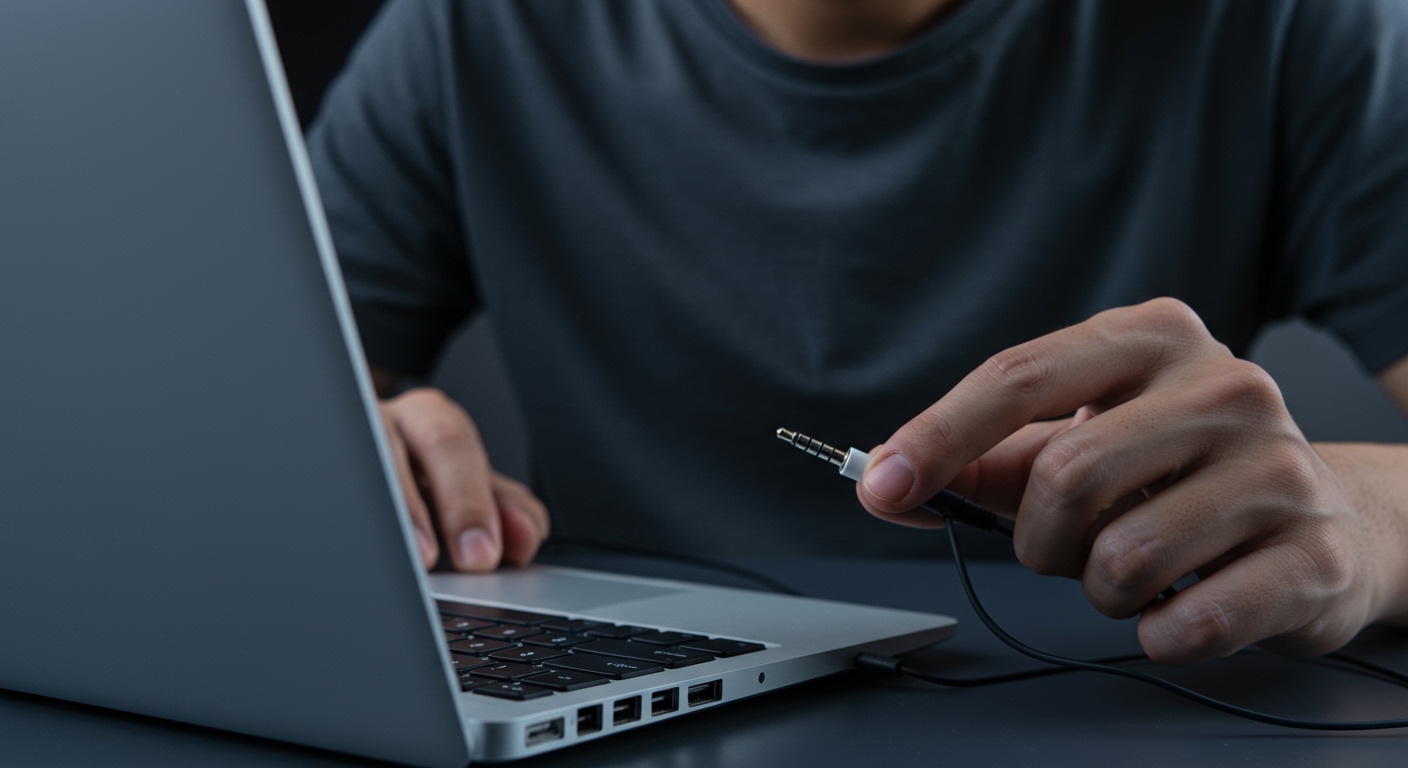
If you are wondering why are my headphones detected as speakers, it is usually because your computer’s audio driver cannot distinguish between the two devices connected to the 3.5mm jack. This common glitch happens when the Realtek Audio Manager or Windows Sound Settings defaults to a generic “High Definition Audio” profile that treats all analog outputs as external speakers.
Key Takeaways: Expert Summary
Primary Cause: Incorrect “Connector Retasking” settings in the Realtek Audio Console.
Quick Fix: Unplug the device, wait 5 seconds, and select “Headphones” when the “Which device did you plug in?” prompt appears.
Driver Issue: Outdated or generic Windows HD Audio Drivers often fail to recognize specific headset impedance.
Hardware Factor: Using a TRS (3-ring) plug in a TRRS (4-ring) laptop combo jack can confuse the detection sensor.
Tools and Materials Needed for Troubleshooting
Before diving into the software fixes, ensure you have the following ready to diagnose why are my headphones recognized as speakers:
| Tool/Material | Purpose |
|---|---|
| 3.5mm to USB Adapter | Bypasses the analog sound card to force digital recognition. |
| Realtek Audio Console | The primary software for managing jack detection and retasking. |
| Device Manager | Used to roll back or update faulty audio drivers. |
| Compressed Air | Cleans the jack to ensure the “detection pin” makes contact. |
| Y-Splitter Cable | Separates mic and audio signals for older PC cases. |
Step 1: Configure the Realtek Audio Manager Retasking
The most frequent reason why does my pc think my headphones are speakers is a misconfiguration in the Realtek Audio Manager. Most modern PCs use this software to determine what is plugged into the physical audio ports.
Accessing Advanced Settings
- Open the Start Menu and type “Realtek Audio Console” or “Realtek Audio Manager.”
- Look for the Device Advanced Settings (usually a gear icon or a link in the bottom corner).
- Locate the section labeled Connector Retasking.
- Change the setting from “Speaker Out” to Headphones.
Enabling the Auto-Popup
If your PC doesn’t ask what you plugged in, the detection trigger might be disabled. In the same Realtek menu, ensure the box “Enable auto popup dialog when device has been plugged in” is checked. This allows you to manually override the system when it incorrectly identifies your gear.
Step 2: Update and Reinstall Audio Drivers
If the software settings are correct but your headphones show up as speakers, your drivers are likely corrupted or using a generic Windows version instead of the manufacturer-specific one.
- Open Device Manager: Right-click the Start button and select Device Manager.
- Expand Audio Inputs and Outputs: Find the listing that says “Speakers” or “Realtek High Definition Audio.”
- Uninstall Device: Right-click the driver and select Uninstall device. Do NOT delete the driver software yet.
- Scan for Hardware Changes: Click the “Action” tab at the top and select Scan for hardware changes.
- Force Update: If the issue persists, visit your laptop manufacturer’s website (Dell, HP, ASUS) and download the specific Realtek Audio Driver for your model.
Expert Tip: Using the OEM driver from the manufacturer is always better than the generic driver provided by Windows Update. Generic drivers often lack the logic required for “Jack Sensing.”
Understanding Why Your Headphones Are Detected as Speakers
If you are wondering why are my headphones detected as speakers, it is usually because your computer’s audio driver cannot distinguish between the two devices connected to the 3.5mm jack. This common glitch happens when the Realtek Audio Manager or Windows Sound Settings defaults to a generic “High Definition Audio” profile that treats all analog outputs as external speakers.
Key Takeaways: Expert Summary
Primary Cause: Incorrect “Connector Retasking” settings in the Realtek Audio Console.
Quick Fix: Unplug the device, wait 5 seconds, and select “Headphones” when the “Which device did you plug in?” prompt appears.
Driver Issue: Outdated or generic Windows HD Audio Drivers often fail to recognize specific headset impedance.
Hardware Factor: Using a TRS (3-ring) plug in a TRRS (4-ring) laptop combo jack can confuse the detection sensor.
Tools and Materials Needed for Troubleshooting
Before diving into the software fixes, ensure you have the following ready to diagnose why are my headphones recognized as speakers:
| Tool/Material | Purpose |
|---|---|
| 3.5mm to USB Adapter | Bypasses the analog sound card to force digital recognition. |
| Realtek Audio Console | The primary software for managing jack detection and retasking. |
| Device Manager | Used to roll back or update faulty audio drivers. |
| Compressed Air | Cleans the jack to ensure the “detection pin” makes contact. |
| Y-Splitter Cable | Separates mic and audio signals for older PC cases. |
Step 1: Configure the Realtek Audio Manager Retasking
The most frequent reason why does my pc think my headphones are speakers is a misconfiguration in the Realtek Audio Manager. Most modern PCs use this software to determine what is plugged into the physical audio ports.
Accessing Advanced Settings
- Open the Start Menu and type “Realtek Audio Console” or “Realtek Audio Manager.”
- Look for the Device Advanced Settings (usually a gear icon or a link in the bottom corner).
- Locate the section labeled Connector Retasking.
- Change the setting from “Speaker Out” to Headphones.
Enabling the Auto-Popup
If your PC doesn’t ask what you plugged in, the detection trigger might be disabled. In the same Realtek menu, ensure the box “Enable auto popup dialog when device has been plugged in” is checked. This allows you to manually override the system when it incorrectly identifies your gear.
Step 2: Update and Reinstall Audio Drivers
If the software settings are correct but your headphones show up as speakers, your drivers are likely corrupted or using a generic Windows version instead of the manufacturer-specific one.
- Open Device Manager: Right-click the Start button and select Device Manager.
- Expand Audio Inputs and Outputs: Find the listing that says “Speakers” or “Realtek High Definition Audio.”
- Uninstall Device: Right-click the driver and select Uninstall device. Do NOT delete the driver software yet.
- Scan for Hardware Changes: Click the “Action” tab at the top and select Scan for hardware changes.
- Force Update: If the issue persists, visit your laptop manufacturer’s website (Dell, HP, ASUS) and download the specific Realtek Audio Driver for your model.
Expert Tip: Using the OEM driver from the manufacturer is always better than the generic driver provided by Windows Update. Generic drivers often lack the logic required for “Jack Sensing.”
Step 3: Change Windows Sound Control Panel Settings
Sometimes the hardware knows it is a headphone, but Windows labels it as a speaker in the UI. This can affect spatial sound features like Dolby Atmos or Windows Sonic.
- Press
Win + R, typemmsys.cpl, and hit Enter. - Under the Playback tab, right-click the device currently listed as “Speakers.”
- Select Configure Speakers.
- Even if it says “Speakers,” ensure the configuration is set to Stereo.
- Click Properties, go to the Advanced tab, and uncheck “Allow applications to take exclusive control of this device.”
This step ensures that even if why is my headset recognized as speakers remains a visual bug, the audio processing remains optimized for a stereo headset environment.
Step 4: Check for Hardware and Physical Port Obstructions
If you are asking why is my headset showing up as speakers and software fixes fail, the problem might be physical. The 3.5mm jack contains a small mechanical trigger that tells the OS a device is present.
Clean the Jack: Use a toothpick or compressed air to remove lint. Debris can prevent the plug from seating fully, causing the system to default to a “Speaker” profile.
Test a USB Adapter: If your headphones are registered as speakers via the 3.5mm port, try a USB-to-3.5mm adapter. USB audio devices have their own built-in DAC (Digital-to-Analog Converter) which forces Windows to recognize them as a “USB Audio Device” rather than a generic speaker.
Check the Plug Type: Are you using a TRRS (Mic + Audio) plug in a TRS (Audio only) port? This mismatch often causes the “detection pin” to fail.
Expert Advice: Why This Happens and How to Avoid It
In my years of troubleshooting PC audio, I’ve found that the “Headphones vs. Speakers” distinction is often just a naming convention used by Windows. However, it becomes a problem when the system applies Speaker Equalization to your headphones, which can distort the bass or treble.
Common Mistakes to Avoid
Ignoring the Pop-up: Many users disable the “Which device did you plug in?” prompt to save time. This is the #1 reason why detection fails.
Using Front Panel Headers: Front panel jacks on desktop PCs are notorious for poor shielding and weak detection signals. Always try the Rear Motherboard Green Port to see if the detection changes.
Over-reliance on Windows Update: Windows Update often replaces working Realtek drivers with “compatible” versions that break jack sensing.
Data Insight: USB vs. Analog Detection
| Connection Type | Recognition Accuracy | Common Issue |
|---|---|---|
| 3.5mm Analog | 65% | Relies on mechanical jack sensing. |
| USB-A / USB-C | 98% | Recognized by unique hardware ID (VID/PID). |
| Bluetooth | 95% | Recognized via Bluetooth Profile (A2DP). |
FAQs About Headphones Detection Issues
Why are my headphones detected as speakers on Windows 11?
Windows 11 often groups all audio outputs under the Realtek Audio umbrella. To fix this, you must go into the Realtek Audio Console and manually retask the port to “Headphones” instead of “Speaker Out.”
Does it matter if my headphones show up as speakers?
Yes, it can. When recognized as speakers, Windows may apply “Room Correction” or “Loudness Equalization” intended for large rooms, which can make your headphones sound hollow or overly compressed.
Why does my pc think my headphones are speakers even after a driver update?
This usually indicates a BIOS/UEFI setting issue or a physical limitation of the audio chip. Some older motherboards do not have “Independent Dual Headphones” support, meaning they will always mirror the speaker output.
Can a faulty cable cause my headset to be recognized as speakers?
Absolutely. If the ground ring on your headphone jack is damaged, the motherboard may fail to detect the correct impedance, causing it to default to the “Speaker” profile as a fail-safe.
Conclusion
Understanding why are my headphones detected as speakers is the first step to restoring high-fidelity audio. Whether the culprit is a misconfigured Realtek Audio Console, a generic Windows driver, or a dusty 3.5mm port, the solutions above will help you force your system to recognize your hardware correctly.
If you have tried all the software steps and your headset is still recognized as speakers, investing in a dedicated USB DAC or Sound Card is the most reliable long-term fix. This bypasses the motherboard’s analog detection entirely, ensuring perfect recognition every time.
Are you still experiencing audio issues? Check our other guides on driver optimization or leave a comment below with your laptop model for specific troubleshooting steps!









