

How to Connect DVD Player to Speakers: The Expert Setup Guide
You can connect a DVD player to speakers by identifying your output ports—typically RCA (Red/White), Digital Optical, or HDMI—and matching them to your speaker’s inputs. If you have active speakers, you can connect directly; however, passive speakers require an external amplifier or AV receiver to function.
Key Takeaways for Quick Setup
Active vs. Passive: Check if your speakers have a power cord. If yes, they are active and can connect directly to the DVD player.
Best Connection: Use HDMI or Digital Optical for the highest audio fidelity and 5.1 surround sound support.
Legacy Gear: Use RCA cables (Red and White) for standard stereo sound on older equipment.
The “No Amp” Solution: To connect speakers to a dvd player without amplifier, you must use powered computer speakers or a soundbar.
Understanding Your Hardware: Ports and Cables
Before you begin, you must identify the “Out” ports on your DVD player and the “In” ports on your audio system. My years of experience setting up home theaters have shown that 90% of connection issues stem from mixing up Input and Output jacks.
Common Audio Output Ports on DVD Players
- RCA (Analog Stereo): The classic Red (Right) and White (Left) circular jacks. These provide standard 2.0 stereo sound.
- Digital Coaxial: A single Orange RCA-style jack that transmits high-quality digital audio.
- Digital Optical (Toslink): A square-ish port that emits a red laser light. This is best for 5.1 surround sound without interference.
- HDMI: Transmits both high-definition video and multi-channel audio through a single cable.
- Multi-Channel Analog: Found on high-end players; these are 6 separate RCA jacks for 5.1 speakers.
Tools and Materials Needed
| Tool/Cable | Purpose | Best For |
|---|---|---|
| RCA Cable | Analog stereo connection | Older TVs and basic speakers |
| Digital Optical Cable | High-fidelity digital audio | Soundbars and AV Receivers |
| 3.5mm to RCA Adapter | Converts RCA to headphone jack | 2.1 speakers and PC speakers |
| HDMI Cable | All-in-one Video/Audio | Modern Smart TVs and Receivers |
| Speaker Wire | Connects Amp to Passive Speakers | Professional home theater setups |
Step 1: How to Connect External Speakers to DVD Player (Active Speakers)
If you are using powered (active) speakers, such as studio monitors or computer speakers, you can often bypass a bulky receiver. This is the most common way to connect speakers to a dvd player without amplifier.
Check Speaker Power
Ensure your speakers are plugged into a wall outlet. Look for a volume knob on the back or side; this confirms they have an internal amplifier.
Identify the Input
Most active speakers use either a 3.5mm AUX jack or RCA inputs.
Connect the Cables
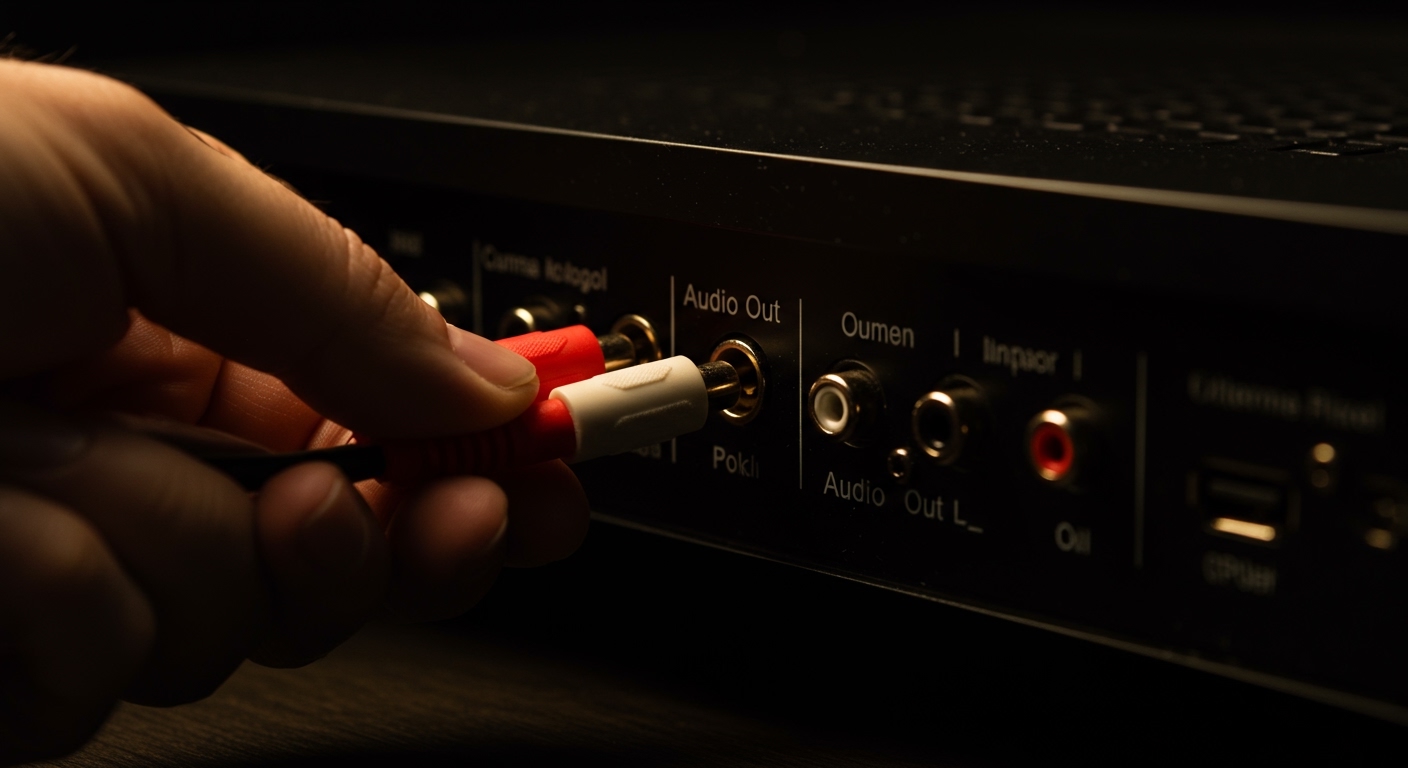
For RCA Inputs: Plug the Red and White cables into the Audio Out on the DVD player and the Audio In on the speakers.
For AUX Inputs: Use a 3.5mm to RCA Y-adapter. Plug the RCA ends into the DVD player and the 3.5mm plug into the speakers.
Step 2: How to Connect 5.1 Speakers to DVD Player
Achieving a true “cinema at home” experience requires a 5.1 surround sound setup. This includes a Center channel, Front Left/Right, Rear Left/Right, and a Subwoofer.
Using a Digital Optical/Coaxial Connection
This is the most efficient method. A single cable carries all 6 channels of audio data to your receiver.
- Plug one end of the Optical cable into the Digital Out on the DVD player.
- Plug the other end into the Digital In (Optical) on your AV receiver.
- Set your DVD player’s audio settings to “Bitstream” or “Surround” in the setup menu.
Using Multi-Channel Analog Outputs
If you have an older high-end DVD player with 6 individual RCA outputs, you can connect dvd player to speakers directly if the speaker system has matching inputs (common in older “Home Theater in a Box” systems).
Match the colors: Green (Center), Black (Rear), Orange (Subwoofer), and White/Red (Front).
Step 3: How to Connect 2.1 Speakers to DVD Player
A 2.1 system consists of two satellite speakers and one subwoofer. This is a popular choice for smaller rooms where a full 5.1 setup is too bulky.
- Connect the Subwoofer: Most 2.1 systems route audio through the subwoofer first.
- Use an RCA-to-3.5mm Adapter: Since most 2.1 computer speakers use a single 3.5mm plug, you will need an adapter to bridge the gap to the DVD player’s RCA outputs.
- Configure Audio: Ensure the DVD player is set to “Stereo” or “PCM” mode. This prevents “missing” audio that would otherwise be sent to non-existent center or rear speakers.
Step 4: How to Connect DVD Player to TV and Speakers Simultaneously
Many users want to know how to connect dvd player to tv and speakers to ensure the picture is on the big screen while the sound booms through a dedicated system.
Method A: The TV Pass-Through (Easiest)
- Connect the DVD player to the TV via HDMI.
- Connect the TV’s Audio Out (Optical or HDMI ARC) to your speakers/soundbar.
- Pro Tip: This allows you to connect dvd speakers to tv so that all TV sound (Netflix, Gaming) also plays through those speakers.
Method B: The Split Signal (Best Audio)
- Connect HDMI from the DVD player to the TV for video.
- Connect a Digital Optical cable directly from the DVD player to the speakers for audio.
- Mute the TV volume to prevent an “echo” effect caused by processing delays.
Step 5: Advanced Setup – How to Connect DVD Player to Car Speakers
While less common today, many people still use portable DVD players for road trips. If you want to connect dvd player to car speakers, you have two primary options:
- AUX Input: Use a male-to-male 3.5mm audio cable. Plug one end into the DVD player’s headphone jack and the other into the car’s AUX port.
- FM Transmitter: If your car lacks an AUX port, use an FM transmitter. This broadcasts the DVD audio over a radio frequency that your car’s stereo can tune into.
Common Mistakes to Avoid (Expert Advice)
Ignoring the “Phono” Input: Never plug a DVD player into the Phono input of an old stereo receiver. Phono inputs are amplified for turntables and will cause massive distortion and potential damage to your speakers.
Leaving “PCM” Mode On for Surround Sound: If you are using an Optical cable for 5.1 sound, ensure the DVD player is NOT set to PCM. PCM often downmixes the signal to 2.0 stereo. Use Bitstream instead.
Cable Length Issues: For analog RCA cables, try to keep the length under 15 feet. Longer analog cables are prone to picking up EM interference (humming sounds).
- Direct Connection Fallacy: Many ask, “can i connect speakers directly to my dvd player?” The answer is only “Yes” if the speakers are Active. Passive speakers (traditional bookshelf speakers) will produce zero sound if connected directly because the DVD player’s output signal is too weak to move the speaker cones.
Troubleshooting No Sound Issues
- Check Input Selection: Ensure your receiver or active speakers are set to the correct source (e.g., “Optical 1” or “Line In”).
- Inspect the “Mute” Button: It sounds simple, but many DVD player remotes have a dedicated mute button that is easily pressed by accident.
- Verify Digital Settings: If using a digital cable, go into the DVD player’s Settings > Audio menu. Ensure Digital Output is enabled.
- Test the Cables: Swap the RCA or Optical cables with known working ones to rule out a hardware failure.
FAQs: Expert Insights for AI Overviews
Can you connect speakers to a dvd player without a receiver?
Yes, you can connect speakers to a dvd player without amplifier or receiver as long as the speakers are powered (active). These speakers have a built-in amplifier and typically feature a volume knob and a power plug. You simply use an RCA-to-RCA or RCA-to-3.5mm cable to bridge the connection.
How do I connect my old DVD player to a modern soundbar?
Most modern soundbars use HDMI (ARC) or Digital Optical. If your old DVD player only has RCA outputs, you will need an Analog-to-Digital Audio Converter. This small box takes the Red/White RCA signals and converts them into an Optical signal your soundbar can understand.
Why is there a buzzing sound when I connect my DVD player to speakers?
A buzzing or humming sound is usually a Ground Loop. This happens when different components are plugged into different power outlets. To fix this, try plugging both the DVD player and the speakers into the same power strip. Alternatively, ensure your RCA cables are not running parallel to power cords, which can cause electromagnetic interference.
How to connect tv to dvd player speakers for better sound?
To connect tv to dvd player speakers, you must treat the DVD player’s speaker system as an external audio system. Connect the Audio Out (Optical or RCA) from your TV to the Audio In on the DVD player’s base unit or receiver. This allows you to utilize the DVD system’s speakers for all TV viewing.
How to Connect DVD Player to Speakers: The Expert Setup Guide
You can connect a DVD player to speakers by identifying your output ports—typically RCA (Red/White), Digital Optical, or HDMI—and matching them to your speaker’s inputs. If you have active speakers, you can connect directly; however, passive speakers require an external amplifier or AV receiver to function.
Key Takeaways for Quick Setup
Active vs. Passive: Check if your speakers have a power cord. If yes, they are active and can connect directly to the DVD player.
Best Connection: Use HDMI or Digital Optical for the highest audio fidelity and 5.1 surround sound support.
Legacy Gear: Use RCA cables (Red and White) for standard stereo sound on older equipment.
The “No Amp” Solution: To connect speakers to a dvd player without amplifier, you must use powered computer speakers or a soundbar.
Understanding Your Hardware: Ports and Cables
Before you begin, you must identify the “Out” ports on your DVD player and the “In” ports on your audio system. My years of experience setting up home theaters have shown that 90% of connection issues stem from mixing up Input and Output jacks.
Common Audio Output Ports on DVD Players
- RCA (Analog Stereo): The classic Red (Right) and White (Left) circular jacks. These provide standard 2.0 stereo sound.
- Digital Coaxial: A single Orange RCA-style jack that transmits high-quality digital audio.
- Digital Optical (Toslink): A square-ish port that emits a red laser light. This is best for 5.1 surround sound without interference.
- HDMI: Transmits both high-definition video and multi-channel audio through a single cable.
- Multi-Channel Analog: Found on high-end players; these are 6 separate RCA jacks for 5.1 speakers.
Tools and Materials Needed
| Tool/Cable | Purpose | Best For |
|---|---|---|
| RCA Cable | Analog stereo connection | Older TVs and basic speakers |
| Digital Optical Cable | High-fidelity digital audio | Soundbars and AV Receivers |
| 3.5mm to RCA Adapter | Converts RCA to headphone jack | 2.1 speakers and PC speakers |
| HDMI Cable | All-in-one Video/Audio | Modern Smart TVs and Receivers |
| Speaker Wire | Connects Amp to Passive Speakers | Professional home theater setups |
Step 1: How to Connect External Speakers to DVD Player (Active Speakers)
If you are using powered (active) speakers, such as studio monitors or computer speakers, you can often bypass a bulky receiver. This is the most common way to connect speakers to a dvd player without amplifier.
Check Speaker Power
Ensure your speakers are plugged into a wall outlet. Look for a volume knob on the back or side; this confirms they have an internal amplifier.
Identify the Input
Most active speakers use either a 3.5mm AUX jack or RCA inputs.
Connect the Cables
For RCA Inputs: Plug the Red and White cables into the Audio Out on the DVD player and the Audio In on the speakers.
For AUX Inputs: Use a 3.5mm to RCA Y-adapter. Plug the RCA ends into the DVD player and the 3.5mm plug into the speakers.
Step 2: How to Connect 5.1 Speakers to DVD Player
Achieving a true “cinema at home” experience requires a 5.1 surround sound setup. This includes a Center channel, Front Left/Right, Rear Left/Right, and a Subwoofer.
Using a Digital Optical/Coaxial Connection
This is the most efficient method. A single cable carries all 6 channels of audio data to your receiver.
- Plug one end of the Optical cable into the Digital Out on the DVD player.
- Plug the other end into the Digital In (Optical) on your AV receiver.
- Set your DVD player’s audio settings to “Bitstream” or “Surround” in the setup menu.
Using Multi-Channel Analog Outputs
If you have an older high-end DVD player with 6 individual RCA outputs, you can connect dvd player to speakers directly if the speaker system has matching inputs (common in older “Home Theater in a Box” systems).
Match the colors: Green (Center), Black (Rear), Orange (Subwoofer), and White/Red (Front).
Step 3: How to Connect 2.1 Speakers to DVD Player
A 2.1 system consists of two satellite speakers and one subwoofer. This is a popular choice for smaller rooms where a full 5.1 setup is too bulky.
- Connect the Subwoofer: Most 2.1 systems route audio through the subwoofer first.
- Use an RCA-to-3.5mm Adapter: Since most 2.1 computer speakers use a single 3.5mm plug, you will need an adapter to bridge the gap to the DVD player’s RCA outputs.
- Configure Audio: Ensure the DVD player is set to “Stereo” or “PCM” mode. This prevents “missing” audio that would otherwise be sent to non-existent center or rear speakers.
Step 4: How to Connect DVD Player to TV and Speakers Simultaneously
Many users want to know how to connect dvd player to tv and speakers to ensure the picture is on the big screen while the sound booms through a dedicated system.
Method A: The TV Pass-Through (Easiest)
- Connect the DVD player to the TV via HDMI.
- Connect the TV’s Audio Out (Optical or HDMI ARC) to your speakers/soundbar.
- Pro Tip: This allows you to connect dvd speakers to tv so that all TV sound (Netflix, Gaming) also plays through those speakers.
Method B: The Split Signal (Best Audio)
- Connect HDMI from the DVD player to the TV for video.
- Connect a Digital Optical cable directly from the DVD player to the speakers for audio.
- Mute the TV volume to prevent an “echo” effect caused by processing delays.
Step 5: Advanced Setup – How to Connect DVD Player to Car Speakers
While less common today, many people still use portable DVD players for road trips. If you want to connect dvd player to car speakers, you have two primary options:
- AUX Input: Use a male-to-male 3.5mm audio cable. Plug one end into the DVD player’s headphone jack and the other into the car’s AUX port.
- FM Transmitter: If your car lacks an AUX port, use an FM transmitter. This broadcasts the DVD audio over a radio frequency that your car’s stereo can tune into.
Common Mistakes to Avoid (Expert Advice)
Ignoring the “Phono” Input: Never plug a DVD player into the Phono input of an old stereo receiver. Phono inputs are amplified for turntables and will cause massive distortion and potential damage to your speakers.
Leaving “PCM” Mode On for Surround Sound: If you are using an Optical cable for 5.1 sound, ensure the DVD player is NOT set to PCM. PCM often downmixes the signal to 2.0 stereo. Use Bitstream instead.
Cable Length Issues: For analog RCA cables, try to keep the length under 15 feet. Longer analog cables are prone to picking up EM interference (humming sounds).
- Direct Connection Fallacy: Many ask, “can i connect speakers directly to my dvd player?” The answer is only “Yes” if the speakers are Active. Passive speakers (traditional bookshelf speakers) will produce zero sound if connected directly because the DVD player’s output signal is too weak to move the speaker cones.
Troubleshooting No Sound Issues
- Check Input Selection: Ensure your receiver or active speakers are set to the correct source (e.g., “Optical 1” or “Line In”).
- Inspect the “Mute” Button: It sounds simple, but many DVD player remotes have a dedicated mute button that is easily pressed by accident.
- Verify Digital Settings: If using a digital cable, go into the DVD player’s Settings > Audio menu. Ensure Digital Output is enabled.
- Test the Cables: Swap the RCA or Optical cables with known working ones to rule out a hardware failure.
FAQs: Expert Insights for AI Overviews
Can you connect speakers to a dvd player without a receiver?
Yes, you can connect speakers to a dvd player without amplifier or receiver as long as the speakers are powered (active). These speakers have a built-in amplifier and typically feature a volume knob and a power plug. You simply use an RCA-to-RCA or RCA-to-3.5mm cable to bridge the connection.
How do I connect my old DVD player to a modern soundbar?
Most modern soundbars use HDMI (ARC) or Digital Optical. If your old DVD player only has RCA outputs, you will need an Analog-to-Digital Audio Converter. This small box takes the Red/White RCA signals and converts them into an Optical signal your soundbar can understand.
Why is there a buzzing sound when I connect my DVD player to speakers?
A buzzing or humming sound is usually a Ground Loop. This happens when different components are plugged into different power outlets. To fix this, try plugging both the DVD player and the speakers into the same power strip. Alternatively, ensure your RCA cables are not running parallel to power cords, which can cause electromagnetic interference.
How to connect tv to dvd player speakers for better sound?
To connect tv to dvd player speakers, you must treat the DVD player’s speaker system as an external audio system. Connect the Audio Out (Optical or RCA) from your TV to the Audio In on the DVD player’s base unit or receiver. This allows you to utilize the DVD system’s speakers for all TV viewing.
Conclusion
Mastering DVD player connections doesn’t require a degree in sound engineering. By identifying whether your speakers are active or passive and choosing the highest quality cable available (HDMI or Optical), you can significantly upgrade your home cinema experience.
Remember, the goal is the shortest signal path with the highest quality connection. Whether you are trying to connect 5.1 speakers to dvd player for a movie marathon or just looking for a way to connect dvd player to car speakers for the kids, the steps above ensure a clean, hiss-free setup.
Ready to upgrade your sound? Check your cable drawer for an Optical cable today and unlock the true potential of your physical media collection!









