

Understanding the Essentials Before You Connect an Aux Cable to Speakers
Struggling to get that big sound from your tiny phone or laptop? You’ve got the playlist, but the built-in speakers just aren’t cutting it. The good news is that a simple, universal audio hero—the aux cable—is often all you need to bridge the gap. Learning how to connect an aux cable to speakers is a fundamental skill for any music lover, and this guide will walk you through every step, from the absolute basics to pro-level troubleshooting.
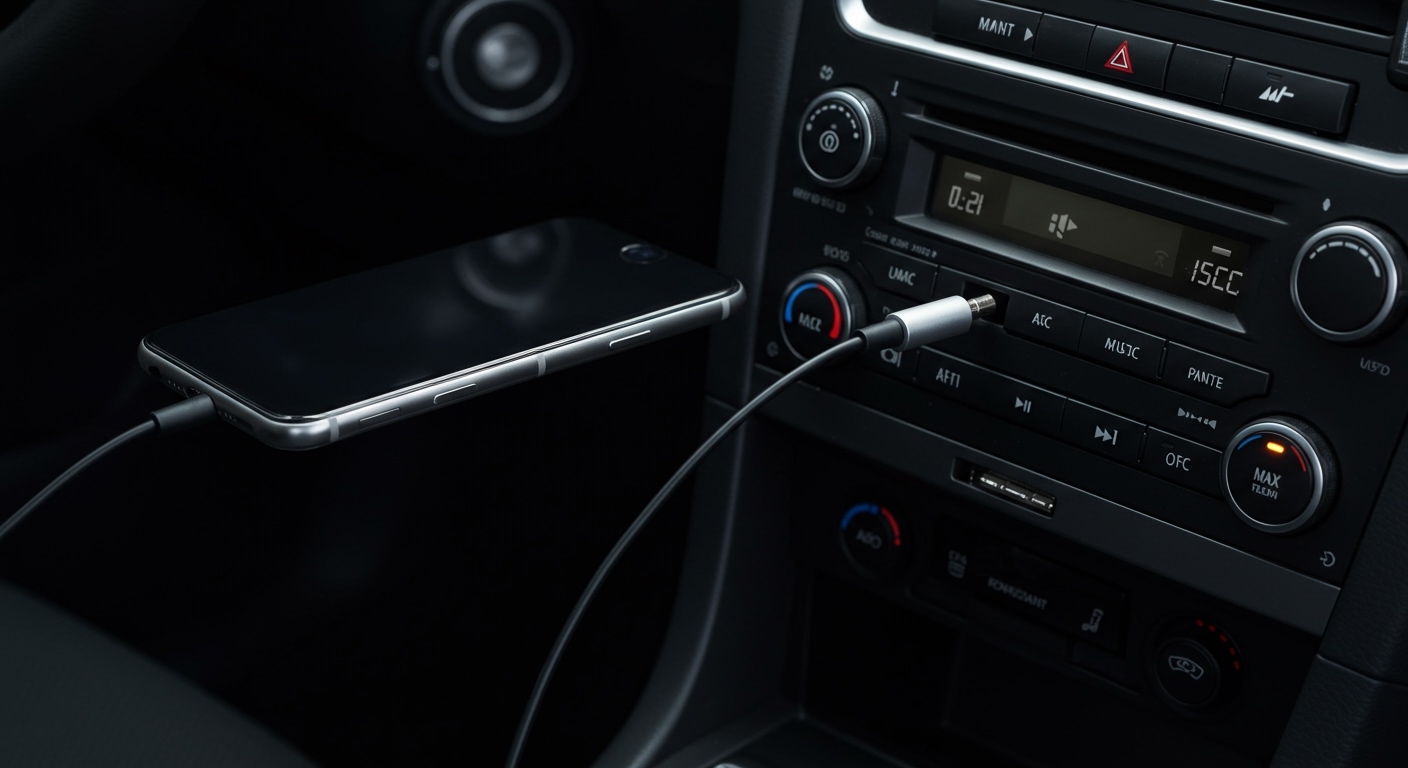
We’ll cover the difference between speaker types, what to do if your phone doesn’t have a headphone jack, and how to solve those annoying buzzing sounds. By the end, you’ll be able to connect any device to almost any speaker with confidence.
Key Takeaways (TL;DR)
- Identify Your Gear: You need an audio source (like a phone or PC), speakers, and a 3.5mm aux cable.
- Check Speaker Type: Powered speakers (with a power cord) have a built-in amplifier and usually an “AUX IN” port for direct connection. Passive speakers (with only speaker wire terminals) require an external amplifier or receiver to work.
- The Basic Connection: Plug one end of the aux cable into the headphone jack of your source device. Plug the other end into the “AUX IN” or “LINE IN” port on your powered speakers or amplifier.
- Power Up & Play: Turn on your speakers, select the “AUX” input source, and start the volume low on both your device and speakers before gradually increasing it.
- No Headphone Jack? Use a Lightning to 3.5mm adapter for iPhones or a USB-C to 3.5mm adapter for modern Android phones and laptops.
How to Connect an Aux Cable to Speakers: The Simple Step-by-Step Guide
This method works for the most common setup: connecting a device like a phone, tablet, or laptop to a set of powered (active) speakers. These are speakers that plug into a wall outlet for power, such as typical computer speakers, most Bluetooth speakers with an aux port, and many bookshelf speakers.
### Step 1: Identify and Gather Your Equipment
First, let’s make sure you have everything you need. It’s a simple list, but getting it right is key.
- An Audio Source: This is the device that holds your music, like a smartphone, tablet, laptop, PC, or MP3 player.
- Powered Speakers: Your speakers must have their own power source (a wall plug) and a dedicated audio input port.
- A 3.5mm Aux Cable: This is the standard cable with identical connectors on both ends that fit into a typical headphone jack. It’s also known as a TRS (Tip-Ring-Sleeve) cable.
As a pro-tip from my experience setting up audio systems, always check your cable for damage. A frayed wire or bent connector is the number one cause of audio problems.
### Step 2: Locate the Correct Ports
Now, you need to find where to plug everything in.
- On Your Audio Source: Look for the headphone jack. It’s a small, round port, usually marked with a headphone icon. On a desktop PC, this is often a green-colored port on the back or front of the tower, labeled “Line Out”.
- On Your Speakers: Look for an input port labeled “AUX IN”, “LINE IN”, or sometimes just “AUDIO IN”. This port is the same size and shape as a headphone jack. On a set of computer speakers, it might be on the main speaker (the one with the volume knob) or on the subwoofer.
### Step 3: Make the Physical Connection
This is the easiest part. You are simply creating a direct, wired path for your audio signal to travel.
- Take one end of the aux cable and plug it firmly into the headphone jack of your audio source device.
- Take the other end of the cable and plug it just as firmly into the “AUX IN” port on your powered speaker.
You should feel a satisfying “click” as the plug seats properly. A loose connection is a common source of sound cutting out or only playing through one speaker.
### Step 4: Power On and Select the Correct Input
Your speakers can’t play music if they aren’t on and listening to the right channel.
- Ensure your speakers are plugged into a power outlet and turn them on.
- If your speakers have multiple input options (like Bluetooth, USB, and AUX), you’ll need to select “AUX” as the active source. There is usually a button labeled “Source,” “Input,” or with an icon like a square with an arrow pointing into it.
### Step 5: Test and Adjust the Volume
To avoid a sudden, loud blast of sound that could damage your speakers or your ears, follow this crucial final step.
- Turn the volume on your source device (e.g., your phone) down to about 25%.
- Turn the volume knob on your speakers all the way down.
- Play a song on your source device.
- Slowly and gradually, turn up the volume on your speakers until you reach a comfortable listening level.
- You can then use the volume controls on your source device for fine-tuning.
I always recommend setting the source device volume to around 75-80% and using the speaker’s physical knob for primary volume control. This generally provides the cleanest signal to the speaker’s internal amplifier.
How to Wire Speakers to an Aux Cord: The Amplifier Method for Passive Speakers
What if your speakers don’t have a power cord or an “AUX IN” port? If they just have two









