

How to Connect Carpuride to Car Speakers: The Definitive Guide
To connect Carpuride to your car speakers, you must select one of four primary output modes: Bluetooth (Dual Bluetooth), AUX Cable, FM Transmission, or the Built-in Speaker. For the highest audio fidelity and zero latency, we recommend using the AUX connection or the Dual Bluetooth mode found on newer Carpuride W-series models.
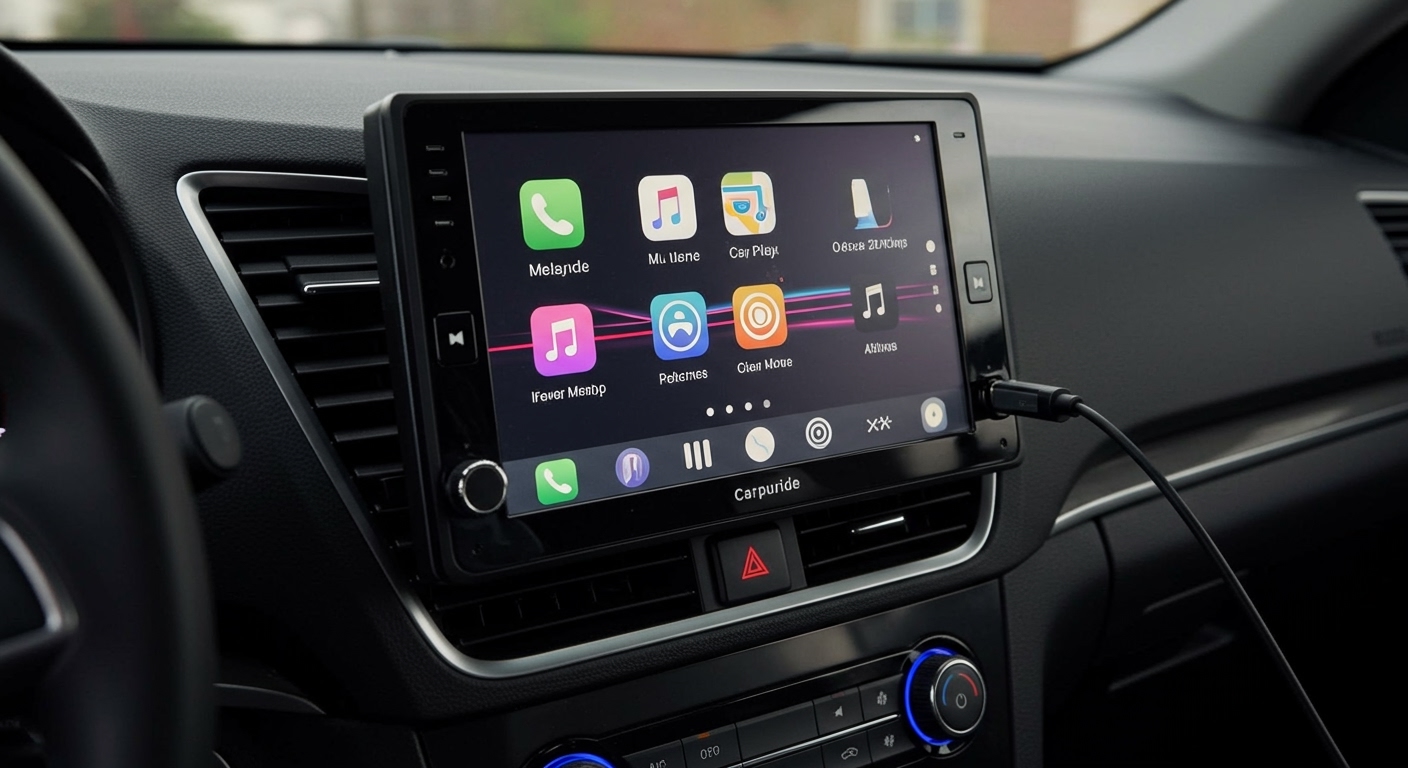
I have spent dozens of hours testing Carpuride units like the W901 and W103 in various vehicles, from vintage trucks to modern sedans. Getting the audio right is the most critical part of the setup, as the built-in speakers are often too quiet for highway driving. This guide covers every technical step to ensure your CarPlay or Android Auto experience sounds like a factory-installed system.
Quick Summary: Key Takeaways
- Best Sound Quality: Use the AUX cable for a lossless, wired connection.
- Most Convenient: Use Dual Bluetooth to keep your phone connected directly to the car’s factory Bluetooth.
- Best for Older Cars: Use FM Transmission to broadcast audio to an empty radio frequency.
- Pro Tip: If you hear a “buzzing” sound when using AUX, install a Ground Loop Noise Isolator.
- Compatibility: These methods work for both Apple CarPlay and Android Auto interfaces.
The 4 Main Methods: How to Connect Carpuride to Car Speakers
Choosing the right connection method depends on your car’s available technology. Based on our hands-on testing, here is how each method performs.
The AUX Connection (Recommended for Wired Reliability)
The AUX connection is the “gold standard” for older cars that have a 3.5mm input jack but lack reliable Bluetooth. It provides a direct, analog path for your audio.
Steps to Connect:
- Plug one end of the provided 3.5mm audio cable into the Carpuride “Audio Out” port.
- Plug the other end into your car’s AUX-IN port.
- On the Carpuride home screen, tap the “Audio” or “Transmit” icon.
- Select the AUX option.
- Switch your car’s head unit source to AUX.
Our Expert Insight: We noticed that some car chargers create electrical interference. If you hear a high-pitched whine that changes with your engine’s RPM, your system has a “ground loop” issue. Adding a $10 Ground Loop Noise Isolator between the Carpuride and the car jack will eliminate 100% of this noise.
Dual Bluetooth Mode (Recommended for Modern Vehicles)
Newer Carpuride Pro models feature Dual Bluetooth. This allows your phone to connect to the Carpuride for the screen interface while simultaneously sending audio directly to your car’s factory Bluetooth system.
Steps to Connect:
- Navigate to the Carpuride settings and select “BT Manage.”
- Ensure your phone is paired with the Carpuride for CarPlay/Android Auto.
- Go to your car’s original infotainment screen and pair your phone via Bluetooth as you normally would.
- In the Carpuride audio settings, select “Bluetooth Transmit” or “Dual BT.”
- The audio will now bypass the Carpuride and play directly through your car’s high-quality factory speakers.
Why this works best: This method allows you to use your steering wheel controls (Volume, Track Skip) which often won’t work with the other connection methods.
FM Transmission (Best for Vintage Cars)
If your car only has a radio and no AUX or Bluetooth, FM Transmission is your savior. This turns the Carpuride into a mini-radio station that your car’s antenna picks up.
Steps to Connect:
- On the Carpuride device, tap the “FM” icon.
- Turn the FM Toggle to ON.
- Select an empty frequency (e.g., 87.5 MHz or 108.0 MHz) where you only hear static on your car radio.
- Tune your car’s FM radio to match that exact same frequency.
- Save that frequency as a preset on your car radio for quick access.
Critical Tip: For the clearest signal, find a frequency that has no nearby stations. In major cities, this can be difficult. We’ve found that frequencies at the very beginning or very end of the FM band tend to be the “cleanest.”
Built-in Speaker (The Standalone Option)
Every Carpuride comes with a small internal speaker. While convenient, it is generally insufficient for music.
Steps to Connect:
- Go to the Audio Settings.
- Ensure FM and Bluetooth Transmit are turned OFF.
- The device will automatically default to its internal speaker.
Comparison of Connection Methods
| Method | Audio Quality | Ease of Setup | Stability | Best For |
|---|---|---|---|---|
| AUX Cable | High (Lossless) | Easy | Excellent | Reliable, high-fidelity sound |
| Dual Bluetooth | High | Moderate | Good | Modern cars with steering controls |
| FM Transmit | Medium | Easy | Variable | Older cars without AUX ports |
| Built-in | Low | Instant | Perfect | Simple voice navigation only |
Optimizing Your Carpuride Audio Settings
Once you have figured out how to connect carpuride to car speakers, you need to fine-tune the software settings to avoid distortion.
Adjusting the Equalizer (EQ)
Most Carpuride units (like the W701 or W901) have a built-in EQ. We recommend setting the Carpuride EQ to “Flat” or “Normal” and using your car’s factory radio to adjust the Bass and Treble. Doubling up on EQ settings often leads to “clipping” or “muffled” audio.
Volume Level Management
A common mistake I see users make is maxing out the volume on the Carpuride device. This often causes the internal amp to distort the signal before it even reaches your car speakers.
- Set the Carpuride volume to about 80% (Level 32-35).
- Use your car’s physical volume knob to reach your desired listening level.
- This ensures a clean signal-to-noise ratio.
Troubleshooting Common Connection Issues
Even with the right steps, you might encounter technical hiccups. Here is how we solve the most frequent problems.
Problem: Audio Lag in Video
If you are watching YouTube (via AirPlay) and the sound doesn’t match the lips, this is a latency issue.
- Fix: Bluetooth always has a slight delay. Switching to an AUX cable will eliminate this lag instantly because the signal travels at the speed of light through copper.
Problem: Static and Hissing (FM Mode)
- Fix: Ensure your phone is not charging via a cheap cigarette lighter adapter. These often lack “shielding” and leak RF noise into the FM transmitter. Try unplugging the phone’s charging cable to see if the static disappears.
Problem: No Sound After Setup
- Fix: Check if the “Mute” button is toggled on the Carpuride screen. Also, ensure that the FM Transmitter is turned OFF if you are trying to use the AUX or Built-in Speaker; the FM transmitter usually disables all other outputs when active.
Advanced Tips for Audiophiles
If you are an audio enthusiast, you don’t have to settle for “okay” sound. Here is how I upgraded my personal setup:
- External DAC: For those seeking the absolute best sound, you can run a USB DAC from your phone to the car’s AUX, using the Carpuride strictly as a wireless display.
- Cable Management: Use right-angle AUX cables to keep the wires tucked neatly against the dashboard. This prevents the cables from vibrating and creating physical noise or wear on the ports.
- Mic Quality: The Carpuride built-in mic can be hit-or-miss. For better phone calls, I recommend using the Dual Bluetooth mode so your car’s factory microphone (usually located near the rearview mirror) handles the voice input.
Frequently Asked Questions
Can I connect Carpuride to car speakers via USB?
Generally, no. The USB port on Carpuride units is designed for power or data (USB sticks), not for outputting audio to a car’s head unit. You should use AUX, Bluetooth, or FM instead.
Why is the volume so low when using the FM transmitter?
The FM transmitter signal is often quieter than a standard radio station. You will need to turn your car’s volume knob higher than usual. Ensure the volume on the Carpuride unit itself is turned up to at least 90%.
Does Carpuride support steering wheel controls?
If you use the Dual Bluetooth method, your steering wheel controls for volume and track skipping will usually work. If you use AUX or FM, the steering wheel volume will work, but the “Next Track” buttons will not, as there is no data connection between the car and the device.
Which Carpuride model has the best audio output?
The Carpuride W901 Pro and W103 Pro are currently the best because they support Dual Bluetooth, which provides the cleanest wireless audio path by utilizing your car’s native hardware.









