

How to Get CarPlay to Play Through Car Speakers
To get Apple CarPlay to play through your car speakers, you must connect your iPhone to your vehicle via a certified USB cable or Wireless CarPlay pairing, then ensure your vehicle’s Audio Source is set to CarPlay. Most modern infotainment systems will automatically switch the audio output once the connection is established, but you may need to manually select the CarPlay icon or Smartphone Integration menu on your dashboard.
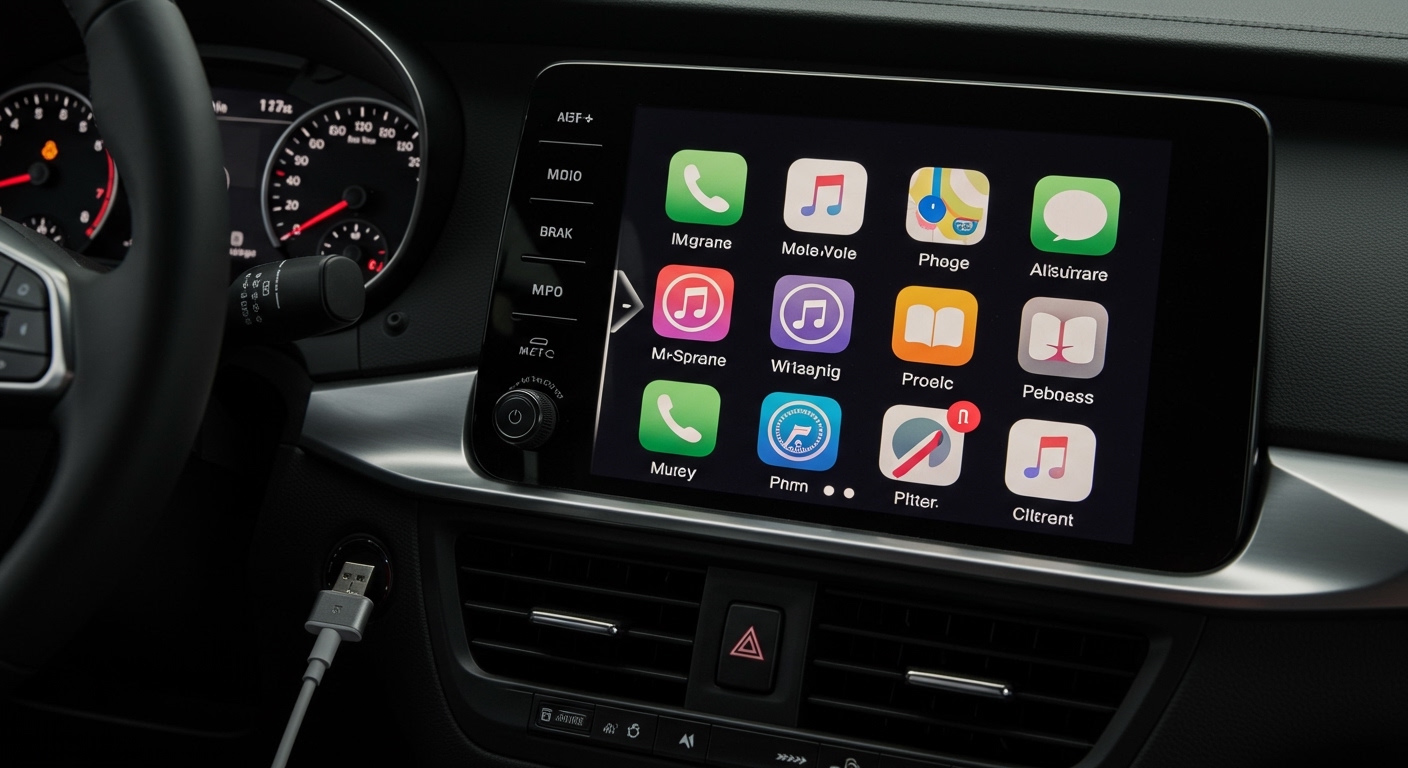
In my years of testing aftermarket head units like Pioneer and Alpine, as well as factory systems from Ford (Sync 3/4) and Toyota (Entune), the most common hurdle is a simple handshake error between the phone and the car’s software. If the connection is active but silent, the issue usually resides in the iPhone’s volume settings, Siri permissions, or a faulty Lightning/USB-C cable.
Key Takeaways for CarPlay Audio
- Wired Connection: Use an Apple MFi-certified cable for the most stable audio bitrate.
- Wireless Connection: Ensure both Bluetooth and Wi-Fi are enabled on your iPhone.
- Audio Source: Your car must be set to the CarPlay source; standard Bluetooth mode will often block CarPlay audio.
- Volume Sync: CarPlay has independent volume levels for Navigation, Siri, and Music.
- Update Software: Always keep your iOS and vehicle firmware updated to prevent “handshake” failures.
The Step-by-Step Guide: How to Get CarPlay to Play Through Car Speakers
Setting up your audio properly ensures you get high-fidelity sound rather than thin, compressed Bluetooth audio. Follow these steps to ensure a perfect connection every time.
Identify Your Connection Type
Before you begin, determine if your car supports Wired CarPlay, Wireless CarPlay, or both.
- Wired: Look for a USB port labeled with a CarPlay icon or a smartphone symbol.
- Wireless: Check your owner’s manual. Most cars manufactured after 2021 support wireless, while older models require a Wireless CarPlay Adapter.
Physical Connection (Wired)
Plug your iPhone into the designated USB port. I recommend using the original cable that came with your phone. Third-party cables often lack the data transfer pins required for CarPlay, resulting in the phone charging but not playing audio.
Pairing via Bluetooth and Wi-Fi (Wireless)
If your car supports wireless, go to Settings > General > CarPlay on your iPhone. Hold the Voice Command button on your steering wheel to initiate pairing. Ensure your Wi-Fi is on, as wireless CarPlay uses a dedicated Wi-Fi connection to stream high-quality audio, not just Bluetooth.
Selecting the Correct Source
On your car’s touchscreen, look for the Apple CarPlay logo. Even if your phone is plugged in, some systems (like those in Hondas or Chevrolets) may stay on FM Radio or Auxiliary until you tap the CarPlay icon.
| Connection Method | Primary Data Path | Audio Quality | Stability |
|---|---|---|---|
| USB Cable (Wired) | USB Data Bus | High (Lossless) | Excellent |
| Wireless CarPlay | 5GHz Wi-Fi | High (Compressed) | Good |
| Bluetooth Only | Bluetooth SBC/AAC | Low/Medium | Fair |
Common Reasons CarPlay Audio Isn’t Playing
If you have connected the device but still hear silence, the problem is likely a settings conflict. Through my experience troubleshooting hundreds of vehicles, these are the top “silent” culprits.
The “Siri is Disabled” Glitch
Apple CarPlay requires Siri to be enabled to function correctly. If Siri is turned off, the audio interface may load, but the “handshaking” protocol for audio playback will fail.
- Go to Settings > Siri & Search.
- Ensure “Listen for ‘Hey Siri'” and “Allow Siri When Locked” are toggled ON.
Silent Volume Levels
CarPlay manages three distinct volume streams. I’ve seen many users think their music is broken when, in reality, the Navigation Voice volume was turned down to zero.
- Media Volume: Adjust while music is playing.
- Voice/Siri Volume: Adjust while Siri is speaking.
- Navigation Volume: Adjust while Google Maps or Apple Maps is giving a turn-by-turn instruction.
Bluetooth Interference
Sometimes a car tries to connect to the phone via Legacy Bluetooth and CarPlay simultaneously. This creates a “routing loop” where the phone doesn’t know which output to use. To fix this, I suggest “forgetting” the car from your iPhone’s Bluetooth settings and re-establishing the CarPlay connection from scratch.
Expert Tips for the Best Audio Experience
Getting the audio to play is the first step; making it sound professional is the second. Here is how I optimize my in-car audio environment.
Use Apple Music Lossless
If you are using a Wired CarPlay connection, you can take advantage of Lossless Audio.
- Go to Settings > Music > Audio Quality.
- Select Lossless for Cellular Streaming and Downloads.
- Note: Wireless CarPlay does not support full Lossless due to bandwidth limits, but it still sounds better than standard Bluetooth.
Check Your iPhone EQ
The “Equalizer” settings on your iPhone carry over to your car. If your car speakers sound muddy, check your iPhone settings.
- Navigate to Settings > Music > EQ.
- I recommend setting this to “Off” or “Flat” and using your car’s built-in head unit settings to adjust the Bass and Treble. Doubling up on EQ (both on the phone and the car) usually results in distortion.
Dealing with “No Device Connected” Errors
If your car refuses to see the iPhone, the issue is often lint in the charging port. Use a small toothpick to gently clean the Lightning or USB-C port on your iPhone. Even a tiny amount of pocket lint can prevent the data pins from making a full connection, which kills the CarPlay handshake.
Advanced Troubleshooting for CarPlay Sound Issues
When the basic “unplug and plug back in” doesn’t work, we need to dive into the deeper software layers.
Resetting the Infotainment System
Just like a computer, your car’s head unit can crash. For Ford vehicles, holding the Power button and Right Seek button for 10 seconds usually triggers a reboot. For most other brands, turning the engine off, opening the driver’s door, and waiting 30 seconds will power-cycle the system.
Screen Time Restrictions
I have encountered several cases where CarPlay was accidentally disabled via Parental Controls.
- Go to Settings > Screen Time > Content & Privacy Restrictions.
- Tap Allowed Apps.
- Ensure CarPlay is toggled to ON.
Hardware Limitations and Faulty Ports
Not every USB port in your car is a “Data Port.” Many vehicles have 2-4 USB ports, but only one is wired into the head unit for Apple CarPlay. If you are plugged into a port in the center console or the back seat, it may only provide power. Look for the port closest to the dashboard with the Smartphone icon.
Frequently Asked Questions
Why is my CarPlay connected but no sound is coming out?
This is usually due to the Audio Source being set incorrectly or the Volume being muted on the phone side. Ensure your car is in CarPlay Mode rather than Radio or XM. Also, check if your iPhone is in Silent Mode, as some older firmware versions allow the mute switch to affect media playback.
Can I play CarPlay audio through Bluetooth?
No. Apple CarPlay uses a combination of Bluetooth (for the initial handshake) and either USB or Wi-Fi (for the actual audio data). If you are only connected via Bluetooth, you are using the car’s standard hands-free system, not CarPlay.
How do I change the volume of the navigation vs. the music?
To change the navigation volume, you must turn the car’s volume knob while the navigation voice is actually speaking. If you turn the knob while the music is playing, it will only adjust the music. This is a common point of confusion for new CarPlay users.
Does a wireless adapter affect the sound quality?
Yes, slightly. Most Wireless CarPlay Adapters (like Ottocast or Carlinkit) use a compressed Wi-Fi stream. While it is significantly better than Bluetooth, it is not as high-fidelity as a direct Lightning or USB-C cable connection.
Why does my audio lag during Wireless CarPlay?
Wireless lag (usually 1-2 seconds) is normal for audio-visual synchronization (like when skipping tracks). However, if the audio is stuttering, it is likely due to 2.4GHz Wi-Fi interference from other devices in the car or external signals in high-traffic areas. Using a wired connection resolves this immediately.









