

Common Reasons Why Your Surround Speakers Are Not Working
If your rear or side speakers are silent, the most common reason why surround speakers are not working is typically an incorrect DSP (Digital Signal Processing) mode on your receiver or the source content being limited to 2.0 Stereo. To fix this instantly, ensure your AV Receiver (AVR) is set to “Dolby Surround,” “Multichannel,” or “Auto,” and verify that your media player is outputting a 5.1 or 7.1 bitstream signal.
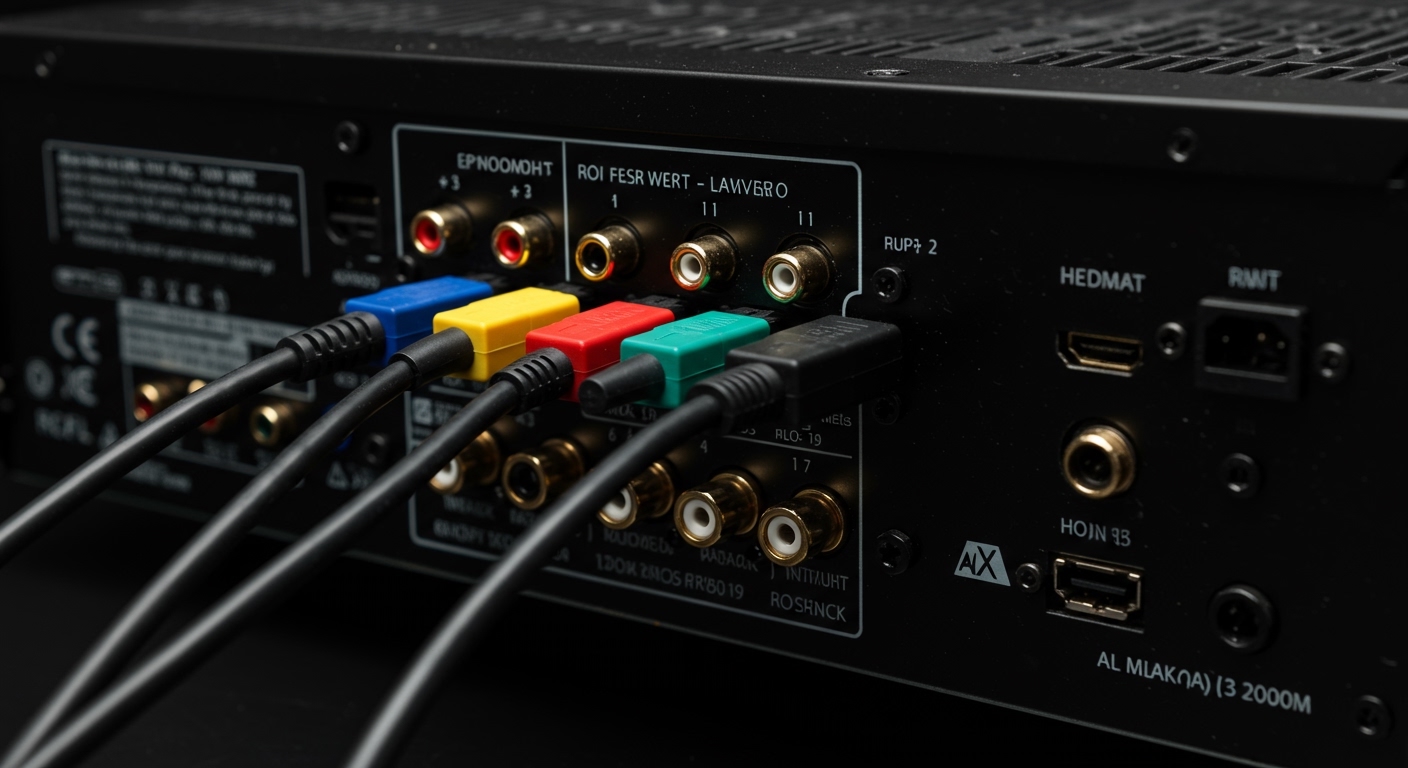
During my decade of installing high-end home theaters, I’ve found that hardware failure is rare; 90% of issues reside in the software settings or a simple loose copper strand at the binding post. Whether you are using a wired Denon setup or a wireless Sonos ecosystem, this guide provides the exact diagnostic path I use to restore immersive audio.
Quick Troubleshooting Checklist (TL;DR)
- Check the Source: Ensure the movie or game actually supports 5.1 or 7.1 Surround Sound.
- Verify AVR Mode: Switch your receiver to “Direct” or “Dolby Digital” rather than “Stereo.”
- Inspect Wiring: Look for loose “frays” or disconnected wires at the back of the speakers and the receiver.
- Run a Test Tone: Use your receiver’s “Level” or “Speaker Setup” menu to play a white noise test tone to each channel.
- HDMI eARC Settings: Ensure your TV is set to “Digital Audio Out: Pass-through” or “Bitstream.”
Step 1: Diagnosing the Physical Connection (The “Hardware Audit”)
Before diving into complex menus, we must rule out physical disconnects. In my experience, vibration from subwoofers can actually wiggle poorly-seated banana plugs out of their sockets over time.
Inspecting Speaker Wire and Terminals
Check every connection point. If you are using bare wire, ensure the copper isn’t oxidized (turning green) and that no stray strands are touching the neighboring terminal, which can trigger the receiver’s “Protection Mode.”
Cable Gauge and Distance Reference
Using the wrong gauge of wire over long distances can result in signal drop-off or high impedance, leading to “thin” sound or total silence.
| Cable Gauge (AWG) | Maximum Recommended Distance (8-Ohm Load) | Maximum Recommended Distance (4-Ohm Load) |
|---|---|---|
| 18 AWG | 32 Feet | 16 Feet |
| 16 AWG | 48 Feet | 24 Feet |
| 14 AWG | 80 Feet | 40 Feet |
| 12 AWG | 120 Feet | 60 Feet |
Expert Tip: If you have a multimeter, check for continuity. A reading of “Infinite” (or OL) means the wire is snapped somewhere inside the wall or casing.
Step 2: Configuring Your AV Receiver (AVR) Settings
This is the most frequent culprit behind why surround speakers are not working. Many users accidentally hit the “Stereo” button on their remote, which downmixes all audio to just the front-left and front-right channels.
Choosing the Correct Listening Mode
Your receiver has various DSP modes. To ensure all speakers are active, look for these specific labels:
- Dolby Surround / DTS Neural:X: These are “upmixers.” They take a stereo signal and use algorithms to simulate sound in the rear speakers.
- Multichannel Stereo: This forces the same audio to all speakers. It’s great for testing but bad for movies.
- Auto / Direct: This plays the audio exactly as the creator intended. If the movie is stereo, the rears will remain silent.
The “Small” vs. “Large” Speaker Debate
In your AVR’s Speaker Configuration menu, you will see options for speaker size.
- Set to “Small”: This is almost always the correct choice. It tells the receiver to send low frequencies (bass) to the Subwoofer and mid-to-high frequencies to the surround speakers.
- Set to “Large”: If your surrounds are small bookshelf speakers and you set them to “Large,” the receiver may send deep bass to them that they cannot handle, potentially causing the internal amp to clip or shut down that channel.
Step 3: Solving Source Content and HDMI Issues
Even the best Marantz or Yamaha receiver cannot play surround sound if the source isn’t providing it.
The “YouTube” Fallacy
I frequently get calls from clients complaining their rears aren’t working while watching YouTube. Most YouTube content is 2.0 Stereo. Unless your receiver is specifically set to an “Upmix” mode like Dolby Pro Logic II or DTS Neo:6, those rear speakers will stay silent. Use a 4K Blu-ray or a high-quality stream from Netflix or Disney+ to test.
HDMI ARC and eARC Limitations
If your TV is connected to your receiver via HDMI ARC, you might be facing a bandwidth bottleneck.
- Standard ARC: Limited to compressed 5.1 (Dolby Digital). It cannot handle Dolby Atmos (Lossless) or DTS-HD Master Audio.
- eARC (Enhanced Audio Return Channel): Supports full lossless audio.
Actionable Advice: Go into your TV’s “Sound” settings. Ensure HDMI CEC is ON and Digital Audio Out is set to “Pass-through” or “Auto.” If it is set to “PCM,” the TV might be down-converting everything to 2.0 before it even reaches your speakers.
Step 4: Troubleshooting Wireless Surround Systems (Sonos, Bose, Samsung)
Wireless surrounds like the Sonos Era 300 or Samsung SWA-9500S face unique challenges, primarily network interference and pairing desyncs.
Network Congestion
Wireless speakers usually operate on the 2.4GHz or 5GHz Wi-Fi bands. If your router is sitting right next to your rear speaker, the signal may “drop” because of RF Interference.
- Fix: Move the router at least 3 feet away from any wireless audio transmitter.
- Fix: Change your Wi-Fi channel in your router settings to a less crowded one (Channel 1, 6, or 11 for 2.4GHz).
The “Pairing” Reset
If your app shows the speakers are connected but no sound comes out:
- Unplug the power cord from the surround speakers for 60 seconds.
- Restart your Soundbar or Main Hub.
- Re-run the “Add Surround Speakers” process in the dedicated app.
Step 5: Advanced Calibration and Room Correction
If your speakers are “working” but sound so quiet you think they are off, you likely have a calibration issue.
Using Auto-Calibration (Audyssey, YPAO, Dirac)
Most modern receivers come with a setup microphone. I highly recommend running this. It measures the distance and decibel (dB) level of each speaker.
- If your rear speakers are 15 feet away and your fronts are 5 feet away, the receiver needs to “boost” the rear volume by several decibels to compensate.
- Manual Adjustment: Go to Manual Setup > Levels and increase the Surround Left and Surround Right by +3.0dB to +5.0dB if you prefer a more aggressive surround effect.
Why Surround Speakers Fail: Internal Components
If you’ve checked the wires and the settings and there is still no sound, we must look at the hardware itself.
- Blown Tweeters: High-frequency drivers can fail if the system was pushed too hard. If you hear a “muffled” sound but no clarity, the tweeter is likely dead.
- Crossover Failure: Inside the speaker is a circuit board (the crossover) that directs sound to the woofer and tweeter. A blown capacitor can kill the signal entirely.
- Receiver Channel Failure: Sometimes, an individual amplifier channel inside the receiver dies. To test this, swap the “dead” speaker with a “working” front speaker. If the front speaker also doesn’t work when plugged into the surround terminal, your AVR needs repair.
Frequently Asked Questions
Q: Why do my rear speakers only work during some scenes in a movie?
A: This is normal behavior for a “Discrete” surround track. Surround speakers are meant for ambient effects (rain, wind, bullets) and directional cues. They are not intended to play music or dialogue at all times.
Q: Can I use Bluetooth to connect surround speakers to my receiver?
A: Generally, no. Standard Bluetooth has too much latency (lag) for home theater. Surround speakers must be either hardwired or part of a proprietary wireless ecosystem (like WiSA or Sonos).
Q: My surround speakers are making a buzzing or humming sound. How do I stop it?
A: This is likely a Ground Loop. Ensure your receiver and your subwoofer (if it’s an active surround) are plugged into the same power strip or circuit. Also, ensure your speaker wires aren’t running parallel to high-voltage power cables.
Q: Why is my PC only outputting stereo to my surround system?
A: Windows defaults to Stereo. You must go to Sound Settings > Control Panel > Playback, right-click your output device, select “Configure Speakers,” and choose “5.1 Surround.” Additionally, check that “Spatial Sound” (Dolby Atmos for Headphones) is turned off for home theater setups.









