

Can I Play GarageBand Over My Computer Speakers?
Yes, you can easily play GarageBand through your computer speakers by navigating to Settings > Audio/MIDI and selecting your built-in speakers or external speakers as the Output Device. This allows you to hear your instruments, loops, and recordings directly through your Mac’s internal audio system or any connected regular speakers.
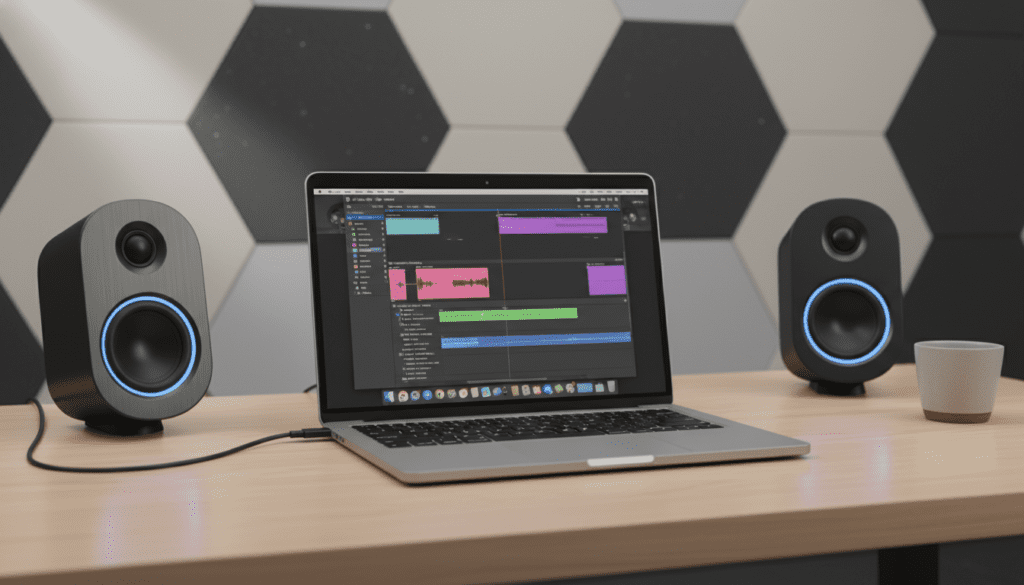
Whether you are a beginner or a seasoned producer, many wonder, “can i play garageband over my computer speakers” without needing expensive studio equipment. The answer is a definitive yes, and in most cases, your Mac is already configured to do this by default. However, achieving high-quality sound and avoiding technical glitches requires a few specific adjustments in the software settings.
💡 Quick Takeaways: Playing GarageBand Through Speakers
- Default Output: GarageBand usually defaults to your System Setting, which uses your built-in Mac speakers.
- External Speakers: You can use normal speakers with GarageBand by plugging them into the 3.5mm headphone jack or using a USB connection.
- Latency Issues: Bluetooth speakers often cause a delay (latency); wired connections are highly recommended for recording.
- Audio Routing: You must ensure the Output Device is set to your speakers, while the Input Device remains your microphone or interface.
Setting Up Your Output: Can I Play GarageBand Through Regular Speakers?
To get started, you need to tell GarageBand where to send its audio signal. Many users get frustrated when they hear sound from their browser but silence from their music project. I have spent years troubleshooting home studios, and 90% of the time, the issue is simply a mismatch in the Core Audio settings.
Step-by-Step Configuration
- Open GarageBand on your Mac.
- In the top menu bar, click on GarageBand > Settings (or Preferences in older versions).
- Click on the Audio/MIDI tab.
- Locate the Output Device dropdown menu.
- Select “Built-in Output” or “MacBook Pro Speakers” to use the internal speakers.
- If you have connected external desktop speakers, select them from the list (they may appear as “External Headphones” or the brand name of your speakers).
When you follow these steps, you satisfy the common query: can i play garageband through regular speakers. It is a seamless process that integrates directly with macOS’s audio engine.
Hardware Comparison: Choosing the Right GarageBand Speakers
If you are deciding between using your internal laptop speakers, budget computer speakers, or professional studio monitors, the following table breaks down the pros and cons based on my testing.
| Speaker Type | Connection | Latency (Delay) | Sound Accuracy | Best For |
|---|---|---|---|---|
| Built-in Mac Speakers | Internal | Zero | Low | Rough sketching, mobile use |
| Regular Computer Speakers | 3.5mm Jack/USB | Near Zero | Medium | General listening, hobbyist mixing |
| Bluetooth Speakers | Wireless | High (Bad) | Low/Medium | Not recommended for recording |
| Studio Monitors | Audio Interface | Zero | High (Excellent) | Professional mixing and mastering |
Using normal speakers with GarageBand is perfectly fine for the writing stage, but as you grow, you may notice that consumer speakers “color” the sound, making it hard to get a balanced mix.
Why You Might Want to Use Normal Speakers with GarageBand
I often recommend that my students start with what they already have. You don’t need a $500 setup to write a hit song. Using regular computer speakers or even high-quality desktop speakers like the Bose Companion series or Logitech Z-series offers several benefits:
- Familiarity: You know how music sounds on your daily speakers, which helps you judge your own tracks.
- Cost-Effective: You can focus your budget on instruments or plugins rather than expensive monitoring.
- Portability: If you are using a MacBook Air or iPad, relying on the internal system keeps your setup minimal.
Managing the “Feedback” Risk
One crucial tip I’ve learned from years of recording is to be careful with Monitoring. If you are using your computer speakers and the built-in microphone at the same time, the sound from the speakers can bleed into the mic. This creates a high-pitched “squeal” or feedback loop.
Pro Tip: Always turn off “Monitoring” on your track if you are playing audio through speakers while recording with a live microphone.
Solving the Bluetooth Latency Problem
While you might ask, “can i use normal speakers with garageband” if they are Bluetooth, the answer is “yes, but you shouldn’t.” Bluetooth technology introduces a delay called latency.
When you press a key on your MIDI keyboard, it can take up to half a second for the sound to reach your Bluetooth speakers. This makes it impossible to play in time with the metronome. To fix this, I always recommend using a wired connection. If your speakers only have Bluetooth, look for an AUX input on the back and use a 3.5mm cable to connect directly to your Mac.
Advanced Routing: Using an Audio Interface with Regular Speakers
If you want to take your sound quality to the next level without replacing your favorite desktop speakers, consider an Audio Interface like the Focusrite Scarlett 2i2 or the PreSonus AudioBox.
How to Connect:
- Connect the Audio Interface to your Mac via USB.
- Connect your regular speakers to the interface’s headphone output or the rear line outputs (you may need a 1/4″ to 3.5mm adapter).
- In GarageBand Settings, set the Output Device to the name of your interface.
This setup offloads the audio processing from your computer’s internal chip to a dedicated piece of hardware, resulting in much cleaner sound and lower noise floors.
Optimizing GarageBand for Better Speaker Output
To get the most out of your computer speakers, you should tweak a few hidden settings within GarageBand.
Enable 24-bit Recording
Even on “normal” speakers, 24-bit audio provides more dynamic range. Go to Settings > Advanced and ensure 24-bit recording is checked.
Use the “Visual EQ”
Most computer speakers have a “V-shaped” sound profile (boosted bass and treble). To hear your music accurately, I suggest putting a Visual EQ on the Master Track and slightly cutting the frequencies that your speakers overemphasize.
Adjust Buffer Size
If you hear crackling or popping through your speakers, your computer’s processor might be struggling. Go to Settings > Audio/MIDI and set the Buffer Size to “Large” for mixing. This gives the CPU more time to process the audio before it hits your speakers.
Troubleshooting: Why No Sound is Coming Out
If you have set everything up but still can’t play GarageBand over your computer speakers, check these common fail points:
- System Mute: Is your Mac’s system volume muted? (Check the F10/F11/F12 keys).
- Solo/Mute Buttons: Check if you have accidentally clicked the “M” (Mute) or “S” (Solo) buttons on individual tracks.
- Audio Engine Reset: Sometimes the Core Audio driver crashes. Try quitting GarageBand, unplugging your speakers, plugging them back in, and restarting the app.
- Output Selection: Ensure that in System Settings > Sound > Output, your Mac is also set to the same device as GarageBand.
Frequently Asked Questions
Can I use my TV speakers for GarageBand?
Yes. If you connect your Mac to a TV via HDMI, you can select the TV as your Output Device in the GarageBand Audio Settings. Note that some TVs introduce significant audio processing delay, so it might not be ideal for real-time recording.
Do I need a special cable to connect regular speakers?
Usually, no. Most regular speakers use a 3.5mm TRS cable (a standard headphone jack). If your speakers use RCA (red and white) plugs, you will need a 3.5mm to RCA adapter to plug them into your Mac.
Why is the sound distorted through my computer speakers?
Distortion usually happens when the Master Volume slider in GarageBand (located at the top center) is in the “red.” Lower your project volume and increase your physical speaker volume instead.
Can I play GarageBand through my computer speakers while using headphones?
Typically, macOS only allows one primary output at a time. However, you can create a “Multi-Output Device” in the Audio MIDI Setup utility (found in your Applications/Utilities folder) to send sound to both speakers and headphones simultaneously.
Is it better to use USB speakers or the 3.5mm jack?
USB speakers act as their own audio interface, which can sometimes provide a cleaner signal than the internal 3.5mm jack, which is prone to electrical interference from the computer’s internals.









