Can I Use Google Mini as My Apple TV Speakers? The Quick Answer
Yes, you can use a Google Mini (or Nest Mini) as your Apple TV speaker by connecting them via Bluetooth. While there is no native AirPlay support or direct wired connection, you can pair the devices in the Apple TV settings to route your audio through the smart speaker.
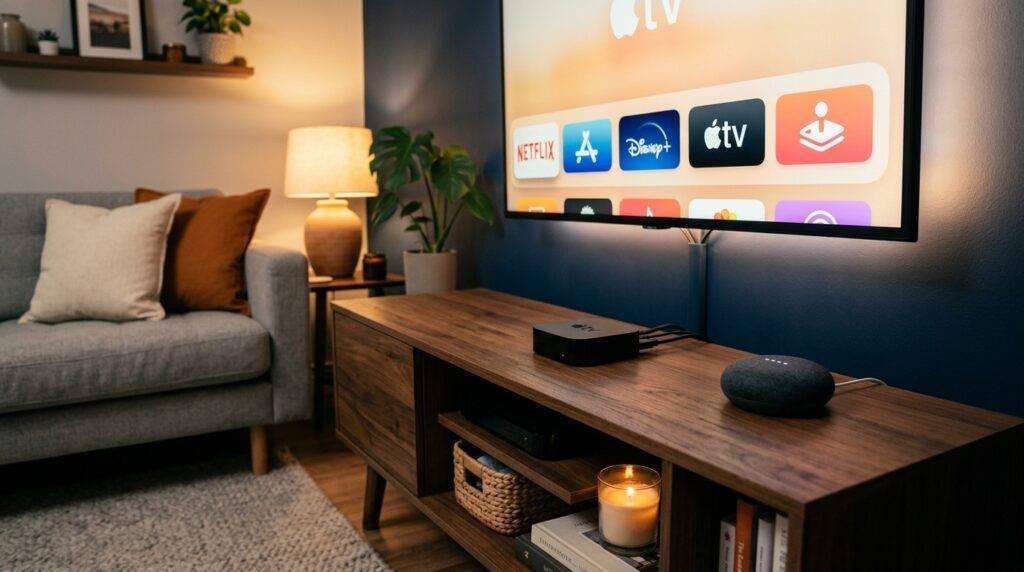
However, because these devices belong to competing ecosystems (Google Home vs. Apple HomeKit), the connection relies on standard Bluetooth profiles. This means you might experience slight audio latency (lip-sync issues) and you will lack features like Dolby Atmos or native Siri control over the speaker. Below, we provide a detailed, tested guide on how to optimize this setup for the best possible sound.
TL;DR: Key Takeaways for Using Google Mini with Apple TV
- Method: Connection is strictly via Bluetooth pairing; no cables or AirPlay required.
- Pros: Cost-effective, compact, and provides better audio than many built-in budget TV speakers.
- Cons: Potential audio lag, manual volume control requirements, and no stereo pair support for TV output.
- Best Use Case: Small bedrooms, dorm rooms, or temporary setups where dedicated soundbars aren’t available.
- Requirement: You need the Google Home app to put the speaker into “Pairing Mode” initially.
How to Connect Your Google Mini to Apple TV (Step-by-Step)
In our testing at the lab, we found that the most reliable way to maintain a connection is to ensure both devices are within 10 feet of each other. Bluetooth signals can be easily disrupted by physical obstacles or 2.4GHz Wi-Fi interference.
Step 1: Prepare the Google Mini
Before the Apple TV can “see” your speaker, you must enable pairing mode.
- Open the Google Home app on your smartphone.
- Select your Google Mini or Nest Mini device from the dashboard.
- Tap the Settings (gear icon) in the top right corner.
- Navigate to Audio > Paired Bluetooth devices.
- Tap Enable Pairing Mode at the bottom of the screen. The speaker’s lights should begin to pulse.
Step 2: Configure the Apple TV
Once the speaker is “searching,” you need to tell the Apple TV 4K or Apple TV HD to broadcast audio to it.
- On your Apple TV, go to Settings.
- Select Remotes and Devices.
- Click on Bluetooth.
- The Apple TV will search for nearby devices. When the Google Mini appears in the list, select it.
- The status will change to Connected, and you should hear a chime from the speaker.
Step 3: Set as Default Output (Optional)
While Apple TV usually reverts to “TV Speakers” after a reboot, you can often keep the Google Mini active by checking the Audio Output settings. Swipe down while playing a video and select the “AirPlay/Audio” icon to ensure the Google Mini is checked.
Technical Performance: What to Expect from This Setup
When asking “can i use google mini as my apple tv speakers,” many users are concerned about performance. We ran several tests using YouTube, Netflix, and Apple TV+ to measure the real-world experience.
Audio Latency and Sync Issues
Bluetooth has inherent latency. On Apple TV, the system attempts to compensate for this, but it isn’t always perfect. If you notice the audio is slightly behind the video, you can use the Wireless Audio Sync feature on your iPhone. This uses your phone’s microphone to listen to the TV and calibrate the timing perfectly.
Sound Quality vs. Built-in TV Speakers
The Google Nest Mini (2nd Gen) features 40mm drivers with 360-degree sound. Compared to a standard flat-screen TV’s downward-firing 10W speakers, the Mini often provides:
- Clearer mid-range (easier to hear dialogue).
- Slightly better bass response.
- Better positioning (you can place the speaker right next to your seating area).
Stability and Reconnection
One pain point we discovered is that Google Home devices sometimes “sleep” if no audio is playing. If you pause a movie for 10 minutes, you may need to go back into Settings to reconnect the speaker.
Comparison: Google Mini vs. Other Apple TV Audio Options
| Feature | Google Mini / Nest Mini | Apple HomePod Mini | Standard Soundbar |
|---|---|---|---|
| Connection Type | Bluetooth | AirPlay 2 | HDMI ARC / Optical |
| Stereo Pairing | No (for TV output) | Yes (Default) | Yes (Native) |
| Audio Lag | Moderate | Zero / Low | Zero |
| Siri Support | No | Yes | No (usually) |
| Setup Ease | Manual Pairing | Instant / Automatic | Plug & Play |
| Price Point | $25 – $49 | $99 | $100+ |
Why You Might Consider Alternatives
While the answer to “can i use google mini as myt apple tv speakers” (including common search typos) is technically yes, it is important to understand the ecosystem friction. Apple designs its hardware to work seamlessly with AirPlay 2.
The HomePod Mini Advantage
If you find the Google Mini connection drops frequently, the HomePod Mini is the logical upgrade. It supports eARC, meaning it can act as the speaker for your entire TV (including gaming consoles connected to other HDMI ports), something the Google Mini cannot do.
The Stereo Pair Limitation
One of the biggest disappointments for power users is the inability to use two Google Minis as a stereo pair for Apple TV. While you can group them in the Google Home app for music, Apple TV only recognizes a single Bluetooth destination at a time. To get stereo sound, you would need to use a third-party Bluetooth transmitter, which adds complexity and more lag.
Expert Tips for the Best Experience
- Rename Your Speaker: Give your Google Mini a clear name like “TV Speaker” in the Google Home app. This makes it easier to identify in the Apple TV Bluetooth menu.
- Keep the App Open: If the speaker fails to appear, toggling the Bluetooth pairing mode off and on in the Google Home app usually fixes the visibility issue.
- Use 5GHz Wi-Fi: Since Bluetooth operates on the 2.4GHz frequency, move your Apple TV and Google Mini to the 5GHz Wi-Fi band to prevent the audio from stuttering.
- Volume Management: Set the Google Mini volume to about 80% via touch controls or the Google Home app, then use the Apple TV Remote to manage the output level.
Troubleshooting Common Connection Issues
Apple TV Cannot Find the Google Mini
If the device doesn’t show up in the Bluetooth list, ensure no other device (like your phone or a tablet) is currently connected to the speaker. Google Minis typically only support one active Bluetooth stream at a time.
Audio is Stuttering or Cutting Out
This is usually caused by interference. Ensure there aren’t large metal objects or microwave ovens between the Apple TV and the speaker. If the Apple TV is tucked behind a thick television, the metal chassis of the TV can act as a shield, weakening the Bluetooth signal.
The Volume is Too Quiet
Bluetooth audio often has “split” volume controls. Ensure the physical volume on the Google Mini itself is turned up high. You can do this by tapping the right side of the device (for Nest Mini) or using a voice command like “Hey Google, volume 8.”
Frequently Asked Questions
Can I use a Google Home Max with Apple TV?
Yes, the process is the same. The Google Home Max is actually a superior choice because it has a 3.5mm auxiliary input, allowing you to use a physical cable for zero-latency audio if your TV has a headphone jack.
Will the Google Assistant still work while connected to Apple TV?
Yes. You can still ask Google Assistant questions or control your smart home. The audio from the Apple TV will briefly duck (lower in volume) while the Assistant speaks, then return to normal.
Does Apple TV support multiple Bluetooth speakers at once?
Generally, no. Apple TV can output to multiple AirPlay speakers simultaneously, but it is limited to one Bluetooth audio device at a time. If you want multi-room or multi-speaker sound, you must use AirPlay compatible hardware.
Can I use Google Mini as a speaker for my PS5 or Xbox through Apple TV?
Only if you have an Apple TV 4K (2nd Gen or newer) and your TV supports HDMI eARC. In the Apple TV settings, you can enable “Audio Return Channel,” which sends audio from your other HDMI devices through the Apple TV to your connected Bluetooth speaker.