

Can Speakers Put Their PowerPoint Presentations on YouTube?
Yes, speakers can put their PowerPoint presentations on YouTube by converting their slides into a high-quality video format like MP4 or MOV. I have personally helped dozens of keynote speakers and corporate trainers transform static decks into engaging video content that reaches thousands of viewers beyond the live stage. The process is straightforward: you record your narration, set slide timings, and use the “Create a Video” export feature within Microsoft PowerPoint.
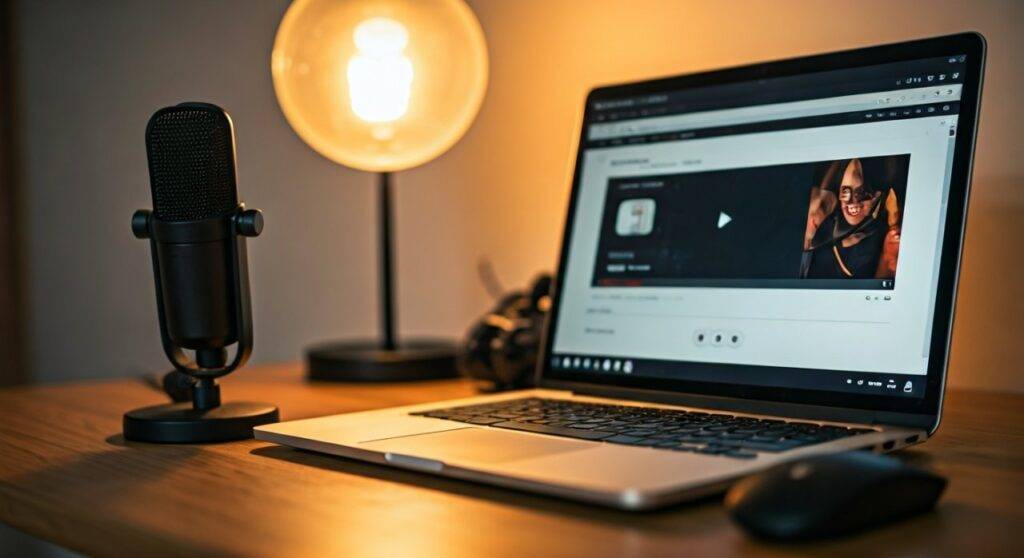
Key Takeaways for Speakers
- Format Matters: Always export your presentation as an MP4 file in 1080p (Full HD) or 4K (Ultra HD) for the best clarity on YouTube.
- Audio is King: Use an external USB microphone (like the Blue Yeti or Shure MV7) rather than your laptop’s built-in mic to ensure professional sound quality.
- Accessibility: Use YouTube’s automatic captions and manually edit them to ensure your technical terms and industry jargon are correct.
- Engagement: Add a Call to Action (CTA) at the end of your video to drive viewers to your website or booking page.
Why Speakers Should Put Their PowerPoint Presentations on YouTube
In my experience as a digital content strategist, I’ve seen speakers leave massive amounts of “digital equity” on the table by letting their slides gather dust on a hard drive. By uploading your PowerPoint to YouTube, you move from a one-time performance to an evergreen asset.
YouTube is the world’s second-largest search engine. When you upload your presentation, you aren’t just sharing slides; you are building authority and E-E-A-T (Experience, Expertise, Authoritativeness, and Trustworthiness) with a global audience.
Benefits of Converting Slides to Video
- Lead Generation: Your video acts as a 24/7 sales representative for your speaking business.
- SEO Visibility: Google frequently features video results in AI Overviews and standard search results for “how-to” and educational queries.
- Audience Retention: Many people prefer watching a 10-minute narrated video over clicking through a static SlideShare deck.
Method 1: The Native “Create a Video” Export (Easiest Way)
If you have already recorded your presentation or just want a “hands-off” conversion, this is the fastest method. I recommend this for speakers who have simple slide transitions and don’t need complex editing.
Step-by-Step Native Export
- Open your presentation: Ensure all your transitions and animations are finalized.
- Go to File > Export: In the sidebar, select “Create a Video.”
- Choose Quality: Select Full HD (1080p) or Ultra HD (4K). Do not use 720p, as it looks blurry on modern monitors.
- Set Timings: Choose “Use Recorded Timings and Narrations” if you have already recorded your voice. If not, set a default “Seconds spent on each slide” (usually 5-10 seconds).
- Click Create Video: Save the file as an MPEG-4 Video (.mp4).
Expert Tip: MP4 is the universal standard. While PowerPoint allows WMV export, YouTube processes MP4 much faster and with better color accuracy.
Method 2: Recording Narrations with Video (The Professional Approach)
To truly succeed on YouTube, your audience needs to see your face. Since PowerPoint 365, the Record Slide Show feature allows you to include a webcam bubble in the corner of your slides.
How to Record Your Presentation
- Navigate to the Record Tab: Click on “Record” in the top ribbon of PowerPoint.
- Check Your Gear: Select your external microphone and webcam in the settings dropdown.
- Use the “Teleprompter” View: PowerPoint allows you to see your notes at the top of the screen, right near your camera. This helps you maintain “eye contact” with your digital audience.
- Start Recording: Hit the red record button. You can pause between slides if you make a mistake.
- Export: Once finished, follow the export steps mentioned in Method 1 to generate your video file.
Method 3: Using Screen Recording Software (Best for Demos)
When I work with technical speakers who need to switch between PowerPoint and a live software demo, the native export isn’t enough. You will need a dedicated screen recorder.
Recommended Software for Speakers
- OBS Studio (Free/Open Source): The gold standard for high-quality recording. It allows you to create “scenes” where you can switch from full-screen webcam to a split-screen view of your slides.
- Camtasia: Excellent for speakers who want to add “zoom-and-pan” effects to their slides during the editing phase.
- Loom: Best for quick, informal “thought leadership” presentations where speed is more important than high-end production.
Comparison of Methods: Which One Should You Use?
| Feature | Native Export | Record Slide Show | Screen Recording (OBS) |
|---|---|---|---|
| Ease of Use | Highest | Moderate | Low (Learning curve) |
| Video Quality | Excellent | Excellent | Professional Grade |
| Audio Control | Basic | Moderate | Advanced |
| Webcam Integration | No | Yes (Small Bubble) | Yes (Custom Layouts) |
| Best For | Quick Sharing | Educational Lectures | High-End Keynotes |
Designing Your PowerPoint Specifically for YouTube
Slides designed for a ballroom projector often fail on YouTube. Mobile users make up over 70% of YouTube traffic, so your design must be “mobile-first.”
Optimization Checklist
- Font Size: Use at least 24pt font. Anything smaller is unreadable on a smartphone screen.
- Contrast: Use high-contrast colors (e.g., black text on a white background or white text on a navy background). Avoid subtle gradients.
- Aspect Ratio: Always use 16:9 (Widescreen). The old 4:3 format will result in “black bars” (letterboxing) on YouTube.
- The “Rule of Thirds”: Keep your most important information in the top two-thirds of the slide. YouTube’s progress bar and UI elements can sometimes cover the bottom edge of your video.
- Less Text, More Visuals: On YouTube, people listen to the speaker and look at the images. Avoid “walls of text.” Use high-resolution stock photos or custom icons.
Audio Quality: The Secret to High Watch Time
I have analyzed hundreds of presentation videos, and the number one reason viewers click away is poor audio quality. If your video looks okay but sounds like you are in a tin can, people will leave.
Expert Gear Recommendations
- Microphone: Don’t use your laptop mic. Buy a Blue Yeti ($100) or a Rode NT-USB ($150).
- Environment: Record in a room with “soft” surfaces (carpets, curtains, or even a closet full of clothes) to reduce echo.
- Pop Filter: Use a pop filter to stop “plosive” sounds (the “P” and “B” sounds) from clipping the audio.
Uploading and Optimizing for YouTube SEO
Once you have your MP4 file, you need to ensure people can find it. This is where Generative Engine Optimization (GEO) and SEO come into play.
Step 1: The Title
Your title should include your primary keyword naturally. Instead of “My Presentation.mp4,” use something like: “How to Lead Remote Teams | Full PowerPoint Presentation by [Your Name].”
Step 2: The Description
Write a 200-300 word summary of your talk. Include:
- Timestamps: (e.g., 0:00 Introduction, 2:15 The Problem, 5:45 The Solution). This creates “Chapters” in the YouTube player, which helps with Google search visibility.
- Links: Link to your LinkedIn profile, website, and any resources mentioned in the slides.
Step 3: Tags and Keywords
Use tools like TubeBuddy or vidIQ to find high-volume search terms. For speakers, tags like “Public Speaking,” “Keynote Presentation,” and your specific niche (e.g., “AI in Healthcare”) are essential.
Advanced Tip: Creating YouTube Shorts from Your Slides
Don’t just upload the full 45-minute presentation. I recommend speakers “chunk” their content. Take a 60-second “golden nugget” or a powerful story from your slide deck and re-format it as a YouTube Short.
- Change the slide aspect ratio to 9:16 (Vertical).
- Focus on one single, impactful point.
- Add large, “burned-in” captions using an app like CapCut or Adobe Premiere.
- Link the Short back to your full presentation in the “Related Video” setting.
Frequently Asked Questions
Can I upload a PowerPoint file (.pptx) directly to YouTube?
No, YouTube only supports video files. You must first convert your PowerPoint to an MP4 or MOV file using the “Export” or “Save As” menu within the Microsoft PowerPoint application.
Will my animations and transitions work on YouTube?
Yes, if you use the “Create a Video” export option in PowerPoint, all animations, slide transitions, and embedded video clips will be preserved exactly as they appear in the slideshow.
How do I handle copyright music in my presentation?
Be very careful. If your live presentation used a popular song, YouTube’s Content ID system will likely flag or demonetize your video. I recommend replacing any copyrighted music with royalty-free tracks from the YouTube Audio Library before exporting your video.
Can I edit my PowerPoint video after exporting it?
Once it is an MP4, you can use any video editing software like iMovie, DaVinci Resolve, or Adobe Premiere Pro to trim the beginning/end, add background music, or overlay your logo.
What is the best resolution for PowerPoint videos on YouTube?
The best resolution is 3840 x 2160 (4K), but 1920 x 1080 (1080p) is the standard for most business presentations. Avoid 720p as it can make small text on slides difficult to read.









