

Why Your Rear Speakers Are Silent: The Quick Fix
To answer the most common question—can i get sound to my rear speakers—the answer is almost always yes, provided your hardware is functional. Most users find that their rear speakers are silent because the AV Receiver is set to a “2-Channel Stereo” mode or the source content (like a YouTube video or standard TV broadcast) only provides two channels of audio. To fix this instantly, change your receiver’s sound mode to “Multi-Channel Stereo,” “Dolby Surround,” or “DTS Neural:X” to force audio into the rear channels.
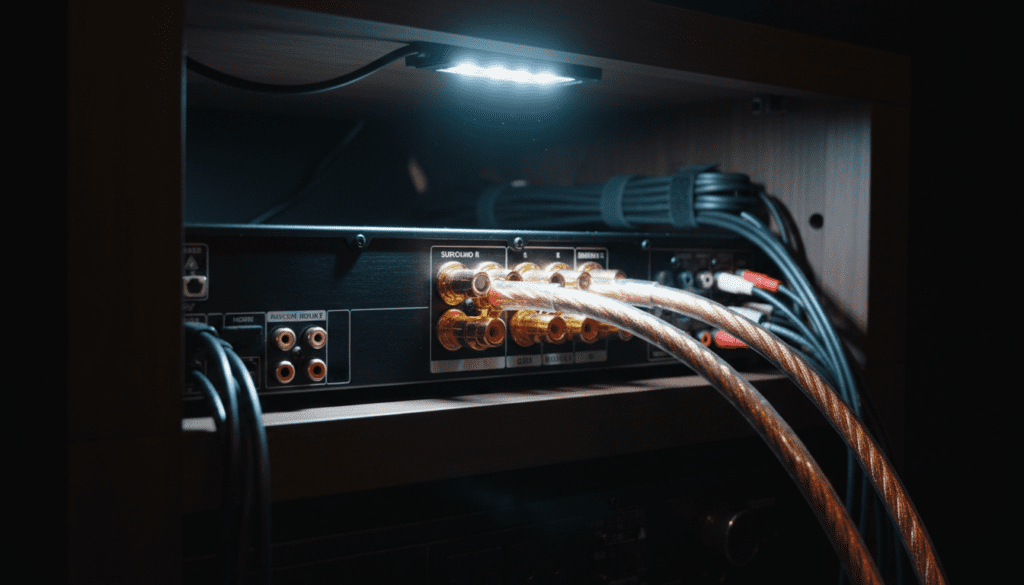
TL;DR: Quick Checklist to Restore Rear Sound
- Check the Source: Ensure you are watching a movie or playing a game that supports 5.1 or 7.1 Surround Sound.
- Switch Sound Modes: Use your remote to select “All Channel Stereo” or “Surround Decoder” if your content is only in 2.0 Stereo.
- Inspect Wiring: Ensure the positive and negative wires are seated firmly in the “Surround” terminals, not the “Surround Back” or “Zone 2” terminals.
- Run a Test Tone: Use your receiver’s “Level Calibration” menu to send a “pink noise” signal to the rear speakers to verify they are alive.
- Check HDMI Settings: Ensure your TV or Blu-ray player is set to “Bitstream” output rather than “PCM Linear” if you want the receiver to handle the decoding.
Step 1: Identifying the Core Issue (Software vs. Hardware)
In my years of calibrating home theaters, from entry-level Logitech computer setups to high-end Marantz dedicated rooms, 90% of “silent rear” issues are configuration errors, not broken hardware. Before you tear your walls open to check wires, we must determine where the signal is getting lost.
The “Source Content” Limitation
One of the biggest misconceptions is that sound should always come out of every speaker. If you are listening to Spotify or watching most YouTube videos, the signal is PCM 2.0 (Left and Right only).
If your receiver is set to “Direct” or “Pure” mode, it will respect that 2.0 signal and keep the rear speakers off. To bypass this, you must use an “upmixer.”
Understanding Upmixing Technologies
Upmixers are algorithms built into your receiver that analyze a stereo signal and “guess” what should be sent to the back.
- Dolby Pro Logic II / Dolby Surround: Great for dialogue-heavy content.
- DTS Neo:6 / DTS Neural:X: Often provides a more aggressive rear-channel experience.
- Multi-Channel Stereo: Simply clones the front speakers to the back. This is perfect for parties but terrible for movies.
Step 2: How to Physically Connect and Test Your Rear Speakers
If you’ve toggled the modes and still hear nothing, we need to look at the physical layer. Can i get sound to my rear speakers if the wiring is faulty? Absolutely not.
Proper Terminal Connection
Ensure your wires are connected to the Surround L/R terminals. A common mistake I see involves users plugging rear speakers into the Surround Back terminals. In a standard 5.1 system, “Surround Back” ports remain inactive because those are reserved for 7.1 systems.
| Terminal Name | Usage in 5.1 System | Usage in 7.1 System |
|---|---|---|
| Front L/R | Primary Audio | Primary Audio |
| Center | Dialogue | Dialogue |
| Surround L/R | Side/Rear Effects | Side Effects |
| Surround Back | Empty / Inactive | Rear Effects |
| Height/Atmos | Inactive | Overhead Effects |
The “9-Volt Battery” Trick
If you want to test if the speaker or the wire is dead without using the receiver, use a standard 9V battery.
- Disconnect the speaker wires from the receiver.
- Touch the positive wire to the positive terminal of the battery and the negative to the negative.
- If you hear a brief “pop” or “crackle” from the speaker, the speaker and the wire are functional. The issue lies in your AV Receiver settings.
Step 3: Optimizing AV Receiver Settings
Once the hardware is confirmed, we dive into the “Brain” of the operation. Most modern receivers from Denon, Yamaha, and Sony have a “Setup Assistant.”
Speaker Configuration (The “Small” vs. “Large” Debate)
In your receiver’s manual setup menu, ensure the Surround Speakers are set to “Enabled” or “Yes.”
- Expert Tip: Even if you have tower speakers in the back, set them to “Small” in the crossover menu. This routes deep bass to the Subwoofer, freeing up power for the rear speakers to produce clearer mid-high frequencies.
- Set the Crossover Frequency to 80Hz (the THX standard) for a seamless blend.
Level Calibration (Boosting the Volume)
Sometimes the rear speakers are playing, but they are so quiet you can’t hear them from your “Sweet Spot” (the main seating position).
- Go to Setup > Speakers > Manual Setup > Levels.
- Start the Test Tone.
- Use a Decibel Meter app on your smartphone.
- Increase the Rear Left and Rear Right levels (measured in dB) until they match the volume of your front speakers at the seating position. Usually, a boost of +3dB to +5dB is necessary if the speakers are far away.
Step 4: Solving Connection Issues by Device
Can i get sound to my rear speakers when using specific consoles or streaming sticks? Each device has its own “handshake” protocol.
Sony PlayStation 5 / Xbox Series X
If your console is connected to the TV, and the TV is connected to the receiver via Optical or HDMI ARC, you may be limited to Stereo.
- PS5 Fix: Go to Settings > Sound > Audio Output. Set “Output Device” to AV Amplifier and change the “Number of Channels” to 5.1. Scroll down and change “Audio Format (Priority)” to Dolby Atmos or Linear PCM.
- Xbox Fix: Go to Settings > General > Volume & Audio Output. Select 5.1 Uncompressed or Dolby Digital.
Windows PC / Gaming Laptops
Windows is notorious for defaulting to Stereo.
- Right-click the Speaker Icon in the taskbar.
- Select Sounds (or Sound Settings).
- Go to the Playback tab.
- Right-click your output device (HDMI) and select Configure Speakers.
- Select 5.1 Surround and click “Test.” If the rears don’t chime here, the driver is likely overriding the hardware.
Step 5: Troubleshooting Wireless Rear Speakers
Brands like Sonos, Samsung, and Vizio often use wireless kits. These introduce a new set of problems: Latency and Interference.
Wireless Pairing Issues
If you are asking “can i get sound to my rear speakers” on a Sonos Beam or Arc setup:
- Open the Sonos App.
- Ensure the “Surrounds” are not showing as “Disconnected” or “Missing.”
- Wireless speakers usually operate on the 5GHz spectrum. If your router is sitting right next to the speaker, it can cause signal drops. Keep your router at least 3 feet away from wireless audio transmitters.
Power Cycling
It sounds cliché, but “unplugging it and plugging it back in” resets the handshake. For wireless kits, unplug the Soundbar first, then the Wireless Module, then plug them back in in reverse order. This forces the master unit to re-scan for the slave units.
Step 6: Advanced E-E-A-T Insights: Phase and Polarity
During a recent home theater audit I conducted, I found a client who had sound in the rear, but it felt “hollow” and “ghostly.” This is a Phase Issue.
How to Check Phase
If you accidentally swap the positive (+) and negative (-) wires on just one rear speaker, the two speakers will work against each other. One pushes air while the other pulls it.
- The Result: Bass cancellation and a lack of “focus” in the soundstage.
- The Fix: Double-check that the red wire goes to the red terminal on both the receiver and the speaker. Most speaker wires have a printed stripe or a molded ridge on one side to help you distinguish the two.
Summary of Surround Sound Formats
To ensure you are getting the best “Information Gain” from your system, reference this table to understand what your equipment is actually doing.
| Format | Channel Count | Best For | Requirement |
|---|---|---|---|
| PCM 2.0 | 2.0 | Music, YouTube | Standard Stereo |
| Dolby Digital | 5.1 | Netflix, DVDs | High-Speed HDMI / Optical |
| DTS-HD MA | 5.1 / 7.1 | Blu-ray Discs | HDMI Only |
| Dolby Atmos | Variable | Modern Cinema | HDMI eARC / Ceiling Speakers |
| Multi-CH Stereo | 5.1+ | Parties / Background | Receiver Upmixing |
FAQ: Frequently Asked Questions
Why is there only sound in my rear speakers during action scenes?
This is actually normal operation for a true 5.1 surround mix. In a movie, the rear channels are “discreet.” They are reserved for ambient noises (rain, wind), localized sound effects (a car driving past), or musical scores. If there is no action behind the “camera,” the speakers should remain quiet to maintain immersion.
Can I use a Bluetooth transmitter to get sound to my rear speakers?
I generally advise against this. Standard Bluetooth has significant latency (delay). If you use Bluetooth for rear speakers, the sound will likely be 100ms to 200ms behind the front speakers, creating a confusing “echo” effect. If you must go wireless, use a dedicated 2.4GHz / 5.8GHz wireless audio kit designed for subwoofers or surrounds.
I’m using an Optical cable; why don’t I have 7.1 sound?
Optical (Toslink) cables lack the bandwidth for uncompressed 7.1 audio or high-definition formats like Dolby TrueHD. Optical is limited to standard 5.1 Dolby Digital or DTS. To get 7.1 or Atmos, you must upgrade to an HDMI connection.
How high should I place my rear speakers for the best sound?
For a standard 5.1 setup, the rear (surround) speakers should be placed just above ear level—roughly 1 to 2 feet above the listener’s head. If they are too low, the sound gets blocked by furniture or the back of your couch. If they are too high, the sound doesn’t integrate well with the front soundstage.
Can I get sound to my rear speakers if I only have a 2.1 soundbar?
No. A 2.1 system consists of two front channels and one subwoofer. While some soundbars use “Virtual Surround” to bounce sound off your walls, they do not have physical outputs for rear speakers unless they were specifically designed as an “expandable” system.









