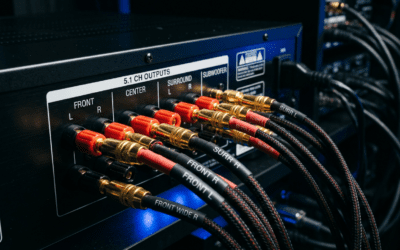
Can Windows 10 Detect Faulty Hardware Speakers?
Windows 10 can detect faulty hardware speakers by monitoring the electrical connection status of the audio jack and identifying driver-level communication failures. While the operating system can tell if a device is “not plugged in” or if a driver has crashed, it cannot always identify physical damage, such as a blown speaker cone or a torn diaphragm, without manual user input.
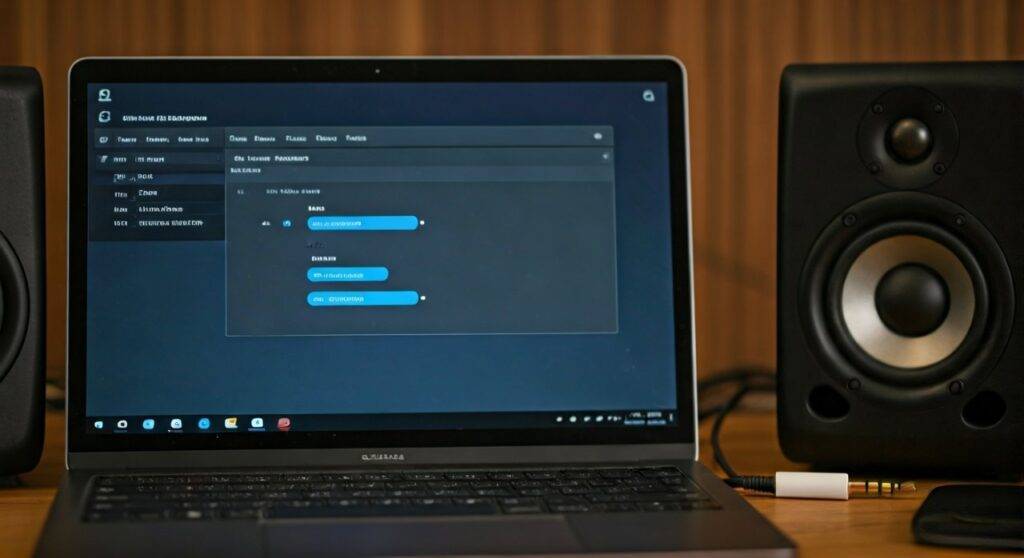
In my years of troubleshooting hardware, I’ve found that Windows is excellent at catching digital handshaking errors, but it often remains “blind” to mechanical failures. If your audio is crackling or silent despite Windows saying “This device is working properly,” you are likely dealing with a physical hardware defect that the OS cannot internally probe.
Quick Summary: Key Takeaways for Audio Diagnostics
- Automatic Detection: Windows 10 uses the High Definition Audio Controller to sense impedance changes when speakers are plugged in.
- The “Red X” Icon: This is the primary indicator that Windows has detected a hardware disconnect or a total component failure.
- Driver vs. Physical: A “Device Not Migrated” error usually points to software, while “No Audio Output Device is Installed” often signals a hardware failure.
- Top Diagnostic Tool: The built-in Audio Troubleshooter is the most effective first step for 90% of users.
How Windows 10 Monitors Your Audio Hardware
When you ask, “can windows 10 detect faulty hardware speakers,” you have to understand the layer between the software and the physical copper wire. Windows 10 communicates with your speakers through the Audio Endpoint Builder and the Universal Audio Architecture (UAA).
The Role of the Audio Endpoint Builder
This service is responsible for discovering and tracking audio devices. When you plug a pair of speakers into a 3.5mm jack, the hardware senses a change in electrical resistance (impedance). The Audio Endpoint Builder then notifies Windows 10 that a device is present. If the hardware is faulty—for instance, a short circuit in the wire—Windows may display a “Not Plugged In” status even when the cable is firmly seated.
Hardware Communication Codes
Windows 10 tracks hardware health through Device Manager error codes. In my testing, these are the three most common codes indicating a hardware-level fault:
- Code 10: The device cannot start (often a failing sound card).
- Code 43: Windows has stopped this device because it has reported problems (common in USB speakers with faulty internal chips).
- Code 45: The hardware device is not connected to the computer (this appears when a previously recognized speaker “disappears” due to a loose internal connection).
Step-by-Step: Diagnosing Faulty Speakers in Windows 10
If you suspect your hardware is failing, follow these steps in order. This process moves from high-level software checks to deep-level hardware verification.
Step 1: Run the Audio Troubleshooter
Windows 10 includes a specialized diagnostic tool that specifically answers the question of hardware detection.
- Right-click the Speaker Icon in the Taskbar.
- Select Troubleshoot sound problems.
- The tool will automatically check for driver corruption, audio services status, and jack detection.
- If the tool returns “The peripheral does not appear to be plugged in,” your hardware or the physical port is likely faulty.
Step 2: Inspect Device Manager for Hardware Flags
The Device Manager is the “brain” of your hardware configuration.
- Press
Win + Xand select Device Manager. - Expand the Sound, video and game controllers section.
- Look for a Yellow Warning Triangle next to your audio device (e.g., Realtek Audio or Intel Smart Sound Technology).
- Right-click the device and select Properties. Check the “Device Status” box for specific error messages.
Step 3: Test with the “Get Help” App
Windows 10 now features an AI-driven “Get Help” app that runs “Audio Playback” tests. I recommend this because it forces the hardware to bypass some software enhancements to see if the raw hardware responds.
- Type “Get Help” in the Start menu.
- Type “Fix sound problems” in the chat box.
- Follow the automated prompts to let Windows run a hardware ping test.
Software vs. Hardware Failure: Comparison Table
Use this table to determine if your issue is something Windows 10 can fix with a setting, or if you need to buy new speakers.
| Symptom | Windows 10 Detection Status | Likely Cause | Fix Action |
|---|---|---|---|
| No Sound (Red X) | Yes (Detected as “Not Plugged In”) | Loose cable or broken jack | Replace cable/port |
| Crackling/Popping | No (Usually shows “Working Properly”) | Blown speaker cone or interference | Replace speaker hardware |
| Muffled Sound | No (Shows “Working Properly”) | Physical obstruction or damaged driver | Clean speaker/Check EQ |
| Device Disappears | Yes (Shows “Code 45”) | Internal hardware failure | RMA or replace sound card |
| Low Volume Only | Rarely (Might show “Driver Conflict”) | Blown capacitor in amp | Check external power supply |
Expert Perspective: The “Phantom Connection” Problem
In my decade of IT work, the most frustrating scenario is when Windows 10 thinks the speakers are fine, but you hear nothing. This happens because the Digital-to-Analog Converter (DAC) is functioning, but the analog amplifier inside the speaker is dead.
Pro Tip: To confirm if the fault is in the speaker hardware or the Windows 10 OS, always use the “Cross-Test Method”:
- Connect your speakers to a smartphone or a different laptop.
- If they don’t work there either, the hardware is 100% faulty.
- If they work on the phone, the issue is your Windows 10 sound card or drivers, not the speakers themselves.
Advanced Diagnostics: Probing the Sound Card
If the speakers are fine but Windows 10 still can’t “detect” them, the fault might lie in the motherboard’s audio controller.
Checking the BIOS/UEFI
Sometimes, hardware detection is disabled at the firmware level.
- Restart your PC and tap
F2,F12, orDel. - Look for Integrated Peripherals or Onboard Devices.
- Ensure HD Audio is set to Enabled. If it is “Disabled,” Windows 10 will never detect any faulty (or working) hardware speakers.
Using Third-Party Tools (Latencymon)
While Windows 10 has built-in tools, professional-grade software like LatencyMon can tell you if your hardware is “dropping” audio packets. If you see high DPC Latency related to HDAudBus.sys, your hardware is struggling to keep up with the data flow, often signaling an aging or overheating audio chip.
Common Hardware Failures Windows Cannot Detect
While we want to know, “can windows 10 detect faulty hardware speakers,” we must acknowledge the limitations of the software. Windows cannot detect:
- Blown Cones: If the physical paper or plastic of the speaker is ripped.
- Voice Coil Rub: This causes a scratchy sound but looks electrically “perfect” to Windows.
- Cable Fraying: Unless the wire is completely severed, Windows will see a connection even if only one strand of copper remains.
- Moisture Damage: Unless it causes a short circuit, humidity-related degradation is invisible to OS diagnostics.
Frequently Asked Questions
Why does Windows 10 say my speakers are “Not Plugged In” when they are?
This usually indicates a physical hardware fault in either the 3.5mm jack or the speaker cable. Windows uses a “jack detection” pin; if that pin doesn’t make contact due to debris or a bent connector, the OS assumes nothing is connected. Try cleaning the port with compressed air.
Can a Windows 10 update break my speaker hardware?
A software update cannot physically “break” hardware, but it can install an incompatible driver that makes the hardware appear faulty. If your speakers stopped working after an update, use the Roll Back Driver feature in Device Manager to restore functionality.
Does Windows 10 detect “blown” speakers?
No. Windows 10 has no way of hearing the actual output of your speakers. It only knows if it sent the digital signal successfully. To detect a blown speaker, you must use your ears to listen for distortion or use an external multimeter to check the speaker’s resistance (usually 4 or 8 ohms).
**
**
**
**