Why Your Monitor Has Audio Settings But No Sound
It is incredibly frustrating to see a volume slider on your screen only to be met with total silence. You might be wondering, can a monitor have audio settings without having speakers? The short answer is yes; many modern monitors include audio processing hardware and menu options to act as a passthrough for external headphones or speakers, even if the display itself lacks built-in drivers.
In this guide, we will explain why these “ghost” settings exist and show you exactly how to route your sound correctly. Whether you are using HDMI, DisplayPort, or a USB-C connection, understanding your monitor’s internal audio architecture is the key to fixing your setup.
Quick Summary: Key Takeaways
- Audio Passthrough: Monitors often have audio settings to control the 3.5mm headphone jack located on the back or bottom of the panel.
- HDMI/DisplayPort Capability: These cables carry both video and audio signals by default, triggering Windows or macOS to recognize the monitor as an “audio device.”
- OSD Menus: Even “speaker-less” monitors include On-Screen Display (OSD) volume controls to manage the signal strength sent to external devices.
- Checking Hardware: If there are no physical speaker grilles, your monitor likely relies on external output only.
Understanding Why a Monitor Has Audio Settings Without Having Speakers
The primary reason can a monitor have audio settings without having speakers is the evolution of digital connectivity. In my experience testing hundreds of panels from Dell, LG, and ASUS, I’ve found that manufacturers often use a universal firmware across multiple models. This means a budget model without speakers might still run the same software as a high-end model that has them.
The Role of HDMI and DisplayPort
Unlike old VGA cables, HDMI and DisplayPort are designed to carry high-definition digital audio. When you plug these into your GPU, your operating system sees a “handshake” that says the device is capable of receiving audio.
Audio Passthrough (The 3.5mm Jack)
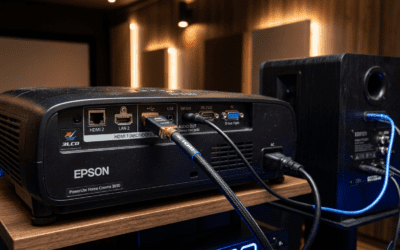
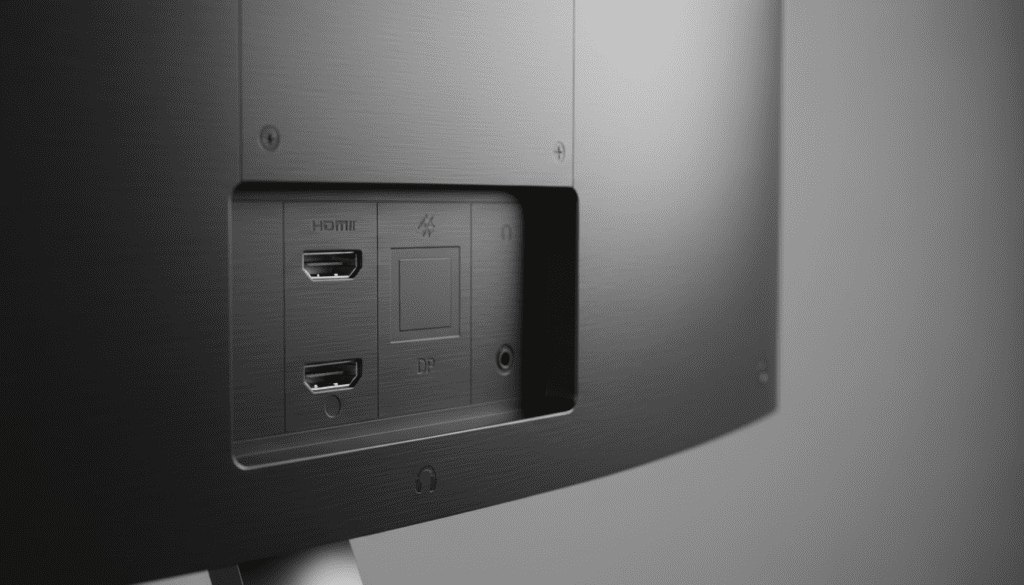
Most monitors that lack speakers still feature a 3.5mm Audio Out port. The audio settings in your monitor’s menu exist to control the volume, gain, or “mute” status of whatever you plug into that specific port. If you connect a pair of Bose headphones or Logitech speakers to the monitor, these settings suddenly become functional.
How to Verify if Your Monitor Has Built-in Speakers
Before diving into complex settings, we need to determine if your hardware actually has the physical components to produce sound. I have seen many users spend hours troubleshooting software when the hardware simply wasn’t there.
The Physical Inspection
Look closely at the chassis of your monitor. You are looking for speaker grilles—typically small clusters of holes or slots.
- Bottom Edge: The most common location for downward-firing speakers.
- Back Panel: Some monitors (like the Samsung Odyssey line) place speakers behind the screen.
- Ventilation vs. Speakers: Do not confuse cooling vents (usually long horizontal slats) with speaker grilles.
Check the Model Specifications
The most reliable method is to search for your specific model number.
- Look for the sticker on the back of the monitor.
- Search Google for “[Model Number] specs.”
- Specifically look for “Integrated Speakers” or “2W x 2” (indicating two-watt stereo speakers).
Identify the Available Ports
Check the I/O (Input/Output) panel on the back of the monitor. If you see a headphone icon next to a small circular jack, but no speakers, this confirms the monitor is a passthrough device.
| Feature | Built-in Speakers | Audio Passthrough Only |
|---|---|---|
| OSD Volume Menu | Yes | Yes |
| Physical Grilles | Yes | No |
| 3.5mm Jack | Usually Yes | Almost Always |
| Sound Quality | Often “Tinny” | Depends on external gear |
| Windows Recognition | Identified as “Audio Device” | Identified as “Audio Device” |
Step-by-Step: Managing Monitor Audio Settings in Windows 10/11
If you’ve confirmed can a monitor have audio settings without having speakers, your next step is ensuring Windows is sending the signal to the right place.
Step 1: Set the Correct Playback Device
- Click the Speaker Icon in the bottom right of your taskbar.
- Click the arrow to expand the list of playback devices.
- Select your monitor (it will likely be named after the brand, e.g., “DELL S2721D (NVIDIA High Definition Audio)”).
- If it’s not listed, right-click the icon and select “Sound Settings.”
Step 2: Configure Sound Properties
In the Sound Settings menu:
- Ensure the volume is turned up to at least 50%.
- Click on the monitor device to enter its Properties.
- Look for “Format” and ensure it is set to a standard rate (e.g., 24-bit, 48000 Hz).
- Check if the device is Disabled. If so, click “Enable.”
Step 3: Use the Volume Mixer
Sometimes, specific apps are muted while the system volume is up.
- Search for “Volume Mixer” in the Windows Start menu.
- Ensure that your browser or media player isn’t individually muted under the Output Device section assigned to your monitor.
Adjusting the Monitor’s Internal OSD (On-Screen Display)
Even after configuring Windows, the monitor’s internal software can still block sound. Since the monitor acts as a pre-amplifier for the 3.5mm jack, the OSD settings are critical.
Navigating the Menu
- Locate the physical buttons or the joystick on your monitor (usually bottom-right or center-back).
- Open the Menu or OSD.
- Navigate to the Audio or Sound tab.
- Check for two things: Volume and Mute.
- Increase the volume to 100 if you are connecting external speakers that have their own volume knob. This ensures a clean, strong signal from the PC to the speakers.
Why Your Volume Might Be “Greyed Out”
If you see the audio settings but cannot click them, it usually means:
- You are using a connection that doesn’t support audio (like VGA or DVI).
- The monitor detects that nothing is plugged into the 3.5mm jack, so it disables the software controls to save power.
Expert Tips for Enhancing Audio Passthrough Quality
In my professional studio setups, I often advise clients against using monitor passthrough for high-fidelity audio. However, if you must use it, follow these tips to ensure the best results.
Use High-Quality Cables
Not all HDMI cables are created equal. Use an HDMI 2.0 or 2.1 cable or a DisplayPort 1.4 cable. Cheap, unshielded cables can introduce electromagnetic interference (EMI), resulting in a constant buzzing or hissing sound when you plug headphones into your monitor.
Manage the “Signal Chain”
When using a monitor as a bridge, you have three volume controls:
- The Windows/Mac OS volume.
- The Monitor OSD volume.
- The External Speaker knob.
The Golden Rule: Set Windows and the Monitor OSD to 80-90%, and use your physical speaker knob to make fine adjustments. This minimizes “floor noise” (hissing).
Update Your Graphics Drivers
Since your GPU handles the audio signal sent to the monitor, outdated drivers are a common culprit for missing audio settings. Use NVIDIA GeForce Experience or AMD Software: Adrenalin Edition to ensure your “High Definition Audio Controller” drivers are current.
Troubleshooting: Why No Sound is Coming Through Your Monitor
If you have followed the steps above and still have silence, walk through this checklist. We use this exact protocol when diagnosing hardware issues in-office.
The “Ghost” Audio Device
Sometimes Windows thinks the monitor has speakers when it doesn’t. If you select the monitor as the output and plug headphones in, but hear nothing:
- The Fix: Unplug and re-plug the 3.5mm cable. Sometimes the physical sensor in the jack fails to trigger.
DisplayPort “Deep Sleep” Issues
Some monitors (particularly ASUS and Samsung models) have a “Power Save” or “Deep Sleep” mode for DisplayPort. This can cut the audio signal when the monitor dims.
- The Fix: Go into the OSD settings under System or Setup and disable “DisplayPort Deep Sleep.”
Check for Discrete Audio Drivers
Open Device Manager (right-click the Start button).
- Expand “Sound, video and game controllers.”
- If you see a yellow exclamation mark next to “NVIDIA High Definition Audio” or “Intel Display Audio,” right-click it and select “Update driver.”
Comparing Audio Connection Methods
If you are struggling with can a monitor have audio settings without having speakers, you might want to consider skipping the monitor’s audio path entirely.
| Connection Method | Pros | Cons |
|---|---|---|
| PC Directly to Speakers | Best sound quality; no interference. | Cable clutter on the desk. |
| Monitor Passthrough | Convenient for switching between console/PC. | Potential for hissing/noise; low power. |
| USB Speakers/Headsets | Bypasses monitor settings entirely. | Occupies a valuable USB port. |
| Bluetooth Audio | Completely wireless; modern. | Potential latency (lag) in gaming. |
Frequently Asked Questions
Can I add speakers to a monitor that doesn’t have them?
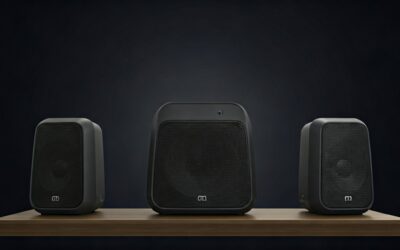
Yes. You can connect any standard PC speakers or Soundbar to the 3.5mm Audio Out port on the monitor. The monitor will then pass the sound from your HDMI/DisplayPort cable to those speakers.
Why does my monitor show up as a playback device if it has no speakers?
This happens because the HDMI and DisplayPort standards are designed to carry audio. Your computer sees the “capability” of the port, not the physical presence of speaker drivers.
Is monitor audio quality worse than motherboard audio?
Generally, yes. The Digital-to-Analog Converter (DAC) inside a monitor is usually budget-grade. For the best sound, I recommend plugging your speakers directly into the green port on the back of your motherboard.
My monitor has a volume button but no jack or speakers. Why?
In some rare cases, manufacturers use the same plastic shell (chassis) for multiple models. The buttons may be physically present but not connected to anything internally.
Does DisplayPort carry audio like HDMI does?
Yes, DisplayPort carries multi-channel digital audio just like HDMI. You can use the monitor’s audio settings regardless of which of these two digital cables you use.